• ×
    Information
    Need Windows 11 help?
    Check documents on compatibility, FAQs, upgrade information and available fixes.
    Windows 11 Support Center.
  • post a message
  • ×
    Information
    Need Windows 11 help?
    Check documents on compatibility, FAQs, upgrade information and available fixes.
    Windows 11 Support Center.
  • post a message
Guidelines
Here is the solution for the error: "Encryption Credentials have expired" when attempting to print or scan from Mac OS or iOS devices: Click here to view the troubleshooting steps!
Check some of the most frequent questions about Instant Ink: HP INSTANT INK, HP+ PLANS: INK AND TONER.


Check out our WINDOWS 11 Support Center info about: OPTIMIZATION, KNOWN ISSUES, FAQs AND MORE.
HP Recommended
Dell
Microsoft Windows 10 (64-bit)

I am unable to print from my desktop only. I get error message "Driver is unavailable". My printer is HP officejetpro 6970. I have Uninstalled and installed the Hp printer driver but the problem still persists.

1 REPLY 1
HP Recommended

@Kenar 


Add the following to your checkpoints


  • Right "Doctor" for the job
  • Connection to the router
  • Change connection type to TCP/IP
  • Completely remove and reload the printer software


Details...


If you want to try a more "automatic" fix, run the Offline version of the Print and Scan Doctor


Resource – Choose the right doctor for the job


Open Website

HP Print and Scan Doctor for Windows


Click the green Download Now option / box


Wait!

If the problem / issue is one or more of


  • Printer is Offline
  • Cannot print in Color
  • Duplex printing has disappeared
  • Installation continues to fail


Try this “Offline” Doctor version:

https://ftp.hp.com/pub/printers/hppsdr/patches/HPPSdr.exe


After the doctor runs, Restart the computer and log in.

Doctor will finish any necessary setups.


NOTES – The “Offline” doctor


As a result of repairing issues,


Offline / Color check / Duplex check version of the Doctor may replace the printer or add a “(Copy 1)” version of the driver in Devices and Printers.


If there are two printers in Devices and Printers,

If one of them does not work,

Try sending your job to the “Copy 1” named printer.


Later

If you want / need to rename the “Copy 1” printer:

Open Control Panel > icon view > Devices and Printers

Right-Click on the printer name > Printer Properties > Tab General >

In the top box, Edit the name of the printer (For example, remove the part that says “Copy 1”)

Click Apply / OK to save change


NOTE:  The name change may take a bit of time (a few minutes), else Restart the computer and log in.

==============================================================================


Manual checks / considerations


Connection at the router


The printer might be having trouble with the printer connection type, or the connection to a dual band router, for example.


This printer supports 2.4GHz  only


Review / Reference

Printer Specifications for HP OfficeJet Pro 6900 Printers 


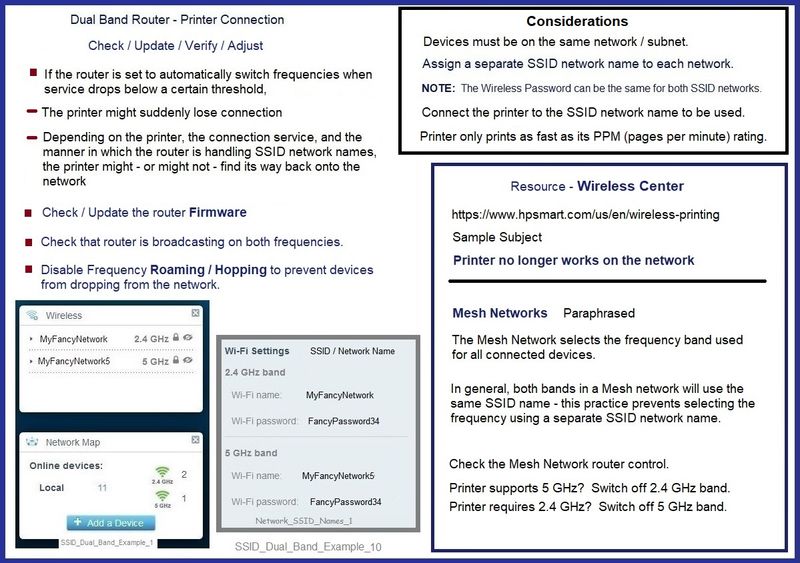
Dual band / dual frequency router?

Ignore this section if it does not apply to your situation.


Check that your router is broadcasting on both frequencies.

Assign an SSID named network for each band / frequency.

Connect the printer to the SSID network you intend it to use.

Note that it is OK to have the printer on one frequency and other devices on the other band.

The router will direct the traffic between the two bands and support devices on your network.


Example - Dual Band / Dual Frequency network / router

SSID_Dual_Band_Example_10SSID_Dual_Band_Example_10


=============================================================================

What else?

A "device"  or missing software message means the critical part of the installation is failing after the software itself is loaded and the printer is trying to connect.


Reloading and reloading software sometimes cannot fix the problem if the software is not the source of the issue.


What works depends on where the source of the failure is located.


Check / Adjust the printer connection to TCP/IP


Method - Create TCP IP port


** Install – Optional - Port Issues - Create a TCP/IP port **


TCP/IP can resolve odd connection, scanning, and installation problems.


Create / Switch to a TCP/IP Port to facilitate communication and prevent ‘offline’ issues


How-to “Create TCP Port” Contributed by  greenturtle:


  1. 1. Print a Configuration Page to get the printer's IPv4 address  

      OR Tap on the wireless icon on the Front panel of your Printer to get the IP address


  1. 2. On your PC, Open Control Panel, from Devices and Printers, Right-Click the printer and Left-Click Printer Properties, select the Ports tab.

  2. 3. Click Add Port > Select Standard TCP/IP Port > Select New Port and follow the wizard.

  3. 4. Type in the proper IP address for the printer.


How-to “Create TCP Port” Video Contributed by  greenturtle
Create & Use TCP IP port

Note that you can ALWAYS revert back to the original port that the HP software installed by selecting the HP port within the Ports tab (in Printer Properties)


==========================================================================


Not quite enough?


  • Uninstall the printer software AND go back to check and clear out anything that might have been missed.  This seems counter intuitive - you have already uninstalled a dozen time - the extra "clean up" steps can catch bits that are missed by the normal uninstall process.  After the complete uninstall, Restart the computer and install the printer software.


>>> Your Full Feature Software / full driver printer software installation package

HP OfficeJet Pro 6970 All-in-One Print and Scan Driver and Accessories 


Details / How-to / Examples


Use this method when there are problems reinstalling the software.


Start - “All the bits”


Printer Software – Blocked in Security Software


Check your Security Software to make sure the printer software is not being blocked.  Most Security software will allow you to make an exception for applications / software you want to use on your computer.


If you make changes to the security software setup, Restart your computer and log in.


Uninstall Existing Printer Software (Full Feature Software)


Control Panel > icon view > Programs and Features >

Find / Select > Uninstall the printer software

Restart the computer and log in


If software will not uninstall, appears to be removed and is “still hanging around” after you uninstall / Restart...

Microsoft:  Fix problems that block programs from being installed or removed

OR

Revo Uninstaller (Free version)

then

Restart the computer and log in


Check and Remove Section


Reminder: After all checks > If any changes are made > Restart the computer and log in


Check / Remove - Printer Drivers – Lurking in Devices and Printers


Control Panel > icon view > Devices and Printers

Left-Click on any unwanted Printer found in the Printers list

(Top Ribbon) Click Print Server Properties > tab Drivers

Select each unwanted entry > Remove > OK to exit menu

Back in Devices and Printers > Right-Click on the printer > Remove Device


Check / Remove – Printer folder/files in C:\ ProgramData


Open File Explorer > Navigate to C:\ProgramData > Open folder Hewlett Packard

Delete any Printer related folders / files


Check / Remove - Printer Software – Lurking in the Device Manager


Control Panel > icon view > Device Manager

Expand category Printers


If any unwanted printer name or “Unknown Device” is listed,

Right-Click on the printer / device > Uninstall


Expand category Imaging Devices


If any unwanted printer name or “Unknown Device” is listed,

Right-Click on the printer / device > Uninstall


Check / Remove  - Printer Software – Lurking in the User Account


Clear HP / files in Temp folder


Windows key + X + R (Run command) > type %temp%

Delete the files in the Temp folder (Ignore files that cannot be removed)


Open File Explorer > Navigate to C:\Users\YourAccount\AppData\Local\HP

Remove / Delete any folder named for the printer you wish to remove


Manual Queue Reset

Details…

Control Panel > icon view > Administrative Tools > Services

Scroll down, find, Right-Click, and Stop Print Spooler Service

Open File Explorer (formally Windows Explorer)

Navigate to the folder and Delete the files from folder C:\Windows\System32\spool\PRINTERS

Back in Services 

Start Print Spooler Service


End Check and Remove Section

After all checks are completed > Restart the computer and log in

======================================================


Installation – Full Feature Software


  • If using USB, disconnect the USB cable between the printer and the computer before starting the installation.  Connect the cable when instructed to do so (toward the end of the installation procedure).


Printer Software - Easy Start Software wrapper

  • Home Page - HP Easy Start
  • Open Category Software and Drivers
  • Topic: Software-Utility
  • Download and save the current version of the Easy Start Software to install your print software


No Easy Start for your older model? 

OR

If you do not already have your installation package ready to download

then

Look for and Download-Save-Install the Full Feature Software (Printer Software) installation package


  • Open your printer Support Website  
  • Open Category Software and Drivers
  • Full Feature Software might have been relocated to subcategory Software-Utility
  • Installation package name might be Print and Scan Driver and Accessories


Basic Instructions - Install the Full Feature Software / Full Driver printer software


  • If using VPN, shut it off to install software
  • Download and Save the Full Feature Software installation package or the Easy Start Software
  • Open File Explorer
  • Navigate to the folder in which you saved the installation file  (likely Downloads)
  • Reminder:  If using USB cable between printer and computer, disconnect the cable before installing software.
  • Right-Click on the installation package and “Run as Administrator
  • If using Easy Start > When asked, opt for "Full Driver" (exact wording might vary).
  • If using Easy Start > Skip any extra software / offers you do not want (wording varies).
  • After the software is installed, Restart the computer and log in


HP Printer Support Home Page - References and Resources – Learn about your Printer  - Solve Problems

 “Things that are your printer”

NOTE:  Content depends on device type and Operating System

Categories:  Alerts, Access to the Print and Scan Doctor (Windows), Warranty Check, HP Drivers / Software / Firmware Updates, How-to Videos, Bulletins/Notices, Lots of How-to Documents, Troubleshooting, Manuals > User Guides, Product Information (Specifications), more

When the website support page opens, Select (as available) a Category > Topic > Subtopic

HP OfficeJet Pro 6970 All-in-One Printer series 


Thank you for participating in the HP Community.

The Community is a separate wing of the HP website - We are not an HP business group.

Our Community is comprised of volunteers - people who own and use HP devices.


Click Helpful = Yes to say Thank You.

Question / Concern Answered, Click "Accept as Solution"

Dragon-Fur

† The opinions expressed above are the personal opinions of the authors, not of HP. By using this site, you accept the <a href="https://www8.hp.com/us/en/terms-of-use.html" class="udrlinesmall">Terms of Use</a> and <a href="/t5/custom/page/page-id/hp.rulespage" class="udrlinesmall"> Rules of Participation</a>.