• ×
    Information
    Need Windows 11 help?
    Check documents on compatibility, FAQs, upgrade information and available fixes.
    Windows 11 Support Center.
  • post a message
  • ×
    Information
    Need Windows 11 help?
    Check documents on compatibility, FAQs, upgrade information and available fixes.
    Windows 11 Support Center.
  • post a message
Guidelines
Join the HP Community Solve‑a‑thon | Help Others & Share Your Solutions | Live on Zoom | 2:30 PM to 2:30 AM IST | Every Wednesday Click here to know more
Check some of the most frequent questions about Instant Ink: HP INSTANT INK, HP+ PLANS: INK AND TONER.


Check out our WINDOWS 11 Support Center info about: OPTIMIZATION, KNOWN ISSUES, FAQs AND MORE.
HP Recommended
HP OfficeJet 4650 All-in-One Printer
Microsoft Windows 10 (32-bit)

My HP OfficeJet 4650 recently stopped printing automatic duplex.  Instead, it prints the print jobs single-sided and ejects one blank piece of paper between each page that it prints.  I haven't changed a thing on my system.  No software updates, no new hardware, nothing has changed except this bizarre duplex printing activity.  Any idea how to fix it?

1 REPLY 1
HP Recommended

@ejohn01

Thank you for posting on the HP Support Community.
 

Don't worry as I'll be glad to help, I appreciate your efforts to try and resolve the issue. 
 

Perform a hard reset on the printer and make sure that the printer is connected directly to the wall outlet and not to the surge protector.

  • With the printer turned on, disconnect the power cord from the rear of the printer and also unplug the power cord from the wall outlet.
  • Remove USB cable, if present.
  • Wait for 2-3 minutes, press and hold the power button on your printer for about 30 seconds to remove any additional charge.
  • Now plug back the power cable straight to a wall outlet without any surge protector or an extension cord and then plug back the power cord to the printer.
  • Turn on the printer and wait till the warm-up period finishes and the printer is idle.

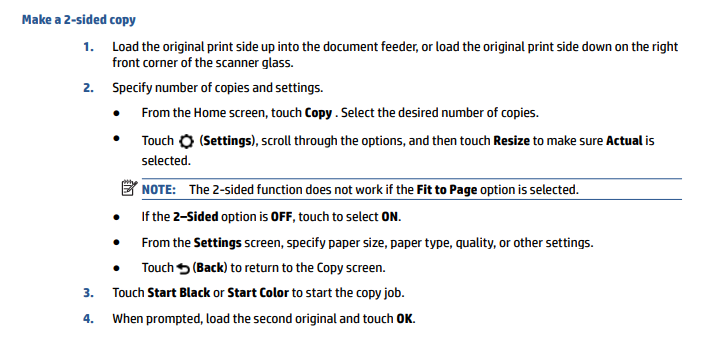
Make a 2-sided copy

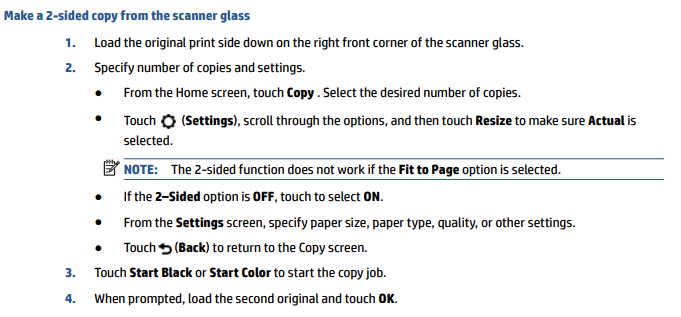
Make a 2-sided copy from the scanner glass

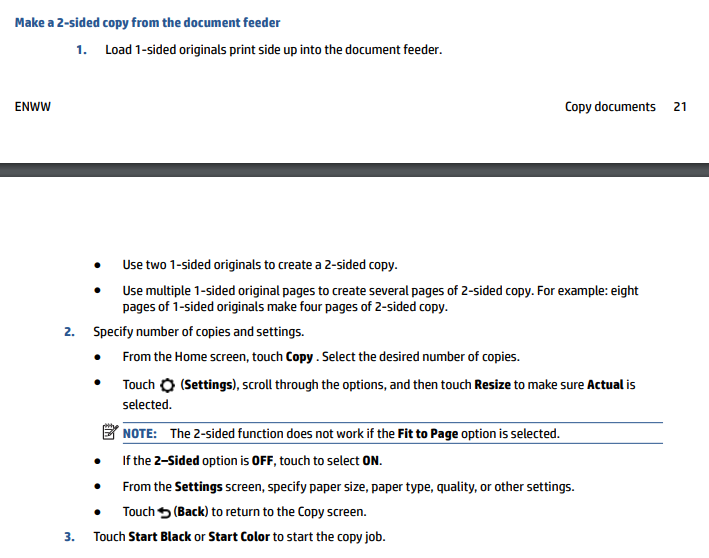
Make a 2-sided copy from the document feeder

For more in detail, please go through the User guide of this printer and scroll down to Chapter 4. Copy and Scan pages number 21 & 22.
 

Hope this helps! Keep me posted for further assistance.
Please click “Accept as Solution” if you feel my post solved your issue, it will help others find the solution. Click the “Kudos, Thumbs Up" on the bottom right to say “Thanks” for helping!

ECHO_LAKE
I am an HP Employee

† The opinions expressed above are the personal opinions of the authors, not of HP. By using this site, you accept the <a href="https://www8.hp.com/us/en/terms-of-use.html" class="udrlinesmall">Terms of Use</a> and <a href="/t5/custom/page/page-id/hp.rulespage" class="udrlinesmall"> Rules of Participation</a>.