• ×
    Information
    Need Windows 11 help?
    Check documents on compatibility, FAQs, upgrade information and available fixes.
    Windows 11 Support Center.
  • post a message
  • ×
    Information
    Need Windows 11 help?
    Check documents on compatibility, FAQs, upgrade information and available fixes.
    Windows 11 Support Center.
  • post a message
Guidelines
Seize the moment! nominate yourself or a tech enthusiast you admire & join the HP Community Experts!
Check some of the most frequent questions about Instant Ink: HP INSTANT INK, HP+ PLANS: INK AND TONER.


Check out our WINDOWS 11 Support Center info about: OPTIMIZATION, KNOWN ISSUES, FAQs AND MORE.
HP Recommended
ENVY5540
Microsoft Windows 10 (64-bit)

I cannot print in colour from my PC whereas a diagnostic test from the printer prints in colour.

I saw people have had the same problem and that it was due to a driver.

I tried to uninstall all HP software and drivers. 

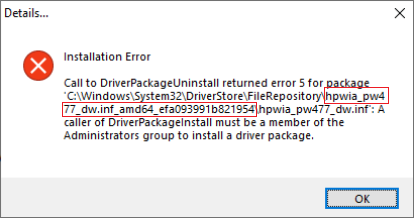
I managed in deleting all HP drivers but I cannot uninstall the HP software as I have this error message : 

thomascornet_0-1587643434539.png

I tried to reinstall the software and drivers from HP website but I still have the same issue : no print in colour possible.

Could you help me ? Thank you. Thomas


2 REPLIES 2
HP Recommended

@thomascornet, Welcome to HP Support Community!


Are you able to make photocopies in color? If yes, follow the steps below-


Use HP Print and Scan Doctor

Download HP Print and Scan Doctor and run the program. It will automatically diagnose and fix any printing/scanning issues. 

For more information, go to https://support.hp.com/us-en/topic/printscandoctor


Check the printer driver settings. Refer to the document for help- HP Printers - Print Driver Settings Guide (Windows)


Restart the print spooler and try uninstalling the drivers


Press “Windows key” + “r” to get the “Run” window.

Type "services.msc" to get Services – Go to “Print spooler” – Right-click and “Stop” the service.

Now again open "Run" - Type “spool” and ok - Go to PRINTERS folder - delete everything in that folder.

Go to services again - Start the print spooler.


Delete the driver and root level and retry, follow the steps below: 


1) In Windows, search for and open Programs and features 

2) Select your HP Printer 

3) Select Uninstall 

4) In Windows, search for and open Devices and printers 

5) In the Devices and Printers windows look for your HP printer. If you see it listed right-click on it and choose ‘Delete’ or ‘Remove Device’ 

6) Open up the run command with the “Windows key + R” key combo. 

7) Type printui.exe /s and click Ok. (Note: there is a space in between “printui.exe”

8). Click on the “Drivers” tab 

9) Look for HP Printer driver. If you see it Click on it and click Remove at the bottom 

10) Select Ok 

11) Select Apply and Ok on the Print Server Properties windows 

12) Close Devices and Printers.


Use this link to download and install the new driver. Configure the printer and try printing.


If you still have issues, try the Windows built-in drivers. Follow the steps below:


•   Uninstall the printer drivers. Go to Control Panel - Devices and Printers - Click on "Add printer" and follow the on-screen instructions.

•    When the page prompts for the drivers, select "Windows update". The driver list will be updated.

•    Click HP, Hewlett Packard, or Hewlett-Packard in the Manufacturer pane, and then click the name of your printer in the Printers pane.


Refer to this document HP Printers - Installing and Using the Windows Built-in Print Driver for help


If no, follow the steps from the document  Black or Color Ink Not Printing, Other Print Quality Issues.


Hope this helps! Keep me posted. 


Please click “Accepted Solution” if you feel my post solved your issue, it will help others find the solution. Click the “Kudos/Thumbs Up" on the bottom right to say “Thanks” for helping!

TEJ1602
I am an HP Employee

HP Recommended

Hi,

Apologies for jumping in, however, I believe that the below steps may allow a quicker resolution for that problem.

@TEJ1602steps above are perfectly correct of course, but this is just another method of approaching such a problem.


Please try following below specific version of the HP Print and Scan Doctor Utility by selecting your printer, it may resolve the problem with no need of reinstalling the HP Software:

http://ftp.hp.com/pub/printers/hppsdr/patches/HPPSdr.exe


Be sure to restart your PC and allow the utility to complete the process, then check for any difference.


If that doesn't help, try following below steps:

Symptoms

When you try installing or uninstalling the HP Basic Device Software for your printer, a form of the following error returns:

DriverPackageUninstallError5.png

Solution

Note: if you have an HP Computer, follow the steps within the HP PC Solution section and do not follow any further steps within this section


  • From the search bar type CMD, right-click on Command Prompt and select Run as Administrator.
  • Copy the following command, then right-click the Command Prompt dialog and select Paste, then press Enter till any command completes
  • processing:
    takeown /f %windir%\System32\DriverStore\FileRepository /r /d y
    icacls "%windir%\System32\DriverStore\FileRepository" /grant %username%:(OI)(CI)F /T
    for /d %G in ("%windir%\System32\DriverStore\FileRepository\hpwia*") do rd /s /q "%~G"
    takeown /f %windir%\System32\DriverStore\FileRepository /A /r /d y
    Note: This provides your user full permissions to the File Repository system folder and deletes all HP's folders from within the system folder
    Note: if you receive any Syntax error and your operating system language is in a different language than English, review the following Takeown command documentation from Microsoft for your language and modify the syntax accordingly.

  • From the Start menu click the Gear icon, select Apps and uninstall the HP Basic Device Software for your printer.
  • Download and install the latest HP Basic Device Software for your printer as necessary:
    https://support.hp.com/us-en/drivers/printers


HP PC Solution
  • From the search bar type CMD, right-click on Command Prompt and select Run as Administrator.
  • Copy the following command, then right-click the Command Prompt dialog and select Paste, then press Enter till any command completes processing:
    takeown /f %windir%\System32\DriverStore\FileRepository /r /d y
    icacls "%windir%\System32\DriverStore\FileRepository" /grant %username%:(OI)(CI)F /T
    takeown /f %windir%\System32\DriverStore\FileRepository /A /r /d y
     Note: This provides your user full permissions to the File Repository system folder
    Note: if you receive any Syntax error and your operating system language is in a different language than English, review the following Takeown command documentation from Microsoft for your language and modify the syntax accordingly.
  • From the Start menu click the Gear icon, select Apps and uninstall the HP Basic Device Software for your printer and evaluate the error message, then close the Uninstall dialog.
  • Right-click the Start button and select Run, then paste the following path and press OK:

    %windir%\System32\DriverStore\FileRepository
  • Locate and delete only the HP Folder listed in the error message.
    Example: following below error message, delete the hpwia_pw477dw.inf_amd64_efa093991b821954 folder as an example:
    DriverPackageUninstallError5HP.png
  • From the Start menu click the Gear icon, select Apps, and uninstall the HP Basic Device Software for your printer.
  • Download and install the latest HP Basic Device Software for your printer as necessary:
    https://support.hp.com/us-en/drivers/printers

Hope that helps,

Shlomi


Click the Yes button to reply that the response was helpful or to say thanks.
If my post resolve your problem please mark it as an Accepted Solution 🙂
† The opinions expressed above are the personal opinions of the authors, not of HP. By using this site, you accept the <a href="https://www8.hp.com/us/en/terms-of-use.html" class="udrlinesmall">Terms of Use</a> and <a href="/t5/custom/page/page-id/hp.rulespage" class="udrlinesmall"> Rules of Participation</a>.