
-
×InformationNeed Windows 11 help?Check documents on compatibility, FAQs, upgrade information and available fixes.
Windows 11 Support Center. -
-
×InformationNeed Windows 11 help?Check documents on compatibility, FAQs, upgrade information and available fixes.
Windows 11 Support Center. -
- HP Community
- Printers
- Printer Setup, Software & Drivers
- Re: Envy 7640 Software install without ink cartridges?

Create an account on the HP Community to personalize your profile and ask a question
Your account also allows you to connect with HP support faster, access a personal dashboard to manage all of your devices in one place, view warranty information, case status and more.
Check some of the most frequent questions about Instant Ink: HP INSTANT INK, HP+ PLANS: INK AND TONER.
Check out our WINDOWS 11 Support Center info about: OPTIMIZATION, KNOWN ISSUES, FAQs AND MORE.

It has been a while since anyone has replied. Simply ask a new question if you would like to start the discussion again.

05-01-2019 03:02 PM
 HP Recommended
Product: Envy 7640
Operating System: Microsoft Windows 10 (64-bit)
I am trying to install the SW for my printer that has been in storage for 18 months.
It has no ink cartridges.
Its is connected to the same network as my computer.
It is able to access the internet and I updated the firmware.
The install SW sees the printer/IP address/MAC address.
But, I get an error at the end of the SW install saying that the device was unable to be installed over the network.
I called tech support, and they were unwilling to proceed without ink cartridges, which will not arrive for 2 days.
In searching this forum this seems a common probolem, with a solution that has not been made public.
Please help!!
JV
6 REPLIES 6


05-02-2019 12:04 PM - edited 05-02-2019 01:17 PM
HP Recommended
Thank you for reaching out to the HP Support community!
- What is the error that you are getting on the printer? Please share the screenshot if possible.
- The wireless light on the printer is that solid or flashing?
You can try running the HP Print and Scan Doctor. It is an automated tool that resolves most of the printer issues automatically.
- Download HP Print and Scan Doctor
- Run HPPSdr.exe from the download location on your computer.
- Once HP Print and Scan Doctor is open, click Start, and then choose your printer.
- If your printer is not listed, turn it on and click Retry.
- If there is a connection problem, follow the instructions in the tool.
- Follow the on-screen instructions and check if this fixes the issue.
Let me know if this information helps or if you need any further assistance.
Please click “Accept as Solution” if you feel my post solved your issue, it will help others find the solution.
Click the “Kudos, Thumbs Up" on the bottom right to say “Thanks” for helping.
ATHARVA_GP
I am an HP Employee
05-02-2019 12:07 PM - edited 05-02-2019 12:12 PM
HP Recommended
- No error on the printer
- Wireless connection is solid blue light. Would I have been able to download new FW without this?
- Your link gives "Error404: There is no content available." on 2 browsers

05-02-2019 01:28 PM - edited 05-02-2019 01:28 PM
HP Recommended
Let's try these steps:
Step 1: Check the Function discovery services
- Open up the run command with the "Windows key + R" key combo.
- Type 'services.msc' and click ok.
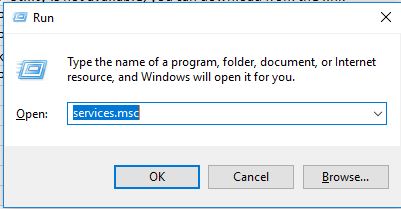
- A list of windows services shows up.
- Search for Function Discovery Provider Host and Function Discovery Resource Publication Services
- Make sure the status of these services are running
- If not select the service and click on start.
- Try to run the installation software again
- If the issue persists, proceed to the next step.
Step 2: Restart the computer, printer, and router
Turn off the router by pressing the power button or disconnecting the power cord.
Turn off the printer, and then unplug any USB or Ethernet cables.
Close all running programs on your computer, and then shut down the computer.
Reconnect the power cord to the router, and then wait for the Internet activity light to display a normal connected status.
Turn on the printer.
Turn on the computer and proceed to the next step.
Step 3: Uninstall the HP driver and software
Some HP software components might have installed incorrectly, even if the print driver and setup did not complete.
Remove your print driver and software using the Uninstall program tool in Windows Programs and Features.
If your printer connects to the computer with a USB cable, disconnect the cable from the printer.
Search Windows for programs and features, and then click Programs and Features in the list of results.
In the list of installed programs, click your HP printer name, and then click Uninstall or Yes.
If a User Account Control message displays, click Yes.
Follow the on-screen instructions to complete the software removal.
If the software uninstall process does not start or an error displays while uninstalling, download Fix problems that block programs from being installed or removed (in English) from the Microsoft website, and then try uninstalling again.
After the software uninstall is complete, restart the computer, and then continue to the next step
Step 4: Repair system files
Use the Microsoft System File Checker (SFC) utility.
System File Checker (SFC) is a utility in Microsoft Windows that allows users to scan for and restore corruptions in Windows system files.
- On the windows start menu search for a program called 'command prompt'
- right click on the app and select 'Run as Administrator'

- When Command Prompt opens, enter sfc /scannow and press Enter.

- The repair process will now start. Don’t close Command Prompt or interrupt the repair process. The repair process can take a while, so wait patiently while it completes.
- When the SFC scan is complete, the Command Prompt might state, “Windows Resource Protection found corrupt files and successfully repaired them.” If that’s the case, restart Windows.
- Re-install the printer driver from this link.
Let me know what happens.
ATHARVA_GP
I am an HP Employee
05-03-2019 12:41 PM
HP Recommended
Both Function Discovery services were and are running.
SFC did not find any problems.
I restarted everything, this being the 3rd time I have tried that.
Since your link did not specify a driver, I tried the basic one first.
It did not find the printer, and I had to specify its IP address but eventually it worked.
Later I installed Photo Creations separately.
I also installed the full package on a W7 computer and it installed fine.
05-03-2019 02:14 PM
HP Recommended
Glad to know that you were able to complete the installation.
Please use the printer and if in case if you need any assistance feel free to reach us back for further help.
Cheers!
ATHARVA_GP
I am an HP Employee

Be alert for scammers posting fake support phone numbers and/or email addresses on the community.
If you think you have received a fake HP Support message, please report it to us by clicking on "Flag Post".
† The opinions expressed above are the personal opinions of the authors, not of HP. By using this site, you accept the Terms of Use and Rules of Participation.


Didn't find what you were looking for?
Ask the community
† The opinions expressed above are the personal opinions of the authors, not of HP. By using this site, you accept the <a href="https://www8.hp.com/us/en/terms-of-use.html" class="udrlinesmall">Terms of Use</a> and <a href="/t5/custom/page/page-id/hp.rulespage" class="udrlinesmall"> Rules of Participation</a>.