
-
×InformationNeed Windows 11 help?Check documents on compatibility, FAQs, upgrade information and available fixes.
Windows 11 Support Center. -
-
×InformationNeed Windows 11 help?Check documents on compatibility, FAQs, upgrade information and available fixes.
Windows 11 Support Center. -
- HP Community
- Printers
- Printer Setup, Software & Drivers
- Re: Error Code When I Select Printer Properties

Create an account on the HP Community to personalize your profile and ask a question
Your account also allows you to connect with HP support faster, access a personal dashboard to manage all of your devices in one place, view warranty information, case status and more.
Check some of the most frequent questions about Instant Ink: HP INSTANT INK, HP+ PLANS: INK AND TONER.
Check out our WINDOWS 11 Support Center info about: OPTIMIZATION, KNOWN ISSUES, FAQs AND MORE.

It has been a while since anyone has replied. Simply ask a new question if you would like to start the discussion again.

07-10-2023 08:49 AM
 HP Recommended
Product: HP ENVY 5549 All-in-One Printer
I get the following pop up code whenever I try to access my printer properties:
FUNCTION ADDRESS 0x00007FF8BC9B4B2C caused a protection fault. (exception code 0xe06d7363) The application property page(s) may not function properly.
HELP!!
Solved! Go to Solution.
1 ACCEPTED SOLUTION
Accepted Solutions


07-10-2023 03:42 PM
HP Recommended
You are welcome.
It seems like more than it is - lots of words...
You could try the "fix it" without changing anything:
Restart Everything, including the router that controls your network
Can’t stand it? Consider: Restart computer(s) and printer.
If you can't stand that one, or if you try it and it does not actually do anything useful
(then)
Complete the steps to clear and restart the print queue / Print Services.
Might work and it does not take a long time.
If that does not work by itself,
Uninstall / Reinstall the Full Feature Software.
Might work and it takes a little work but does clean up the print driver and software...
Let us know how it goes.
Thank you for participating in the HP Community --
People who own, use, and support HP devices.
Click Yes to say Thank You
Question / Concern Answered, Click my Post "Accept as Solution"
Dragon-Fur


5 REPLIES 5
07-10-2023 12:28 PM
HP Recommended
Welcome to the HP Community --
This would have been one of the tines that you knowing which version of Windows you are running might be helpful.
Then, maybe not.
What?
Most of what I can find on the 'net says the problem is Windows 10 -- or it is Windows 11 -- or it's Windows 10 having been updated to Windows 11 -- or it's Windows 11 being downgraded to Windows 10 -- or it's s a recent "Windows Update" -- or it's Windows corruption > reload Windows -- or it's driver corruption > remove and reload printer drivers -- or it's print services corruption > Rebuild the print queue.
From what I can find, the cause of the issue is perhaps not any of those things alone.
Try / Consider
Two Sections + References / Resources
=========================================
1) Details > Manual Queue Reset
> > > Windows 10 / Windows 11 < < <
Windows Start > Search for “Services”
Optional > Right-Click and Pin to Start / Taskbar > Open Services App
> > > Windows 10 < < <
Control Panel > icon view > Administrative Tools > Services
Next,
Scroll down, find, Right-Click, and Stop Print Spooler Service
Open File Explorer (formally Windows Explorer)
Navigate to the PRNTERS folder
NOTE: Folder might be hidden.
C:\Windows\System32\spool\PRINTERS
OR
C:\Windows\System\spool\PRINTERS
Delete any files found in folder
Start Print Spooler Service
=-=-=-=-=-=-=-=-=-=-=-=-=-=-=-=-=
Jobs in Print Queue Disappear
Temp Folder Permissions
If the print job is making its way to the print queue and then disappearing,
Check / Correct the folder permission(s)
Temp folder requires full permissions, including Read / Write, for current user
Check / add / edit permissions for user (current login) on Temp folders
C:\Windows\Temp
C:\Users\AccountName\AppData\Local\Temp
Example - Windows - Print Services / Temp Folder Permissions

=========================================
2) Printer Software
=========================
Printer - Full Feature Software - Install
If you have not done so, consider
- HP Full Feature Software / Full Driver printer software - supports printing and scanning from the web, printing in in other software and programs (for example, Word), and provides access to the full range of Printing Preferences / Shortcuts. The full driver adds at least two shortcuts to the Desktop: Printer Assistant and HP Scan. If the printer model includes built-in Fax hardware, the software supports the setup and use of the Fax driver. No Sign-in required.
If the full driver printer software is (already) installed but not working,
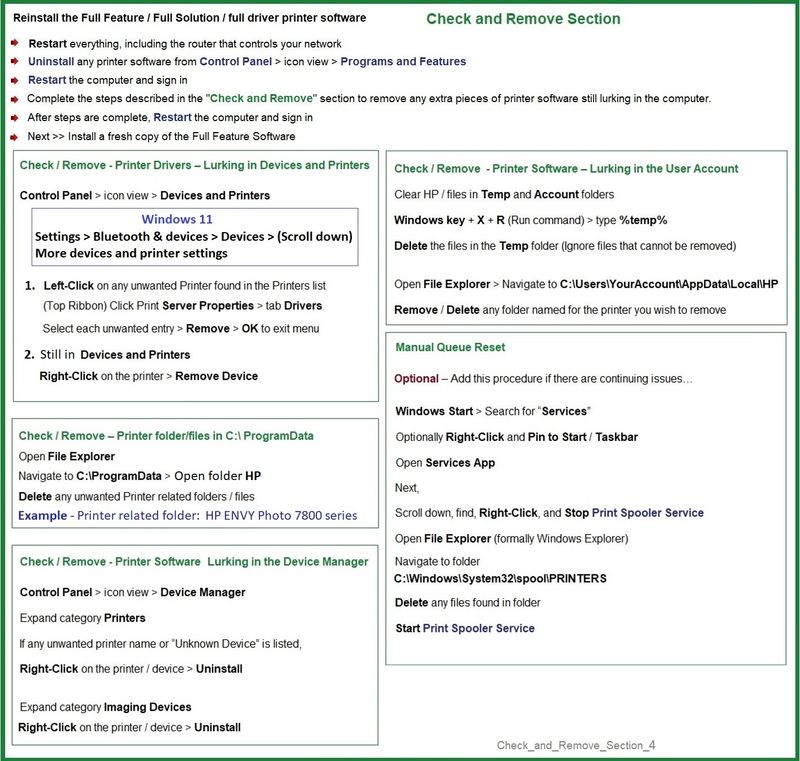
- Uninstall any printer software from Control Panel > icon view > Programs and Features
- Restart the computer and sign in.
Next,
- Check (for the Printer) in Devices and Printers > If found, Right-Click Printer and Remove -- If any changes are made, that is, you remove anything, Restart the computer and sign in.
What if?
If you are having trouble using or installing the software, for example, everything goes along swimmingly and suddenly you see "Driver Unavailable" or other odd installation problems, Add the steps in the Check and Remove Section when uninstalling the printer software.
Next,
- If using a printer USB cable between the printer and the computer, disconnect the cable before installing the printer software.
- Download and Save the Full Feature Software installation package or the Easy Start Software
Details Page - Driver - For your Printer
>>> Full Feature Software - Web Pack Installation Package - Information - Download <<<
HP ENVY 5540 series Full Feature Software and Drivers
Installation
- Open File Explorer
- Navigate to the folder in which you saved the installation file (likely Downloads)
- Right-Click on the installation package and “Run as Administrator”
- If using a printer USB cable between the printer and the computer, connect the cable when instructed (near the end of the installation).
- After the software is installed, Restart the computer and log in
====================================
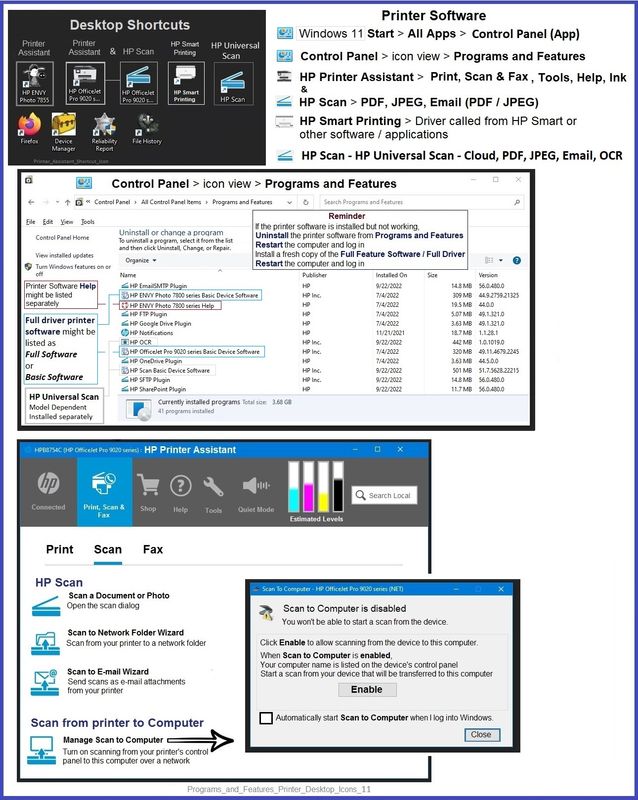
The installation of the full driver adds at least two shortcuts to the Desktop:
Printer Assistant
HP Scan
>>> Open the Printer Assistant > tab Scan > Manage Scan to Computer > Enable
Example - Windows - Full Feature Software - Installed in Programs and Features
References / Resources
=+=+=+=+=+=+=+=+=+=+=+=+=+=+=+=+=+=+=+=+=+=
HP Printer Home Page - References and Resources
Learn about your Printer - Solve Problems
“Things that are your printer”
When the website support page opens, Select (as available) a Category > Topic > Subtopic
NOTE: Content depends on device type and Operating System
Categories: Alerts, Access to the Print and Scan Doctor (Windows), Warranty Check, HP Drivers / Software / Firmware Updates, How-to Videos, Bulletins/Notices, Lots of How-to Documents, Troubleshooting, Manuals > User Guides, Product Information (Specifications), Supplies, and more
Open
HP ENVY 5549 All-in-One Printer
Thank you for participating in the HP Community --
People who own, use, and support HP devices.
Click Yes to say Thank You
Question / Concern Answered, Click my Post "Accept as Solution"
Dragon-Fur
07-10-2023 03:42 PM
HP Recommended
You are welcome.
It seems like more than it is - lots of words...
You could try the "fix it" without changing anything:
Restart Everything, including the router that controls your network
Can’t stand it? Consider: Restart computer(s) and printer.
If you can't stand that one, or if you try it and it does not actually do anything useful
(then)
Complete the steps to clear and restart the print queue / Print Services.
Might work and it does not take a long time.
If that does not work by itself,
Uninstall / Reinstall the Full Feature Software.
Might work and it takes a little work but does clean up the print driver and software...
Let us know how it goes.
Thank you for participating in the HP Community --
People who own, use, and support HP devices.
Click Yes to say Thank You
Question / Concern Answered, Click my Post "Accept as Solution"
Dragon-Fur
07-31-2023 12:50 PM
HP Recommended
Excellent.
You are welcome.
+All good, then."

Thank you for participating in the HP Community --
People who own, use, and support HP devices.
Dragon-Fur

Be alert for scammers posting fake support phone numbers and/or email addresses on the community.
If you think you have received a fake HP Support message, please report it to us by clicking on "Flag Post".
† The opinions expressed above are the personal opinions of the authors, not of HP. By using this site, you accept the Terms of Use and Rules of Participation.


Didn't find what you were looking for?
Ask the community
† The opinions expressed above are the personal opinions of the authors, not of HP. By using this site, you accept the <a href="https://www8.hp.com/us/en/terms-of-use.html" class="udrlinesmall">Terms of Use</a> and <a href="/t5/custom/page/page-id/hp.rulespage" class="udrlinesmall"> Rules of Participation</a>.