
-
×InformationNeed Windows 11 help?Check documents on compatibility, FAQs, upgrade information and available fixes.
Windows 11 Support Center. -
-
×InformationNeed Windows 11 help?Check documents on compatibility, FAQs, upgrade information and available fixes.
Windows 11 Support Center. -
- HP Community
- Printers
- Printer Setup, Software & Drivers
- Every time we try to copy something, the printer cancels the...

Create an account on the HP Community to personalize your profile and ask a question
Your account also allows you to connect with HP support faster, access a personal dashboard to manage all of your devices in one place, view warranty information, case status and more.
Check some of the most frequent questions about Instant Ink: HP INSTANT INK, HP+ PLANS: INK AND TONER.
Check out our WINDOWS 11 Support Center info about: OPTIMIZATION, KNOWN ISSUES, FAQs AND MORE.

It has been a while since anyone has replied. Simply ask a new question if you would like to start the discussion again.

7 REPLIES 7


05-05-2020 03:48 PM - last edited on 04-03-2023 01:52 PM by SofiaML
 HP Recommended
There are at least 48 different models of "Officejet Pro".
In general,
- Officejet printers generally support several options from the printer control panel - the extent to which this is true is dependent on the model of the printer.
- Copy is basic to the printer - for example, there are no software or network requirements.
Known solutions here, including the first one that explains what to try when Copy just does not copy.
--------------------------------------------------------------------------
What else?
Consider...
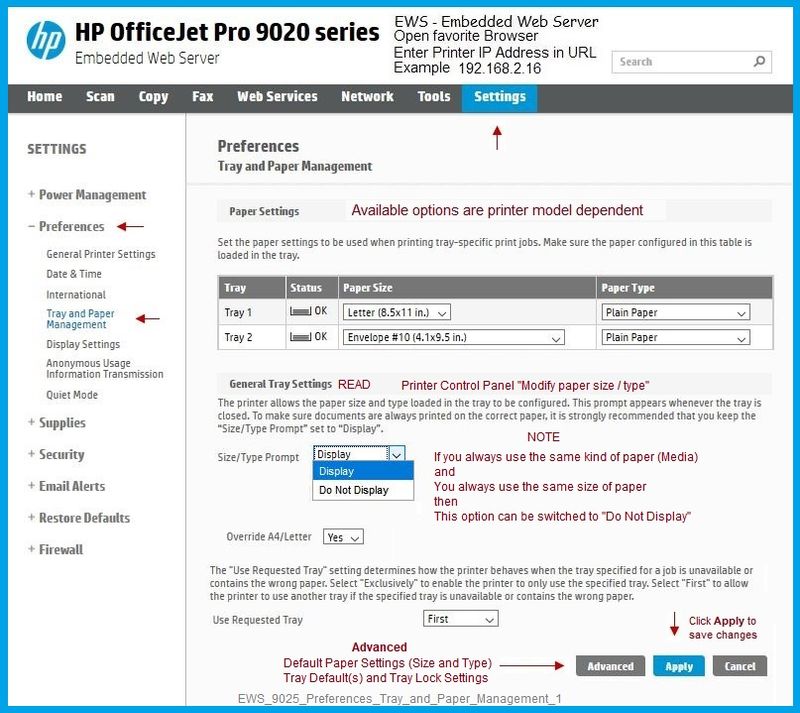
Copy might balk if the paper / paper size settings are incorrect and / or if the Copy Defaults are set in a particular way and you are expecting / wanting something else.
Check / Adjust / Retain the Paper at the Printer Panel
Open Printer Tray,
If you have not yet done so, add desired paper type
Close Tray
IF applicable for your printer:
On the printer control panel, Click Modify (wording varies), set the paper size and type, Click OK
NOTE: If the size of the Paper Size is not in the Drop-down list, Select Custom
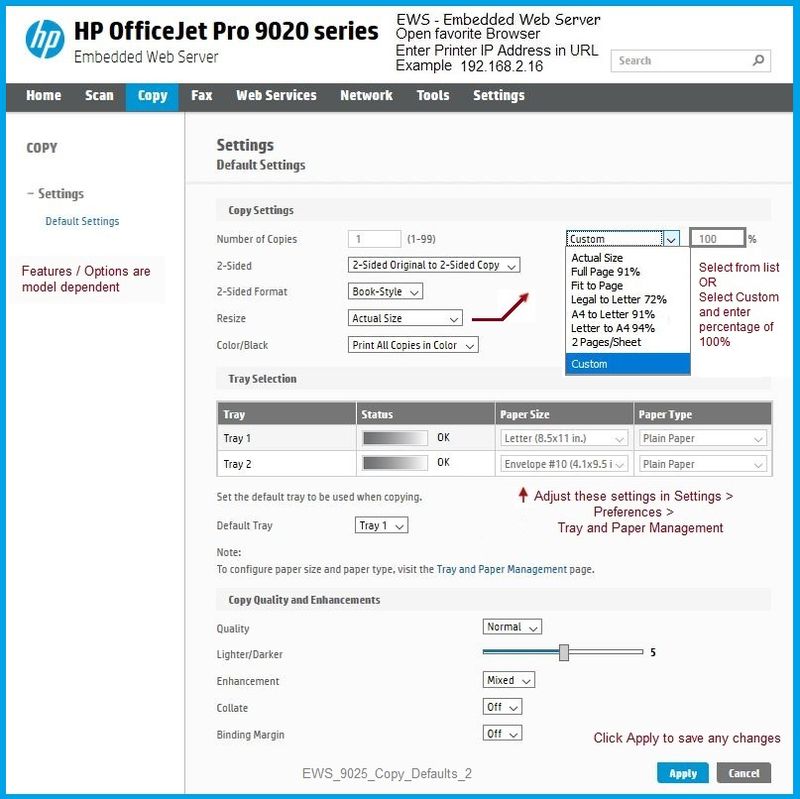
General Example 1 - EWS - Officejet Pro 9025 - Copy Defaults
Open your favorite browser > type / enter Printer IP address into URL / Address bar
Tab Copy > Settings > Default Settings
Click Apply to save any changes
General Example 2 - EWS - Officejet Pro 8630 - Copy Defaults

Reference and Resources – (More) Places to find help, solve problems, and learn how to use your Printer
Printer Homepage – “Things that are your printer”
NOTE: Content depends on device type and Operating System
Categories: Alerts, Access to the Print and Scan Doctor (Windows), Warranty Check, HP Drivers / Software / Firmware Updates, How-to Videos, Bulletins/Notices, Lots of How-to Documents, Troubleshooting, User Guides / Manuals, Product Information (Specifications), more
When the website support page opens, Select (as available) a Category > Topic > Subtopic
Open Support Home
Enter the name of your device
Thank you for participating in the HP Community Forum.
We are a world community of volunteers dedicated to supporting HP technology
Dragon-Fur
05-06-2020 09:27 AM - last edited on 04-03-2023 01:53 PM by SofiaML
HP Recommended
OK
HP OfficeJet Pro 9010 All-in-One Printer series
The mechanics, then, are similar to the Officejet Pro 9025 used in the example (previous post). Your printer may not have all the same options - the setup is about the same.
If the printer cannot copy at all, I would guess that something is wrong in the printer. This is, after all, one of the few "printer only" operations - no network, no software - just printer.
If the known solutions (Resolving Copy Problems) do not work and the printer is essentially not able to copy at all, then perhaps the printer is either actually broken or perhaps the paper trays / paper are stuck, misaligned, or in need of being removed, checked, replaced.
The paper has to be the right type as well - already mentioned. Neither can the paper be too damp, curled, too dry, too thin or any of the other several things that can make paper unusable.
I am out of ideas for the moment - should another Expert have something to add, he / she will likely jump in.
Thank you for participating in the HP Community Forum.
We are a world community of volunteers dedicated to supporting HP technology
Dragon-Fur
05-06-2020 11:36 AM
HP Recommended
I have tried all suggestions from here ant the virtual agent or what ever it is called.
To add details, here is what happens: I hit the copy icon, then the document icon, The printer appears to start the copy cycle, then a message "copying cancelled" appears, and the printer sends out a blank sheet of paper.
The printer will print items from my computer, it just will not preform the copy function.
05-06-2020 11:46 AM - last edited on 04-03-2023 01:53 PM by SofiaML
HP Recommended
I understand - unfortunately, there is little else I can think to suggest.
Section: Blank copies
-------------------------------------------------------------------------------------------
Copy is a basic print function.
Although Copy is not dependent on software or the network, the printer must be able to print.
Perhaps a bit more thorough check of the print system will help:
Black Ink Not Printing, Other Print Quality Issues
Thank you for participating in the HP Community Forum.
We are a world community of volunteers dedicated to supporting HP technology
Dragon-Fur
05-07-2020 07:01 AM
HP Recommended
The solution was found. The document we were attempting to copy has an image of US currency on it and HP printer software has a built in security measure that will not allow currency to be copied. Take that counterfeiters!
05-07-2020 07:45 AM
HP Recommended
Of course! I haven't thought about that for years. All time might have been saved had we known. Smiling.
No Worries - thanks for posting back. It is a good reminder for others reading.
Money cannot be copied at actual size - yes, it is a countermeasure meant to thwart counterfeit schemes.
Change the size of the document or - alternatively, with a bit more work, change the size of the image of the currency and then copy the document.
At least in the past, currency can be photo-copied if it is obvious the image is not supposed to be actual money. Shrinking the image slightly (can't remember the tolerance) creates (in effect) "Monopoly" money.
If the image of the currency is necessary "at size" due to having to maintain detail, consider marking the image with an X - make note in the document that the image has been marked. This is not ideal if the goal is to convince a collector to purchase the bill - it might be effective and even prudent depending what you are trying to accomplish.
Thank you for participating in the HP Community Forum.
We are a world community of volunteers dedicated to supporting HP technology
Dragon-Fur

Be alert for scammers posting fake support phone numbers and/or email addresses on the community.
If you think you have received a fake HP Support message, please report it to us by clicking on "Flag Post".
† The opinions expressed above are the personal opinions of the authors, not of HP. By using this site, you accept the Terms of Use and Rules of Participation.


Didn't find what you were looking for?
Ask the community
† The opinions expressed above are the personal opinions of the authors, not of HP. By using this site, you accept the <a href="https://www8.hp.com/us/en/terms-of-use.html" class="udrlinesmall">Terms of Use</a> and <a href="/t5/custom/page/page-id/hp.rulespage" class="udrlinesmall"> Rules of Participation</a>.