• ×
    Information
    Need Windows 11 help?
    Check documents on compatibility, FAQs, upgrade information and available fixes.
    Windows 11 Support Center.
  • post a message
  • ×
    Information
    Need Windows 11 help?
    Check documents on compatibility, FAQs, upgrade information and available fixes.
    Windows 11 Support Center.
  • post a message
Guidelines
Seize the moment! nominate yourself or a tech enthusiast you admire & join the HP Community Experts!
Check some of the most frequent questions about Instant Ink: HP INSTANT INK, HP+ PLANS: INK AND TONER.


Check out our WINDOWS 11 Support Center info about: OPTIMIZATION, KNOWN ISSUES, FAQs AND MORE.
HP Recommended
6960
Microsoft Windows 10 (64-bit)

when printing a 4x6 photo, the print is always on the top of the photo page and not centered. WHY. How do I center it?????

1 REPLY 1
HP Recommended

@5conners 


Welcome to the HP Community.


@5conners wrote:

when printing a 4x6 photo, the print is always on the top of the photo page and not centered. WHY. How do I center it?????


WHY is answered after you tell us know what software / application and settings you are using.


How is easier, though not knowing what you are doing now means the answer will be longer than would normally be necessary.


Your Printer - one of two:

Results for "HP 6960" (2) 


Fortunately, both models use the same printer software.


Answer

  • Install the Full Feature Software / Full Driver printer software

AND

  • Install HP Smart Windows


  • Use a photo / image printing software / application that includes access to the Print dialog where you can access the full range of features available for your printer.


  • The shape and size of the original image and your editing choices affect the results.


+++++++++++++++++++++++++++++++++++++++++++++++++++++++++++++

Preparation


The Full Feature Software / full driver printer software is available.

Install the software using the Easy Start wrapper.

At the point where you can do so, Select to install the Full Driver.


Printer Software Check


Notes

If the full driver printer software is (already) installed, you will see the printer listed in Control Panel > icon view > Programs and Features.


In addition, the installed software places two shortcut icons on the Desktop.

The Printer Assistant is named for the printer and provides access to Print , Scan , and Tools

HP Scan is named for itself and provides a direct call to the HP Scan software.


Programs_and_Features_Printer_Desktop_Icons_3Programs_and_Features_Printer_Desktop_Icons_3


Printer software not installed?

Method - Use the Easy Start Wrapper to Install the Full Feature / Full Driver Software


For printers that support the option,

Use the Easy Start wrapper to install and configure the printer software.


  • Home Page - HP Easy Start 
  • Open Category Software and Drivers 
  • Topic: Software-Utility 
  • Download-and-Save  the current version of the Easy Start wrapper to install your print software 
  • If using USB:  Disconnect the USB cable between the printer and computer before installing the software.
  • Right-Click on the downloaded package and "Run as Administrator" to start the installation
  • When asked, Select to install the “Full Driver” / “Full Feature Software”
  • If using USB:  Connect the cable when instructed to do so (near the end of the installation process).
  • After the software is installed, Restart the computer and log in.


Notes >> Easy Start... The Journey


  1. Full Administrator Rights are required to complete the HP Software installation.
  2. About 2/3 of the way through the setup, you will be given the opportunity to select the software - select the "Full Driver" set (as opposed to the basic driver or other application).
  3. You can skip / ignore suggestion(s) that you add the HP Account – you’ll need the account at some point, for now, you can skip this suggestion (as many times as it insists it’s a good idea) during the full driver software installation.
  4. If you see it, you can skip / ignore suggestion(s) regarding Instant Ink subscription.  Instant Ink subscription is NOT mandatory.
  5. Full driver includes print and scan functions supported by your printer and provides the printer features on which other applications / software might depend.

========================================================================


HP Smart for Windows


HP Smart is an application available in the Microsoft Store


Learn how to use HP Smart on your Windows 10 computer.

Open the Software and Drivers Support Website for your printer > Check the Box Get the App

OR Open and Read >>> HP Printers - Using the HP Smart App (Windows 10)


NOTES: 

Disconnect from Virtual Private Network (VPN) connection before downloading.


  • HP Smart requires that you sign into the application using your HP Account credentials.
  • Document includes the HP Smart application download links for Windows and Mobile devices, plus an FAQ section to assist with questions / issues.
    •  FAQ examples: 
      • What are the requirements to use the HP Smart app?
      • Which printers are compatible with the HP Smart app?
      • Why do I need to sign in or create an account to use the HP Smart app features?
    • Older versions of the HP Smart app no longer support the login feature.
    • Update the application to the latest version to access / use HP Smart

+++++++++++++++++++++++++++++++++++++++++++++++++++++++++++++

Details


What the printer can do:

Printer Specifications for HP OfficeJet Pro 6900 Printers


and

OfficeJet Pro 6960

Borderless PrintingYes (up to 8.5 x 11 in, 216 x 279 mm)


=================================================


If you are interested...

Search for / Learn about:  Aspect Ratio


What?

The shape of the original image must exactly match the shape of the paper you are using.

OR

You must use a software / application method to center the image on that paper.


For even borders "all around"

The paper must be at least "large enough" in all directions (top/bottom and right/left) to fit the image.


You must be prepared to sacrifice the original shape of the image, that is, (to) remove parts of the image (Crop) to force a match between the shape of the image and the shape of the paper.


OR


For borders that match top/bottom and - separately - side/side

The shape of the image can be larger in one direction (top/bottom or sides) than the shape of the paper on which it will be printed.


Use "Fit" to "best fit" the original image shape onto the paper you are using.

Fit can center the image but might leave borders on the top/bottom different from those on the sides.


+++++++++++++++++++++++++++++++++++++++++++++++++++++++++++++

Examples


In general, the standard print tools can do a "good enough" job of printing photos on paper, including a bit of editing to move / center the image on the paper.


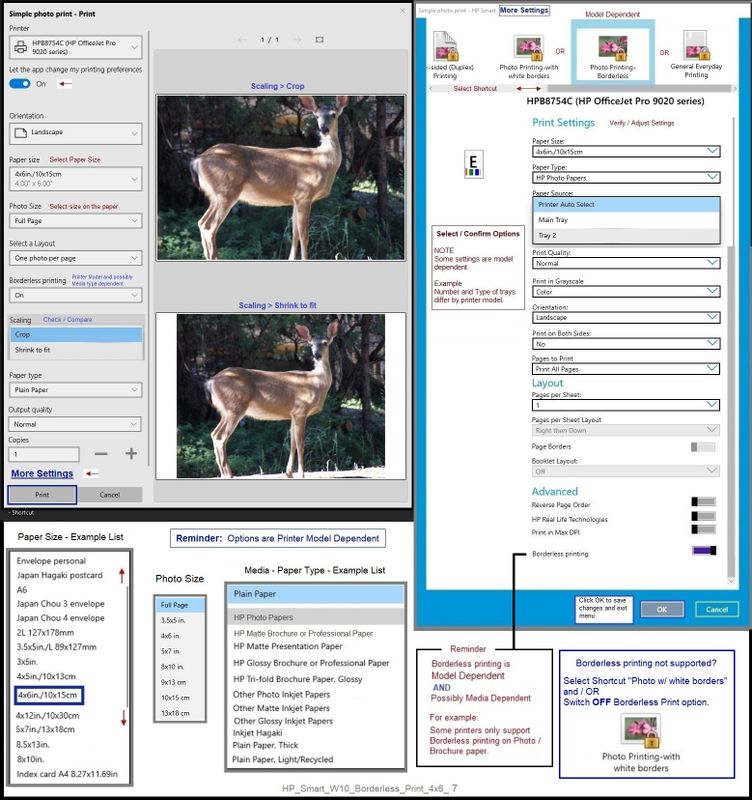
Sample - HP Smart Windows - Simple Image Print - Borderless - 4x6

HP_Smart_W10_Borderless_Print_4x6_7HP_Smart_W10_Borderless_Print_4x6_7


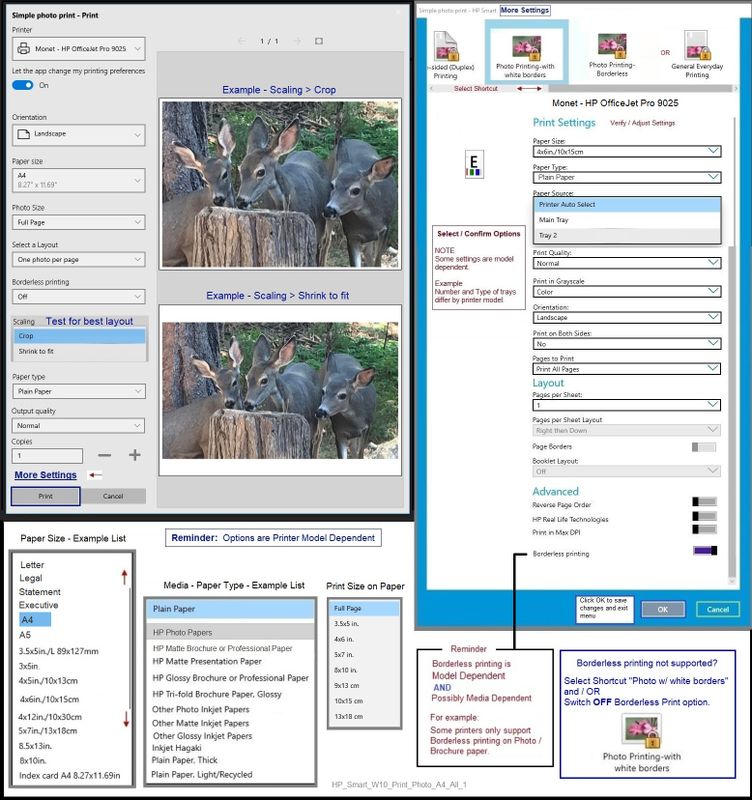
Example - HP Smart Windows - Simple Image Print - A4

HP_Smart_W10_Print_Photo_A4_All_1HP_Smart_W10_Print_Photo_A4_All_1


==========================================================================


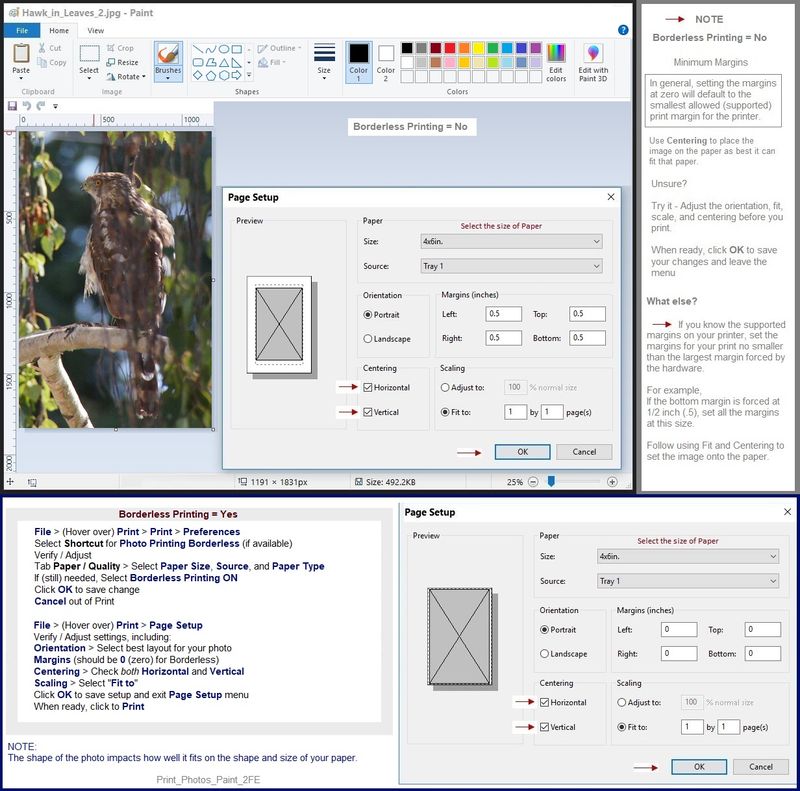
The old standard  Paint (mspaint) can be used to center your photo / image on the paper.

How well the image fits on the paper is entirely dictated by the shape of the original image.

Although you can certainly "crop" the image to fit the paper, Paint tools do not do "crop" automatically.


Example - Paint (mspaint) - Image Print - Center Vertical / Horizontal

Print_Photos_Paint_2FEPrint_Photos_Paint_2FE


==========================================================================


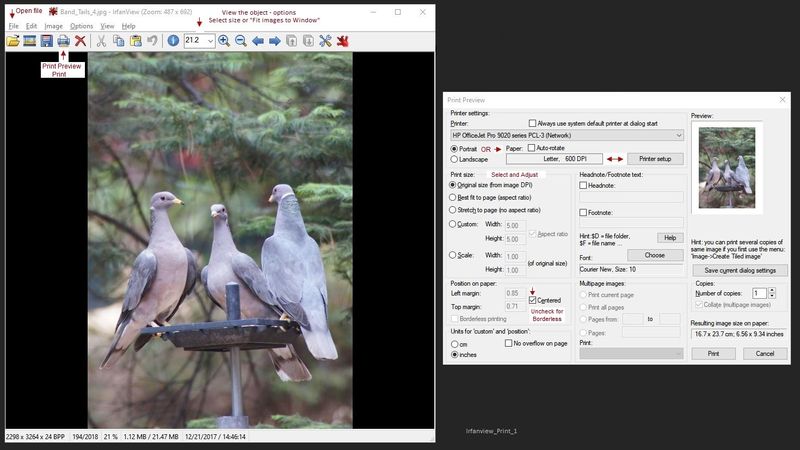
Third party software can do an excellent job of guiding you to the best results possible for your photo / image.


Example -  Irfanview  - Photo Print

Irfanview_Print_1Irfanview_Print_1


References / Resources


Irfanview > Brilliant Free Photo Viewing, Editing, and Print Software


 Irfanview provides an exceptional software experience that can be used for a variety of scan and print tasks, including the “Mirror” or horizontal flip function plus several other options not found elsewhere.


  • Create a Restore Point (optional, recommended)
  • Download the appropriate version (32bit or 64bit) of the program from the Website and install the program
  • Additional information at the website, including:  FAQ


NOTES

  • Both 32bit and 64bit versions for Windows are available.
  • Irfanview is also available as an Windows 10 Application from the Microsoft Store


For example,

Irfanview 64bit version – Information and Download

Software and All Plugins for 64bit version:  https://www.fosshub.com/IrfanView.html


Includes Plugin for creating Multiple-page PDF files for images (Poster or large paper printing)

Includes access (where available) to Scan with HP Twain > Adjust settings > Save


How to find Help within the Irfanview software

Once installed, open the software > tab Help


HP Printer Home Page - References and Resources – Learn about your Printer  - Solve Problems

 “Things that are your printer”

NOTE:  Content depends on device type and Operating System

Categories:  Alerts, Access to the Print and Scan Doctor (Windows), Warranty Check, HP Drivers / Software / Firmware Updates, How-to Videos, Bulletins/Notices, Lots of How-to Documents, Troubleshooting, Manuals > User Guides, Product Information (Specifications), more

When the website support page opens, Select (as available) a Category > Topic > Subtopic

Results for "HP 6960" (2) 


Thank you for participating in the HP Community.

The Community is a separate wing of the HP website - We are not an HP business group.

Our Community is comprised of volunteers - people who own and use HP devices.

Click Thumbs Up to say Thank You.

Question / Concern Answered, Click "Accept as Solution"

Dragon-Fur

† The opinions expressed above are the personal opinions of the authors, not of HP. By using this site, you accept the <a href="https://www8.hp.com/us/en/terms-of-use.html" class="udrlinesmall">Terms of Use</a> and <a href="/t5/custom/page/page-id/hp.rulespage" class="udrlinesmall"> Rules of Participation</a>.