• ×
    Information
    Need Windows 11 help?
    Check documents on compatibility, FAQs, upgrade information and available fixes.
    Windows 11 Support Center.
  • post a message
  • ×
    Information
    Need Windows 11 help?
    Check documents on compatibility, FAQs, upgrade information and available fixes.
    Windows 11 Support Center.
  • post a message
Guidelines
Join the HP Community Solve‑a‑thon | Help Others & Share Your Solutions | Live on Zoom | 2:30 PM to 2:30 AM IST | Every Wednesday Click here to know more
Check some of the most frequent questions about Instant Ink: HP INSTANT INK, HP+ PLANS: INK AND TONER.


Check out our WINDOWS 11 Support Center info about: OPTIMIZATION, KNOWN ISSUES, FAQs AND MORE.
HP Recommended
HP Smart Tank 7602 All-in-One
Microsoft Windows 11

Installed fulled software.  When scanning multiple sides of documents - the pages are out of order.  If there an update to the software?

3 REPLIES 3
HP Recommended

@TLCA2006 


Welcome to the HP Community --


Product Specifications for the HP Smart Tank 7602e All-in-One (28B98A)

and

Scanning Options (ADF)Single-sided


"Out of Order" is a normal result of using an application that cannot automatically reorder the scanned content of two-sided documents.


For example, HP Smart can help you "add pages" but it cannot automatically reorder those added pages.


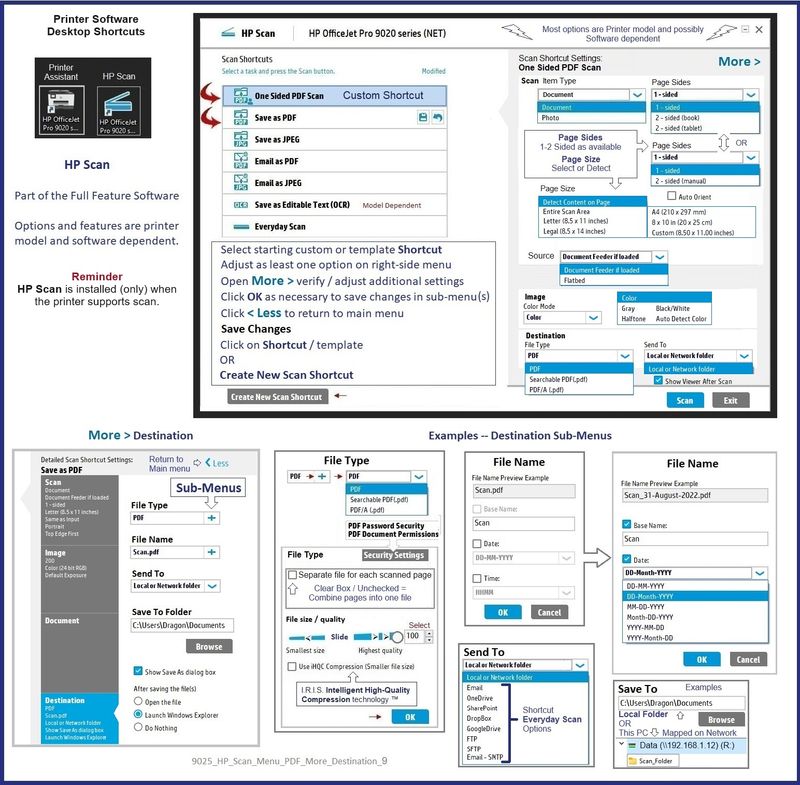
If you use HP Scan (part of the full driver printer software) or the Universal Scan Software, then the software can help you manually scan one side, flip and scan the next side(s), then reorder the pages after the scan is complete (all pages scanned):  Page Sides = 2 - Sided (Manual)


DragonFur_0-1695655279908.png


HP Scan - Menu options - Page Sides - More > Destination

9025_HP_Scan_Menu_PDF_More_Destination_99025_HP_Scan_Menu_PDF_More_Destination_9


HP Scan - Basic Example - HP Universal Scan Software

HP_Universal_Scan_Menu_2HP_Universal_Scan_Menu_2


=+=+=+=+=+=+=+=+=+=+=+=+=+=+=+=+=+=+=+=+=+=

References / Resources


Full Feature Software / Full Driver printer software

Details Page - Driver - For your Printer

>>> Full Feature Software - Web Pack Installation Package - Information - Download / Save / Install <<<


After the software is installed, Restart the computer and log in


====================================

Optional – Supported for your printer


Next – HP Universal Scan Software -

NOTE:  Model and Operating System version Dependent


Note:  HPUSS can be installed as standalone or installed after the full feature printer software.


 HP Universal Scan Full Feature Software adds OCR libraries to installed HP Scan software. 


HPUSS installs a new, full featured, (and separate) HP Scan software shortcut to the Desktop.


--------------------------------------------------------

User Guide - HP Smart Tank 7600 series


HP Printer Home Page - References and Resources

Learn about your Printer - Solve Problems

“Things that are your printer”

When the website support page opens, Select (as available) a Category > Topic > Subtopic

NOTE: Content depends on device type and Operating System

Categories: Alerts, Troubleshooting, Ink & Paper, HP Software / Drivers / Firmware Updates , Setup & User Guides, Product Specifications, Account & Registration, Warranty & Repair

Open

HP Smart Tank 7602 All-in-One  


Thank you for participating in the HP Community --

People who own, use, and support HP devices.

Click Yes to say Thank You

Question / Concern Answered, Click my Post "Accept as Solution"


Dragon-Fur

HP Recommended

I installed the full version software - selected 2-sided manual - and at the end of the scan the pages are not in order.  The only solution I found is to download the universal scan.  Then when i selected 2-sided manual - at the end of the scan the pages are reordered correctly.  My question is - why doesnt the full version software do this correctly?  HP needs to fix this.

HP Recommended

@TLCA2006 


Well and good, then.


I am sorry the HP Scan post reorder action does not work for you -- the mechanism to sort the pages has been in place for years.  2-Sided (manual) scan is not a new or untested feature.


I cannot answer the "why" for you -- there are too many differences in our respective printers, software, and environments.


Use what works -- HP Universal Scan is similar to HP Scan and does include some clever additions in the menu options.


If you have the budget and the interest, consider a top-shelf OfficeJet Pro that includes the features you want -- For example, the OfficeJet Pro 9015e or 9025e both support automatic 2-sided scan. 


Thank you for participating in the HP Community --

People who own, use, and support HP devices.

Click Yes to say Thank You

Question / Concern Answered, Click my Post "Accept as Solution"


Dragon-Fur

† The opinions expressed above are the personal opinions of the authors, not of HP. By using this site, you accept the <a href="https://www8.hp.com/us/en/terms-of-use.html" class="udrlinesmall">Terms of Use</a> and <a href="/t5/custom/page/page-id/hp.rulespage" class="udrlinesmall"> Rules of Participation</a>.