
-
×InformationNeed Windows 11 help?Check documents on compatibility, FAQs, upgrade information and available fixes.
Windows 11 Support Center. -
-
×InformationNeed Windows 11 help?Check documents on compatibility, FAQs, upgrade information and available fixes.
Windows 11 Support Center. -
- HP Community
- Printers
- Printer Setup, Software & Drivers
- HP 8125e no setup cartridges

Create an account on the HP Community to personalize your profile and ask a question
Your account also allows you to connect with HP support faster, access a personal dashboard to manage all of your devices in one place, view warranty information, case status and more.
Check some of the most frequent questions about Instant Ink: HP INSTANT INK, HP+ PLANS: INK AND TONER.
Check out our WINDOWS 11 Support Center info about: OPTIMIZATION, KNOWN ISSUES, FAQs AND MORE.

It has been a while since anyone has replied. Simply ask a new question if you would like to start the discussion again.

05-09-2026 01:21 PM
 HP Recommended
Product: 8125e
Operating System: macOS 15.0 Sequoia
trying to setup HP printer for my 86 year old mother, she purchased new cartridges and threw away setup cartridges. Printer control panel is asking for the setup cartridges!
14 REPLIES 14


05-11-2026 05:17 AM
HP Recommended
Hi @MainMacMan,
Welcome to the HP Support Community!
Thanks for reaching out!
You’re doing a wonderful job helping your mother with this, and I’ll make sure we find a way forward. I understand how this must feel, especially when you’re setting up the printer for your mother.
Could you please confirm the replacement cartridge are the genuine hp cartridge ?
Here are a few things you can try :
- Check cartridge type: Some HP printers require special “setup” cartridges during the very first installation. If those were discarded, the printer may not proceed.
- Update printer firmware: Connect the printer to Wi-Fi and check if a firmware update is available. Sometimes updates remove the requirement for setup cartridges.
- Reset printer: Power off the printer, unplug it for 60 seconds, then restart. This can clear certain setup loops.
You can refer to this link : HP Printers - A 'Use SETUP Cartridges' Error Displays - Click here .
I hope this helps.
I'm an HP Employee.
If this reply helped resolve your issue, please select the Accept as Solution as it helps others in the community quickly find the answer they’re looking for.
And if you found this reply helpful, clicking Yes below is a great way to let us know we’re providing the support you need, as it encourages us to keep improving and sharing helpful guidance.
05-14-2026 03:25 AM
HP Recommended
Hi @MainMacMan,
Thanks for your response.
Please follow the step-by-step instructions below to attempt the override process on your printer.
01.Access Support Menu
Begin by navigating to the Support Menu from the printer control panel.
Bottom left
side → Return icon → Support Menu- Touch the Return icon on the bottom left side of the control panel
Touch Support Menu
02.Open System Configuration
Navigate through the menu to reach the System Configuration option.
Touch the right arrow three (3) times
Wait until System Configuration menu displays
Press OK
03.Enable TradeatOOBE Mode
Confirm the TradeatOOBE mode setting.
Press OK in the TradeatOOBE mode screen
Continue pressing OK until the screen reads Trade
04.Return to Home Screen
Exit back to the main screen to complete the override attempt.
Press the red X four (4) times
Confirm the Home screen displays
You can try the steps in this document to see if they may help with this situation : HP ink cartridge issues including, incompatible, missing and not recognized errors - Click here .
I hope this helps.
I'm glad I could help! 😊 If this resolved your issue, please mark it as "Accepted Solution" and click "Yes" on "Was this reply helpful?" Your feedback not only keeps us going but also helps others find the solution faster!
Regards
Deep_World
I'm an HP Employee.
If this reply helped resolve your issue, please select the Accept as Solution as it helps others in the community quickly find the answer they’re looking for.
And if you found this reply helpful, clicking Yes below is a great way to let us know we’re providing the support you need, as it encourages us to keep improving and sharing helpful guidance.
05-14-2026 08:18 AM
HP Recommended
Deep_World,
If you work at HP you would know there is no way I can figure out how to hit the return icon as the printer control panel is locked into the error message. How do I get another set of starter inkjet cartridges from hp to replace the regular cartridges she has purchased and installed ? Can I return the entire printer to HP? IF so how ?
05-15-2026 09:32 AM
HP Recommended
Hi @MainMacMan,
Thanks for your response. It looks like you’re still having issue with the unit.
To get you the best assistance, we need to take this conversation to a private chat. We're inviting you to a private message to protect your privacy and ensure that any sensitive information remains confidential.
To access your private message, just click the little blue envelope icon on the upper right corner of your HP Community profile, next to your profile name. Alternatively, you can click on this link.
You can use this link as well:
Private Messages - HP Support Community
We're looking forward to helping you resolve this issue!
Stay tuned, and thanks for your patience!
Best regards,
Deep_World
I'm an HP Employee.
If this reply helped resolve your issue, please select the Accept as Solution as it helps others in the community quickly find the answer they’re looking for.
And if you found this reply helpful, clicking Yes below is a great way to let us know we’re providing the support you need, as it encourages us to keep improving and sharing helpful guidance.
05-15-2026 09:35 AM
HP Recommended
Hi @MainMacMan,
Kindly insert the new cartridges and follow the below steps :
A. For non HP+ printers :
Control panel displays Use SETUP Cartridges message.
- On the control panel, press * # * * buttons.
Note: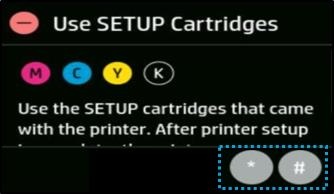
You must press the buttons within 4 seconds.
- Open the printer access door.
- Close the printer access door.
The cartridges should get accepted. - If the issue persists, repeat steps 1-3.
B. For HP+ printers :
Control panel displays Use SETUP message.
- In the highlighted area, click 4 times.
Note: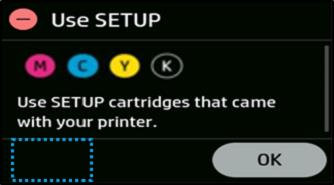
You must click 4 times within 4 seconds.
- Open the printer access door.
- Remove the trade cartridges.
- Close the printer access door.
- Wait until the printer control panel displays Cartridges Missing error.
- Open the printer access door.
- Reinsert the trade cartridges.
- Close the printer access door.
The cartridges should get accepted. - If the issue persists, repeat steps 1-8.
Regards
Deep_World
I'm an HP Employee.
If this reply helped resolve your issue, please select the Accept as Solution as it helps others in the community quickly find the answer they’re looking for.
And if you found this reply helpful, clicking Yes below is a great way to let us know we’re providing the support you need, as it encourages us to keep improving and sharing helpful guidance.
05-18-2026 07:12 AM
HP Recommended
thank you for your help I attempted both options to no avail. it keeps stating to use the setup cartridges. Can I please just receive these cartridges from HP? I do not understand why this has to be so difficult? Can I connect the printer via USB and reset that way ?
05-18-2026 10:15 AM
HP Recommended
Hi @MainMacMan,
I understand how this must feel. As I can see, you’ve mentioned two different printer models the HP DeskJet 8125e and the HP DeskJet 8120e. To assist you properly and ensure we provide the correct troubleshooting steps, we’ll need the complete product details (exact model name) along with the serial number of your printer and the picture of the cartridge
Could you please share the below details via private message :
Where was the printer purchased ?
Kindly confirm the exact printer model (8125e or 8120e) and also share the picture of the cartridge.
The serial number (usually found on a sticker at the back or inside the cartridge access area).
To access your private messages, simply click the private message icon on the upper right corner of your HP Support Community profile, next to your profile name.
You can use this link as well:
Private Messages - HP Support Community
I hope this helps.
I'm an HP Employee.
If this reply helped resolve your issue, please select the Accept as Solution as it helps others in the community quickly find the answer they’re looking for.
And if you found this reply helpful, clicking Yes below is a great way to let us know we’re providing the support you need, as it encourages us to keep improving and sharing helpful guidance.

Be alert for scammers posting fake support phone numbers and/or email addresses on the community.
If you think you have received a fake HP Support message, please report it to us by clicking on "Flag Post".
† The opinions expressed above are the personal opinions of the authors, not of HP. By using this site, you accept the Terms of Use and Rules of Participation.


Didn't find what you were looking for?
Ask the community
† The opinions expressed above are the personal opinions of the authors, not of HP. By using this site, you accept the <a href="https://www8.hp.com/us/en/terms-of-use.html" class="udrlinesmall">Terms of Use</a> and <a href="/t5/custom/page/page-id/hp.rulespage" class="udrlinesmall"> Rules of Participation</a>.