• ×
    Information
    Need Windows 11 help?
    Check documents on compatibility, FAQs, upgrade information and available fixes.
    Windows 11 Support Center.
  • post a message
  • ×
    Information
    Need Windows 11 help?
    Check documents on compatibility, FAQs, upgrade information and available fixes.
    Windows 11 Support Center.
  • post a message
Guidelines
Join the HP Community Solve‑a‑thon | Help Others & Share Your Solutions | Live on Zoom | 2:30 PM to 2:30 AM IST | Every Wednesday Click here to know more
Check some of the most frequent questions about Instant Ink: HP INSTANT INK, HP+ PLANS: INK AND TONER.


Check out our WINDOWS 11 Support Center info about: OPTIMIZATION, KNOWN ISSUES, FAQs AND MORE.
HP Recommended
HP Officejet 9010
macOS 10.14 Mojave

My printer can not Scan to computer - It keeps reminding me to install driver and adjust accordingly. I didi everything right and called HP support in DK.  Even HP support can't help me.

I have the same problem with scanning to email.

I got the message from HP that the Utillity software(HP Smart 3.6) wasn't compatible with the new printers???


How to proceed?

(By the way I tried to do the same with a windows laptop W10, same issue.


All other functions works.....only some minor bugs like Finish language in some menu icons:-)

1 REPLY 1
HP Recommended

@MartinLaub, Welcome to the HP Support Community!


Scanning from HP OfficeJet Pro 9010 All-in-One Printer series to a MAC can be achieved by using HP Smart app and by creating Smart task. Kindly follow these steps:


Install the HP Smart app and enable Smart Tasks

Install the HP Smart app, add your printer, and then enable Smart Tasks.

  1. Make sure your device and printer are connected to your wireless network, and then download and install the HP Smart app from 123.hp.com (Android, iOS), or HP Smart (in English) from the Windows Store (Windows 10).

  2. Open the app, and then follow the on-screen instructions to add your printer.

  3. From the HP Smart app home screen, select your printer.

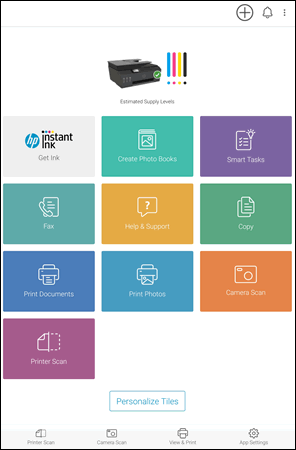
    • If the Smart Tasks tile displays, continue with these steps.

    • If the Smart Tasks tile does not display, scroll down and select Personalize (Android, iOS) or Printer Settings (Windows 10), and then select Smart Tasks.

    Example of the Smart Tasks tiles displaying on the home screen (Android)

  4. Follow any on-screen prompts to sign in or create an HP account.

Create a Smart Task

Create a Smart Task to send print jobs, email, or save documents or photos to a connected cloud account.

  1. Click Smart Tasks, and then click Create a Smart Task.

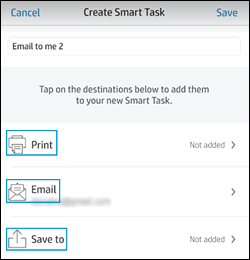
  2. Select the task actions you want to include:

    • Print: Send a print job to your printer.

    • Email: Send an email message or attachments.

    • Save to: Save a print or scan job to a cloud storage account, such as Google Drive or Microsoft OneDrive.

    Clicking Print, Email, or Save to

  3. Follow the on-screen instructions to create and name the task.

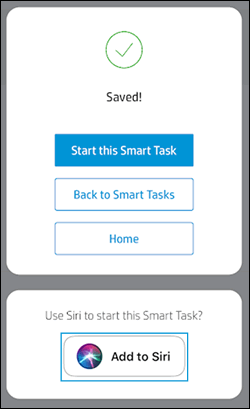
  4. Click Save (Android, iOS) or Done (Windows 10) to save the Smart Task.

    The new task displays on the Smart Tasks screen.

    Example of one created Smart Task  (Android)

    iOS: To run the Smart Task using Siri, select Add to Siri when prompted. Record the phrase for starting the task, and then tap Done.

    Prompt to Add to Siri

For more info, refer to this document.


Let me know how this goes.


If you feel my post solved your issue, please click “Accept as Solution”, it will help others find the solution. Click the “Kudos/Thumbs Up" on the bottom right to say “Thanks” for helping!

KUMAR0307
I am an HP Employee

† The opinions expressed above are the personal opinions of the authors, not of HP. By using this site, you accept the <a href="https://www8.hp.com/us/en/terms-of-use.html" class="udrlinesmall">Terms of Use</a> and <a href="/t5/custom/page/page-id/hp.rulespage" class="udrlinesmall"> Rules of Participation</a>.