
-
×InformationNeed Windows 11 help?Check documents on compatibility, FAQs, upgrade information and available fixes.
Windows 11 Support Center. -
-
×InformationNeed Windows 11 help?Check documents on compatibility, FAQs, upgrade information and available fixes.
Windows 11 Support Center. -
- HP Community
- Printers
- Printer Setup, Software & Drivers
- HP App scans blurry

Create an account on the HP Community to personalize your profile and ask a question
Your account also allows you to connect with HP support faster, access a personal dashboard to manage all of your devices in one place, view warranty information, case status and more.
Check some of the most frequent questions about Instant Ink: HP INSTANT INK, HP+ PLANS: INK AND TONER.
Check out our WINDOWS 11 Support Center info about: OPTIMIZATION, KNOWN ISSUES, FAQs AND MORE.

It has been a while since anyone has replied. Simply ask a new question if you would like to start the discussion again.

05-20-2024
04:20 AM
- last edited on
02-03-2026
11:54 AM
by
 Animatryx
 HP Recommended
Product: HP OfficeJet Pro 9012 All-in-One Printer
Hp Windows app just scans blurry, but years old simple Windows fax and scan scans everything perfectly? what could be the reason? The error does not seem to be caused by the scanner (officejet Pro 9012)?
Solved! Go to Solution.
1 ACCEPTED SOLUTION
Accepted Solutions


05-20-2024
08:17 AM
- last edited on
02-25-2026
09:54 PM
by
Raj_05
HP Recommended
Yes, sounds like the app is struggling.
First,
1) HP App Reset
Next,
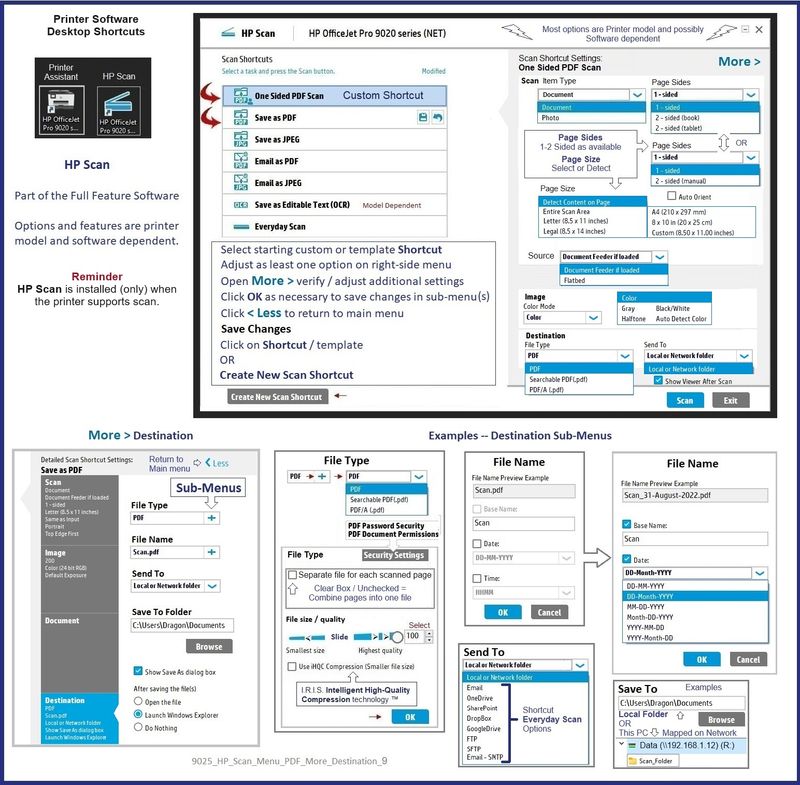
2) As a way to sidestep the problems for now, install the Full Feature Software / full driver printer software - try HP Scan (Desktop Shortcut - named for the printer model)
Optional,
Install the HP Universal Scan Software - an updated GUI, similar to the original HP Scan (Desktop Shortcut - self-named "HP Scan")
---------------------------------------
Note
Both HP Scan (original) and HP Scan (Universal) are compatible with the HP App Printing Queue (if / as installed with the HP application).
---------------------------------------
If you have already tried all the first parts,
Go to section Windows - Reset HP Application
================== =====================
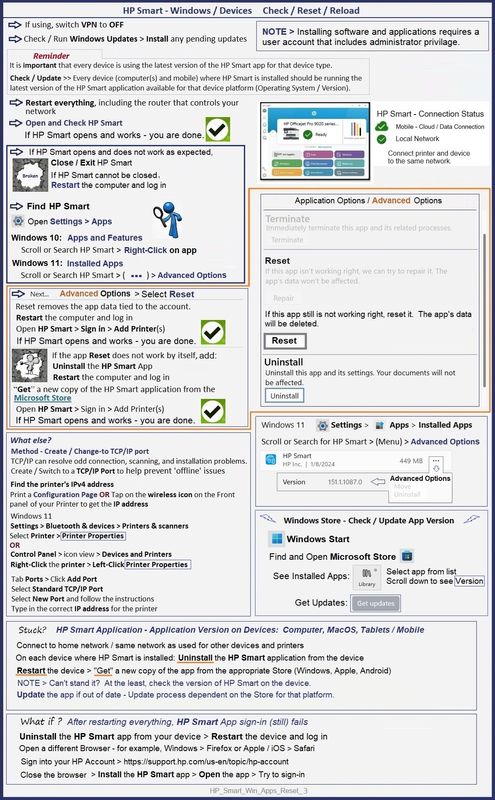
- Printer Application - HP App– Windows -- Check / Reset -
NOTE > If you skip one or more steps and things don’t work, consider going back and adding any missed checkpoints.
Start
Reminder
It is important that every device is using the latest version of the HP app for that device type.
Check / Update >> Every device (computer(s) and mobile) where HP App is installed should be running the latest version of the HP application available for that device platform (Operating System / Version).
AND
The printer and device (computer, tablet, phone) where HP App is running should be on the same network.
That might be enough…
Stop if everything is now working.
Next,
Restart Everything, including the router that controls your network
That might be enough (at least short term) -- check...
Stop if everything is now working.
Next,
Windows
Check / Run Windows Updates > Install any pending updates
Next,
If not previously completed,
Restart everything, including the router that controls your network.
Can’t stand it? Consider: Restart computer(s) and printer.
Next,
Open and Check HP App
Stop if everything is now working.
If the HP App opens but does not work or hangs partly open:
Close the HP App
If you cannot close HP App: Restart the computer and log in
Do not start the HP App yet.
No Joy?
Windows - Reset HP Application
Next,
Reset the HP application - This action removes the app data.
How to...
Windows 10 -
Settings > Apps > Apps and Features
OR
Windows 11 -
Settings > Apps > Installed Apps
Next,
Search / Find HP App in the apps list
Open Advanced options > Reset the app
Restart the computer and log in
Open HP App> Sign in > Add Printer(s)
If the app Reset does not work by itself, add:
Next,
Uninstall the HP App from Settings > Apps > Apps and Features / Installed Apps
Restart the computer and log in
“Get” a new copy of the HP application from the Microsoft Store
Open HP App> Sign in > Add Printer(s)
Still Rubbish
Provided FYI
If nothing else works – Consider --
Uninstall the HP app from Windows > Restart the computer and log in
AND
While connected to the same (home / office) network as your computer,
Uninstall the HP app from other device(s) on your network
After the app is removed > Restart the device (for example, iPad, iPhone)
Next,
Repeat for each mobile device where you want to install the HP application:
Install the HP app on the mobile device
Start HP app > Sign into the app > Add printer(s)
Next,
Restart the computer and log in
Install a fresh copy of the HP application for Windows
==== ==== ==== ==== ==== ====
Windows
Printer - Full Feature Software
HP Full Feature Software / Full Driver printer software - supports printing and scanning from the web, printing in in other software and programs (for example, Word), and provides access to the full range of Printing Preferences / Shortcuts. The full driver generally adds at one, possibly least one, possibly two shortcuts to the Desktop: Printer Assistant, HP Scan Assistant, and/or HP Scan.
NOTES:
HP Scan is not installed if the printer does not support Scan.
The Printer Assistant is not installed if the type of full driver software does not support it. If the printer model includes built-in Fax hardware, the software supports the setup and use of the Fax driver. No Sign-in required.
- Uninstall existing full driver printer software from Programs and Features.
- If your printer includes a separate "help" in Programs and Features, uninstall that, too.
- Restart the computer and log in.
- If the printer is connected to the computer using a printer USB cable, remove / disconnect the cable before loading the software.
Details Page - Driver - For your Printer
>>> Full Feature Software - Web Pack Installation Package - Information - Download / Save / (then) Install <<<
HP OfficeJet Pro 9010 EasyStart Printer Setup Software – Offline Use Only
If / When asked, opt for the Full Driver / Full Software to be installed.
If using a printer USB cable, connect the cable when asked to do so, near the end of the installation process.
After the software is installed, Restart the computer and sign in.
=--=--=--=--=--=--=--=--=--=--=--=--=--=--=--=--=--=
Optional -- Supported by your printer
Details Page - Driver - For your Printer
>>> Full Feature Software - Web Pack Installation Package - Information - Download / Save / (then) Install <<<
HP Universal Scan - Full Feature Software and Driver
If asked, opt for the Full Driver to be installed.
After the software is installed, Restart the computer and sign in.
=--=--=--=--=--=--=--=--=--=--=--=--=--=--=--=--=--=
The installation of the full driver generally adds at least one or more shortcuts to the Desktop.
Note: Printer Assistant, HP Scan Assistant, and HP Scan are dependent on printer model and supported software options.
- Printer Assistant – Where still supported as part of the full driver printer software
- HP Scan Assistant – For those printers that no longer provide the Printer Assistant
- HP Scan – Shortcut on Desktop named for the printer model
- When installed, HP Universal Scan software adds a separate self-named “HP Scan” shortcut
Printer Assistant shortcut > Tab Scan > Manage Scan to Computer > Enable
Or
HP Scan Assistant shortcut > Manage Scan to Computer > Enable
Example - Windows - Full Feature Software - Installed

Example - HP Scan - Menu - More > Destination
Thank you for participating in the HP Community --
People who own, use, and support HP devices.
Click Yes to say Thank You
Question / Concern Answered, Click my Post "Accept as Solution"
Dragon-Fur

6 REPLIES 6
05-20-2024
06:53 AM
- last edited on
02-03-2026
03:30 PM
by
FriendlyMod
HP Recommended
Welcome to the HP English Community --
Has the HP app ever scanned content correctly?
Type of content make a difference?
PDF or Photo / Image
Scan Resolution?
Scanning through ADF or flatbed?
Printer recently cleaned?
True - should not make a difference if the app is the underlying cause.
What, if anything, have you already tried to resolve the problem?
Do you have the full driver printer software installed?
If yes,
Does HP Scan work as expected?
If you have HP Smart installed on a supported mobile device, does it scan correctly from that device?
and
What type of device and OS / version on that device?
=--=--=--=--=--=--=--=--=--=--=--=--=--=--=--=--=--=
References / Resources
HP Printer Home Page - References and Resources
Learn about your Printer - Solve Problems
“Things that are your printer”
When the website support page opens, Select (as available) a Category > Topic > Subtopic
NOTE: Content depends on device type and Operating System
Categories: Alerts, Troubleshooting, Ink & Paper, HP Software / Drivers / Firmware Updates , Setup & User Guides, Product Specifications, Account & Registration, Warranty & Repair
Open
Enter the device type and model name of your HP product
OR
Select a saved product from HP Account Dashboard
OR
HP OfficeJet Pro 9012 All-in-One Printer
Thank you for participating in the HP Community --
People who own, use, and support HP devices.
Click Yes to say Thank You
Question / Concern Answered, Click my Post "Accept as Solution"
Dragon-Fur
05-20-2024
07:45 AM
- last edited on
02-24-2026
12:37 AM
by
Raj_05
HP Recommended
-Has the HP app ever scanned content correctly? yes 4 years the hp App windows app has worked well since 2 weeks there is this problem
-Type of content make a difference? =no, the same for both
PDF or Photo / Image
-Scan Resolution? = have just tried 1200 dpi, same result
-Scanning through ADF or flatbed? =the same problem with both
-Printer recently cleaned?
True - should not make a difference if the app is the underlying cause. =clean all actions, reset factory settings, still the same problem with the windows app
-What, if anything, have you already tried to resolve the problem?
-Do you have the full driver printer software installed?
If yes,
Does HP Scan work as expected?
-If you have HP App installed on a supported mobile device, does it scan correctly from that device?
and
What type of device and OS / version on that device?
i did a cold start, then did the factory settings 2 times but the windows fax scan app still works perfectly i think it's the hp app.
on the iphone 15 ios 17 hp app the scan also works perfectly.
i'm afraid that the hp app and my computer don't get along so well.
05-20-2024
08:17 AM
- last edited on
02-25-2026
09:54 PM
by
Raj_05
HP Recommended
Yes, sounds like the app is struggling.
First,
1) HP App Reset
Next,
2) As a way to sidestep the problems for now, install the Full Feature Software / full driver printer software - try HP Scan (Desktop Shortcut - named for the printer model)
Optional,
Install the HP Universal Scan Software - an updated GUI, similar to the original HP Scan (Desktop Shortcut - self-named "HP Scan")
---------------------------------------
Note
Both HP Scan (original) and HP Scan (Universal) are compatible with the HP App Printing Queue (if / as installed with the HP application).
---------------------------------------
If you have already tried all the first parts,
Go to section Windows - Reset HP Application
================== =====================
- Printer Application - HP App– Windows -- Check / Reset -
NOTE > If you skip one or more steps and things don’t work, consider going back and adding any missed checkpoints.
Start
Reminder
It is important that every device is using the latest version of the HP app for that device type.
Check / Update >> Every device (computer(s) and mobile) where HP App is installed should be running the latest version of the HP application available for that device platform (Operating System / Version).
AND
The printer and device (computer, tablet, phone) where HP App is running should be on the same network.
That might be enough…
Stop if everything is now working.
Next,
Restart Everything, including the router that controls your network
That might be enough (at least short term) -- check...
Stop if everything is now working.
Next,
Windows
Check / Run Windows Updates > Install any pending updates
Next,
If not previously completed,
Restart everything, including the router that controls your network.
Can’t stand it? Consider: Restart computer(s) and printer.
Next,
Open and Check HP App
Stop if everything is now working.
If the HP App opens but does not work or hangs partly open:
Close the HP App
If you cannot close HP App: Restart the computer and log in
Do not start the HP App yet.
No Joy?
Windows - Reset HP Application
Next,
Reset the HP application - This action removes the app data.
How to...
Windows 10 -
Settings > Apps > Apps and Features
OR
Windows 11 -
Settings > Apps > Installed Apps
Next,
Search / Find HP App in the apps list
Open Advanced options > Reset the app
Restart the computer and log in
Open HP App> Sign in > Add Printer(s)
If the app Reset does not work by itself, add:
Next,
Uninstall the HP App from Settings > Apps > Apps and Features / Installed Apps
Restart the computer and log in
“Get” a new copy of the HP application from the Microsoft Store
Open HP App> Sign in > Add Printer(s)
Still Rubbish
Provided FYI
If nothing else works – Consider --
Uninstall the HP app from Windows > Restart the computer and log in
AND
While connected to the same (home / office) network as your computer,
Uninstall the HP app from other device(s) on your network
After the app is removed > Restart the device (for example, iPad, iPhone)
Next,
Repeat for each mobile device where you want to install the HP application:
Install the HP app on the mobile device
Start HP app > Sign into the app > Add printer(s)
Next,
Restart the computer and log in
Install a fresh copy of the HP application for Windows
==== ==== ==== ==== ==== ====
Windows
Printer - Full Feature Software
HP Full Feature Software / Full Driver printer software - supports printing and scanning from the web, printing in in other software and programs (for example, Word), and provides access to the full range of Printing Preferences / Shortcuts. The full driver generally adds at one, possibly least one, possibly two shortcuts to the Desktop: Printer Assistant, HP Scan Assistant, and/or HP Scan.
NOTES:
HP Scan is not installed if the printer does not support Scan.
The Printer Assistant is not installed if the type of full driver software does not support it. If the printer model includes built-in Fax hardware, the software supports the setup and use of the Fax driver. No Sign-in required.
- Uninstall existing full driver printer software from Programs and Features.
- If your printer includes a separate "help" in Programs and Features, uninstall that, too.
- Restart the computer and log in.
- If the printer is connected to the computer using a printer USB cable, remove / disconnect the cable before loading the software.
Details Page - Driver - For your Printer
>>> Full Feature Software - Web Pack Installation Package - Information - Download / Save / (then) Install <<<
HP OfficeJet Pro 9010 EasyStart Printer Setup Software – Offline Use Only
If / When asked, opt for the Full Driver / Full Software to be installed.
If using a printer USB cable, connect the cable when asked to do so, near the end of the installation process.
After the software is installed, Restart the computer and sign in.
=--=--=--=--=--=--=--=--=--=--=--=--=--=--=--=--=--=
Optional -- Supported by your printer
Details Page - Driver - For your Printer
>>> Full Feature Software - Web Pack Installation Package - Information - Download / Save / (then) Install <<<
HP Universal Scan - Full Feature Software and Driver
If asked, opt for the Full Driver to be installed.
After the software is installed, Restart the computer and sign in.
=--=--=--=--=--=--=--=--=--=--=--=--=--=--=--=--=--=
The installation of the full driver generally adds at least one or more shortcuts to the Desktop.
Note: Printer Assistant, HP Scan Assistant, and HP Scan are dependent on printer model and supported software options.
- Printer Assistant – Where still supported as part of the full driver printer software
- HP Scan Assistant – For those printers that no longer provide the Printer Assistant
- HP Scan – Shortcut on Desktop named for the printer model
- When installed, HP Universal Scan software adds a separate self-named “HP Scan” shortcut
Printer Assistant shortcut > Tab Scan > Manage Scan to Computer > Enable
Or
HP Scan Assistant shortcut > Manage Scan to Computer > Enable
Example - Windows - Full Feature Software - Installed
Example - HP Scan - Menu - More > Destination
Thank you for participating in the HP Community --
People who own, use, and support HP devices.
Click Yes to say Thank You
Question / Concern Answered, Click my Post "Accept as Solution"
Dragon-Fur
05-20-2024 01:36 PM
HP Recommended
You are most welcome.
Now you can remain Stoic.
Smiling.
Thank you for participating in the HP Community --
People who own, use, and support HP devices.
Click Yes to say Thank You
Question / Concern Answered, Click my Post "Accept as Solution"
Dragon-Fur

Be alert for scammers posting fake support phone numbers and/or email addresses on the community.
If you think you have received a fake HP Support message, please report it to us by clicking on "Flag Post".
† The opinions expressed above are the personal opinions of the authors, not of HP. By using this site, you accept the Terms of Use and Rules of Participation.


Didn't find what you were looking for?
Ask the community
† The opinions expressed above are the personal opinions of the authors, not of HP. By using this site, you accept the <a href="https://www8.hp.com/us/en/terms-of-use.html" class="udrlinesmall">Terms of Use</a> and <a href="/t5/custom/page/page-id/hp.rulespage" class="udrlinesmall"> Rules of Participation</a>.