• ×
    Information
    Need Windows 11 help?
    Check documents on compatibility, FAQs, upgrade information and available fixes.
    Windows 11 Support Center.
  • post a message
  • ×
    Information
    Need Windows 11 help?
    Check documents on compatibility, FAQs, upgrade information and available fixes.
    Windows 11 Support Center.
  • post a message
Guidelines
Join the HP Community Solve‑a‑thon | Help Others & Share Your Solutions | Live on Zoom | 2:30 PM to 2:30 AM IST | Every Wednesday Click here to know more
Check some of the most frequent questions about Instant Ink: HP INSTANT INK, HP+ PLANS: INK AND TONER.


Check out our WINDOWS 11 Support Center info about: OPTIMIZATION, KNOWN ISSUES, FAQs AND MORE.
HP Recommended

i have a hp deskjet 3620 its full of new ink. But info light and power light are flashing. When i try to peint from my galaxy it says spooler wrror. 


Ive reset caches installed and uninstalled any help would be greatly appreciated 

1 REPLY 1
HP Recommended

@Grace0208, Welcome to HP Support Community!


Update the printer firmware

Download available firmware updates from the HP website

With the printer on and connected to the computer, go to HP Customer Support - Software and Driver Downloads, and then identify your printer. Look for and install any available firmware updates. For more information, go to Updating or Upgrading Printer Firmware.


Also, I would recommend you to follow the steps below-


Step 1: Close the ink cartridge door

Make sure the ink cartridge door is completely closed.

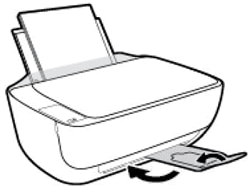
  1. Close the output tray extender, and then push the output tray into the printer.

    Figure: Close the output tray

    Image: Close the output tray
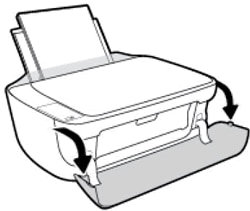
  2. Open the exterior door.

    Figure: Open the exterior door

    Image: Open the exterior door
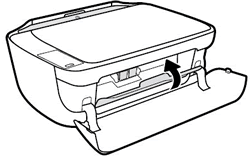
  3. If the ink cartridge access door is open, close it.

    Figure: Close the ink cartridge access door

    Image: Close the cartridge access door
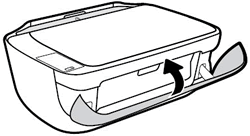
  4. Close the exterior door.

    Figure: Close the exterior door

    Image: Close the exterior door
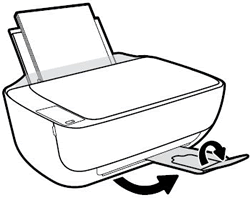
  5. Pull out the output tray, and then the tray extender.

    Figure: Pull out the output tray

    Image: Pull out the output tray and tray extender

Try to print. If the issue persists, continue to the next step.


Step 2: Service the printer

Please reach out to the HP Support in your region regarding the service options for your printer.


Hope this helps!


Please click “Accept as Solution” if you feel my post solved your issue, it will help others find the solution. Click the “Kudos/Thumbs Up" on the bottom right to say “Thanks” for helping!

TEJ1602
I am an HP Employee

† The opinions expressed above are the personal opinions of the authors, not of HP. By using this site, you accept the <a href="https://www8.hp.com/us/en/terms-of-use.html" class="udrlinesmall">Terms of Use</a> and <a href="/t5/custom/page/page-id/hp.rulespage" class="udrlinesmall"> Rules of Participation</a>.