
-
×InformationNeed Windows 11 help?Check documents on compatibility, FAQs, upgrade information and available fixes.
Windows 11 Support Center. -
-
×InformationNeed Windows 11 help?Check documents on compatibility, FAQs, upgrade information and available fixes.
Windows 11 Support Center. -
- HP Community
- Printers
- Printer Setup, Software & Drivers
- HP DJ 4100 series PCL3

Create an account on the HP Community to personalize your profile and ask a question
Your account also allows you to connect with HP support faster, access a personal dashboard to manage all of your devices in one place, view warranty information, case status and more.
Check some of the most frequent questions about Instant Ink: HP INSTANT INK, HP+ PLANS: INK AND TONER.
Check out our WINDOWS 11 Support Center info about: OPTIMIZATION, KNOWN ISSUES, FAQs AND MORE.

It has been a while since anyone has replied. Simply ask a new question if you would like to start the discussion again.

7 REPLIES 7


04-10-2025 07:04 AM
 HP Recommended
Hi @The_Skipper644,
Welcome to the HP Support Community!
Thanks for reaching out about your query regarding your printer!
We're thrilled to have the opportunity to assist you and provide a solution.
Try these steps:
You can find out the ink levels on your HP DeskJet 4100 series printer using the HP Smart app or by checking the control panel icons.
Using the HP Smart App
- Download and Install HP Smart: Go to 123.hp.com to download and install the HP Smart app on your device. The HP Smart app is compatible with Windows, macOS, Android, and iOS.
- Add Your Printer: Open the HP Smart app and touch the plus sign to add your HP DeskJet 4100 series printer to the app.
- Check Ink Levels: On the HP Smart app homepage, select your printer to display the status, including the ink levels.
Using the Printer Control Panel
The HP DeskJet 4100 series printer has control panel icons that can help you identify the ink levels:
Control Panel Icons: Refer to the control panel icons listed below:
- Ink Level Icon: This icon provides a visual representation of the ink levels in the cartridges.
Blinking Lights and Icons Interpretation
Below are some specific indicator lights and what they mean related to ink levels:
Error and Ink Level Icons Blink, Ink Alert Light is On or Blinks: This indicates that at least one ink cartridge needs attention, is faulty, missing, damaged, or incompatible.
Ink Level, Error Icons, Resume Light Blink, Ink Alert Light On: Indicates at least one ink cartridge is incompatible or the ink levels are low.
For detailed troubleshooting and more information related to ink cartridge errors, you can also visit Ink Cartridge Errors.
I hope this helps.
I'm glad I could help! 😊 If this resolved your issue, please mark it as "Accepted Solution" and click "Yes" on "Was this reply helpful?" Your feedback not only keeps us going but also helps others find the solution faster! 👍✨
Take care and have an amazing day ahead! 🚀
Best regards,
I'm an HP Employee.
If this reply helped resolve your issue, please select the Accept as Solution as it helps others in the community quickly find the answer they’re looking for.
And if you found this reply helpful, clicking Yes below is a great way to let us know we’re providing the support you need, as it encourages us to keep improving and sharing helpful guidance.
04-10-2025 11:21 AM
HP Recommended
not supported for win7 has ended, i had toolbox for win 7 it is no longer working, ink is not printing on all lines (skipping) is you have any additional suggestions please tell me, to get a page to print without skipping.
Thank you.
04-12-2025 11:35 AM
HP Recommended
Hi @The_Skipper644,
Thank you for the response.
Print a Diagnostic/Test Page from the Printer Itself
Even without the software, most HP printers can print a self-diagnostic page:
Turn on the printer.
Press and hold the Cancel (X) + Start Copy Black buttons together for 3–5 seconds.
It should print an Extended Self-Test Report or Printer Status Report.
Look for streaks, missing lines, or color gaps.
You can send me a pic of it, and I’ll help you analyze it.
Manual Printhead Cleaning (Old School but Effective)
If printhead cleaning via software is unavailable:
You can clean the cartridges manually:
Power off the printer.
Open the access door and remove the ink cartridges.
Dampen a lint-free cloth with warm distilled water.
Gently wipe the copper contact side and the ink nozzle area (bottom part of cartridge).
Let it dry fully (5–10 min).
Reinsert the cartridges.
Repeat a test print to check improvement.
Force Software Utility via Older HP Toolbox (If Still Present)
Try locating the HP Solution Center or HP Toolbox in your installed programs:
It might still allow access to "Clean Printhead" under Device Maintenance.
Path: Start > All Programs > HP > HP Deskjet 4100 series > HP Toolbox
(If not found, the tool might have been removed in recent updates.)
Alternative Workaround: Try Using Web Interface (If on Network)
If your printer is on Wi-Fi or LAN:
Get the printer's IP address from its small screen (or print a network config page).
Type it in your browser (e.g., http://192.168.1.102)
If supported, it’ll open the Embedded Web Server where you may see maintenance tools.
Try accessing the HP driver for Windows 8 in compatibility mode on Win7:
Go to 123.hp.com
Download the Windows 8 driver.
Right-click → Properties → Compatibility Mode → Set for Win7
Install and see if you regain access to maintenance tools like head cleaning and ink check.
I hope this helps.
I'm glad I could help! 😊 If this resolved your issue, please mark it as "Accepted Solution" and click "Yes" on "Was this reply helpful?" Your feedback not only keeps us going but also helps others find the solution faster! 👍✨
Take care and have an amazing day ahead! 🚀
Best regards,
I'm an HP Employee.
If this reply helped resolve your issue, please select the Accept as Solution as it helps others in the community quickly find the answer they’re looking for.
And if you found this reply helpful, clicking Yes below is a great way to let us know we’re providing the support you need, as it encourages us to keep improving and sharing helpful guidance.


04-14-2025 04:13 AM
HP Recommended
The test page should look like the next one:

Probably the ink inside cartridges are dry and you need to clean.
Follow steps from the next video to clean cartridges:
>> https://www.youtube.com/watch?v=JIIBzUeZ2K4&ab_channel=TricksTipsFix
@ferRX / I am a volunteer posting answers.
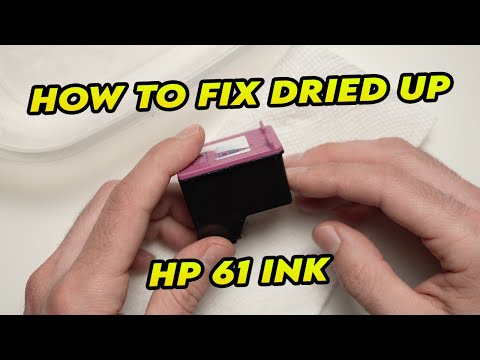
I will show how easy it is to fix and clean the HP 61 ink cartridge of your printer if it has dried out / clogged or is being blocked. Amazon link for replacement ink: https://amzn.to/32Kop6R Don't forget to like and subscribe if this was useful to you! The Amazon links above are affiliate, which
04-18-2025 09:28 AM
HP Recommended
I cleaned the print cartage head and this is the results. My son purchases this printer, it is the first one I’ve had without a full printer control panel, the ink levels are good.
Please be patient with me I am ill, I have good days and bad days, so it may take a while for me to get things done
I desperately need your help. I need to print a number of medical documents and this printer to work.
I have uploaded the test print page, I will do it again the before and after cleaning.
Thank you so much for your help.


Be alert for scammers posting fake support phone numbers and/or email addresses on the community.
If you think you have received a fake HP Support message, please report it to us by clicking on "Flag Post".
† The opinions expressed above are the personal opinions of the authors, not of HP. By using this site, you accept the Terms of Use and Rules of Participation.


Didn't find what you were looking for?
Ask the community
† The opinions expressed above are the personal opinions of the authors, not of HP. By using this site, you accept the <a href="https://www8.hp.com/us/en/terms-of-use.html" class="udrlinesmall">Terms of Use</a> and <a href="/t5/custom/page/page-id/hp.rulespage" class="udrlinesmall"> Rules of Participation</a>.