• ×
    Information
    Need Windows 11 help?
    Check documents on compatibility, FAQs, upgrade information and available fixes.
    Windows 11 Support Center.
  • post a message
  • ×
    Information
    Need Windows 11 help?
    Check documents on compatibility, FAQs, upgrade information and available fixes.
    Windows 11 Support Center.
  • post a message
Guidelines
Seize the moment! nominate yourself or a tech enthusiast you admire & join the HP Community Experts!
Check some of the most frequent questions about Instant Ink: HP INSTANT INK, HP+ PLANS: INK AND TONER.


Check out our WINDOWS 11 Support Center info about: OPTIMIZATION, KNOWN ISSUES, FAQs AND MORE.
HP Recommended
Microsoft Windows 10 (32-bit)

Just recently printer stopped being able to print a PDF using Acrobat Reader DC. I uninstalled and reinstalled the program. It worked okay for 3 days, now when I try to print the pages come out blank. I read in an online Adobe forum something about an recent update affecting HP printers. Any help would be greatly appreciated.

1 REPLY 1
HP Recommended

 Hi @Pete_14,


I'd like to help!


Try the below suggestions -


 Test printing with a different PDF file

Print a different PDF file to determine if the issue occurs with a specific PDF file or all PDF files.

  1. On your computer, close the original PDF, and then open a new PDF file.

  2. In the PDF file, click File, select Print from the list, review the settings, and then click Print.

    • If the file prints, the issue is related to the original PDF. Edit the original to make it smaller in size or continue to the next step to print the PDF as an image.

    • If the file does not print, continue to the next step.

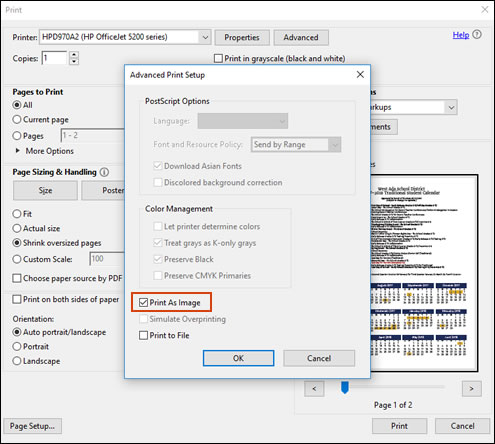
 Print the PDF as an image

You can print a PDF file as an image.

NOTE: 

Printing a PDF file as an image can result in blurry images or fonts, especially along the edges of the print.

  1. Open the original PDF file.

  2. Click File, and then select Print from the list.

    The Print window opens.

  3. Click Advanced.

    The Advanced Print Setup window opens.

  4. Click the Print As Image checkbox, change any other settings as desired, and then click OK.

    Printing the PDF file as an image

If the previous steps did not resolve the issue, try the following methods to print the PDF file.

  • Print the PDF file with the HP Smart app (Windows 10 only). Download and install the HP Smart app (in English) from the Windows Store, and then use it to print the PDF file. For more information, go to Install and Use the HP Smart App (Windows 10).

  • Make sure the PDF filename does not contain any special characters such as the pound sign (#), left or right brackets { }, or an ampersand (&). If you find any special characters in the file name, rename the file without any special characters, and then try to print again.

  • Download the PDF again. The file might have downloaded incorrectly or incompletely the first time.

  • Use another printer. If your printer is on a wired or wireless network, print the PDF file from a non-networked printer.

  • Move the PDF file to your computer's hard drive, and then print again. Adobe recommends storing PDF files on a local hard disk when you open, save, or print them to reduce potential problems and damage to your files.

  • Make sure your computer has enough free disk space to print the PDF file, especially if it is a large file. Adobe recommends that free space is equivalent to three to five times the size of the PDF file you want to print.

  • Close other programs on your computer when printing a PDF file. Adobe recommends keeping at least 50 percent of your computer's system resources free when printing PDF files.

  • Move the PDF file to a different computer, and then print again.

  • Print the PDF file from a cloud storage account, such as Google Drive, Dropbox, or Microsoft OneDrive.

  • Print the PDF from your mobile device. Go to Mobile Printing Solutions Compatible with HP Printers for a list of mobile printing solutions that work with your printer and mobile device.

Hope this helps! Keep me posted. 


And, Welcome to the HP Support Community. 


Please click “Accept as Solution” if you feel my post solved your issue, it will help others find the solution.

Click the “Kudos, Thumbs Up" on the bottom right to say “Thanks” for helping

† The opinions expressed above are the personal opinions of the authors, not of HP. By using this site, you accept the <a href="https://www8.hp.com/us/en/terms-of-use.html" class="udrlinesmall">Terms of Use</a> and <a href="/t5/custom/page/page-id/hp.rulespage" class="udrlinesmall"> Rules of Participation</a>.