-
×InformationNeed Windows 11 help?Check documents on compatibility, FAQs, upgrade information and available fixes.
Windows 11 Support Center. -

-
×InformationNeed Windows 11 help?Check documents on compatibility, FAQs, upgrade information and available fixes.
Windows 11 Support Center. -
- HP Community
- Printers
- Printer Setup, Software & Drivers
- HP Printer Assistant software always opens in full-screen mo...

Create an account on the HP Community to personalize your profile and ask a question
06-18-2023 10:54 AM
I have the HP Officejet Pro 8620. The Printer Assistant Software, which I use frequently for scanning and managing the printer, ALWAYS opens in full screen mode. I change the window size and exit, but it keeps coming back in full screen. This happens with Windows 10, as well. I have searched the net over and over for a 'fix' but can't find anything. I see others have asked about this same error going back at least 6 years to 2017. Why is this still an unresolved issue?
06-18-2023 02:40 PM
Welcome to the HP Community --
The printer software is a much older version than is the case for newer printers.
When opened, the Printer Assistant is sized and shaped using a container program.
It's been a minute since I had my OfficeJet Pro 8630 -- it does seem like the software did exhibit this "full screen" GUI behavior.
Dragon Words -
I would guess the "sizing" culprit is the old container software that opens the Printer Assistant software.
No, there is not an easy user-accessible fix -- you need access and coding edits to change the behavior.
What to do?
You can get around the "opens in full screen" by not using the Printer Assistant.
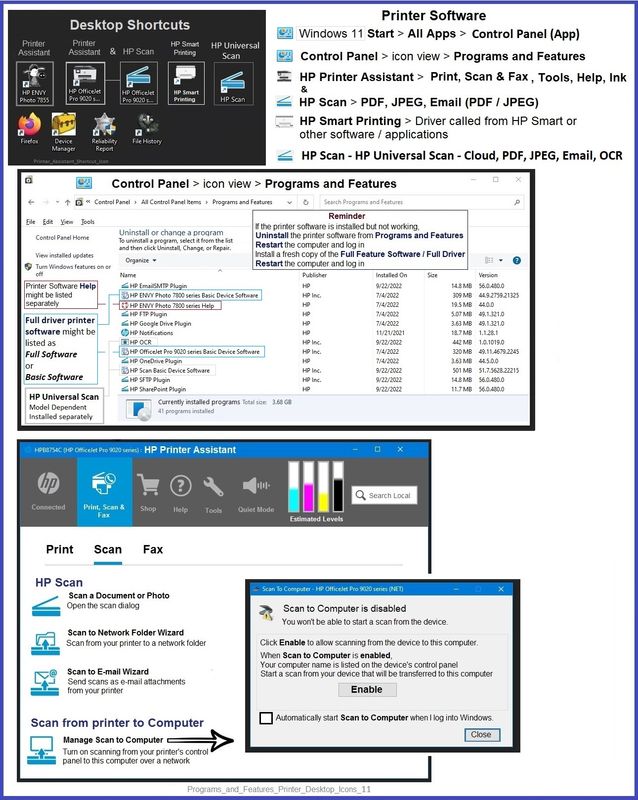
Open the HP Scan using the Desktop shortcut for that scan software.
Open the various settings and tools using the Embedded Web Server (EWS).
Example
EWS > HP Document / How-to
Use the HP printer Embedded Web Server (EWS)
General Examples based on a newer printer.
Open your favorite browser > type / enter Printer IP address into URL / Address bar
Tab Tools > Printer Information
Open your favorite browser > type / enter Printer IP address into URL / Address bar
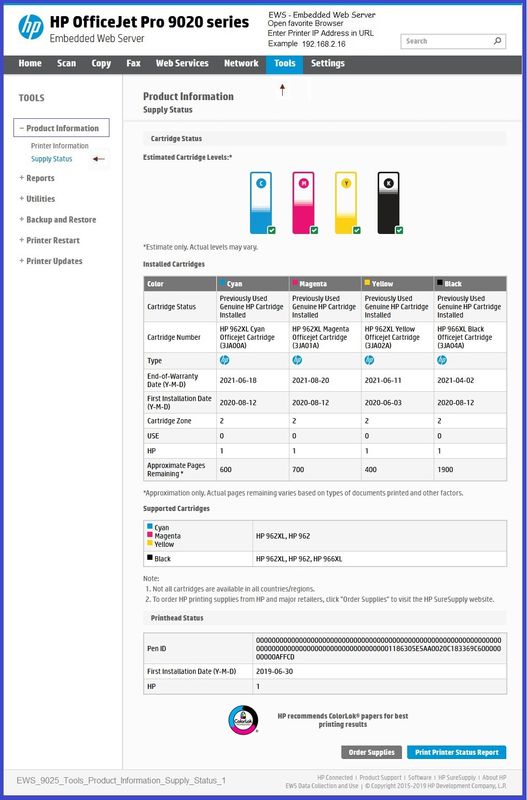
Tab Tools > Supply Status
Optional (at bottom of webpage) > Print Printer Status Report
Open your favorite browser > type / enter Printer IP address into URL / Address bar
Tab Tools > Reports > Usage Report
To Print the Report: EWS > Tools > Printer Reports > Print Usage Report
Open your favorite browser > type / enter Printer IP address into URL / Address bar
Tab Tools > Utilities > Print Quality Toolbox
Example - EWS - Tools > Utilities > Print Quality Toolbox
9025_EWS_Tools_Utilities_Print-Quality-Toolbox_1
Example - EWS - Tools > Product Information > Supply Status
EWS_9025_Tools_Product_Information_Supply_Status_1
Example - Full Feature Software - Installed
Programs_and_Features_Printer_Desktop_Icons_11
References / Resources / Examples
=+=+=+=+=+=+=+=+=+=+=+=+=+=+=+=+=+=+=+=+=+=
HP Printer Home Page - References and Resources
Learn about your Printer - Solve Problems
“Things that are your printer”
When the website support page opens, Select (as available) a Category > Topic > Subtopic
NOTE: Content depends on device type and Operating System
Categories: Alerts, Access to the Print and Scan Doctor (Windows), Warranty Check, HP Drivers / Software / Firmware Updates, How-to Videos, Bulletins/Notices, Lots of How-to Documents, Troubleshooting, Manuals > User Guides, Product Information (Specifications), Supplies, and more
Open
HP Officejet Pro 8620 e-All-in-One Printer series
Thank you for participating in the HP Community --
People who own, use, and support HP devices.
Click Yes to say Thank You
Question / Concern Answered, Click my Post "Accept as Solution"