• ×
    Information
    Need Windows 11 help?
    Check documents on compatibility, FAQs, upgrade information and available fixes.
    Windows 11 Support Center.
  • post a message
  • ×
    Information
    Need Windows 11 help?
    Check documents on compatibility, FAQs, upgrade information and available fixes.
    Windows 11 Support Center.
  • post a message
Guidelines
Here is the solution for the error: "Encryption Credentials have expired" when attempting to print or scan from Mac OS or iOS devices: Click here to view the troubleshooting steps!
Check some of the most frequent questions about Instant Ink: HP INSTANT INK, HP+ PLANS: INK AND TONER.


Check out our WINDOWS 11 Support Center info about: OPTIMIZATION, KNOWN ISSUES, FAQs AND MORE.
HP Recommended
8715
macOS 10.15 Catalina

MacOS 10.15.3, officejet 8715, HP Smart 4.5.1


Each time I start HP Smart it asks for a password from key ring. I do not use key ring. Clicking on "not allowed" 3 times and then HP Smart continues. How can I fix this?

1 REPLY 1
HP Recommended

Hi @gatm2

Welcome to the HP Support Community. I'd be happy to assist you. HP Smart app itself has no password.


How is the printer connected to the MAC?


If you have connected the printer and the MAC using Wifi-Direct, it may ask for the wifi-direct password. The default password for wifi-direct is 12345678.


Which type of document are you trying to print?

Does this issue occur while printing different types of documents from your MAC?


Have you tried installing the printer using the AirPrint driver and check if the issue persists?


1.) Click the Apple menu, click System Preferences, and then click Print & Scan or Printers & Scanners.

2.) Check if your printer name displays in the Printers list, If your printer is listed, click the printer name, click the minus sign to delete the printer.

3.) If you see multiple printer queues for the same printer, remove all extra printers by selecting them one at a time, and then clicking the minus button at the bottom of the list.

4.) Click the plus sign, click Add Printer or Scanner, click the printer name.

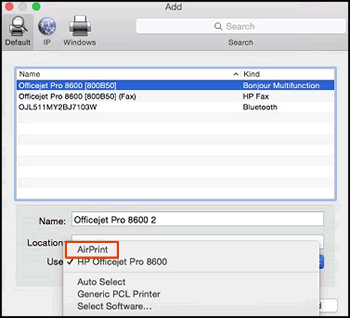
5.) Click the Use or Print Using menu, select AirPrint in the pop-up menu. Then click Add.

Select AirPrint from the Use menu

6.) Try to print.


Hope this helps! Keep me posted. 


Please click “Accept as Solution” if you feel my post solved your issue, it will help others find the solution.

Click the “Kudos, Thumbs Up" on the bottom right to say “Thanks” for helping!

Have a great day! 

KUMAR0307
I am an HP Employee

† The opinions expressed above are the personal opinions of the authors, not of HP. By using this site, you accept the <a href="https://www8.hp.com/us/en/terms-of-use.html" class="udrlinesmall">Terms of Use</a> and <a href="/t5/custom/page/page-id/hp.rulespage" class="udrlinesmall"> Rules of Participation</a>.