• ×
    Information
    Need Windows 11 help?
    Check documents on compatibility, FAQs, upgrade information and available fixes.
    Windows 11 Support Center.
  • post a message
  • ×
    Information
    Need Windows 11 help?
    Check documents on compatibility, FAQs, upgrade information and available fixes.
    Windows 11 Support Center.
  • post a message
Guidelines
Seize the moment! nominate yourself or a tech enthusiast you admire & join the HP Community Experts!
Check some of the most frequent questions about Instant Ink: HP INSTANT INK, HP+ PLANS: INK AND TONER.


Check out our WINDOWS 11 Support Center info about: OPTIMIZATION, KNOWN ISSUES, FAQs AND MORE.
HP Recommended
HP office jet 8020
macOS 11.0 Big Sur

Hello Community , 

My Office Jet printer 8020 is not printing after Big Sur update.  I am able to scan and print from all the devices except MAc.

HP Smart shows  Ready, No issue and no fix needed and all firmware driving is good but still not printing.


I have also verified security preference and it shows Any one can print.  I saw error :


Unable to start filter "cgpdftoraster" 

Stopping job because the scheduler could not execute a filter.

followed  below but it didnt help. 


https://h30434.www3.hp.com/t5/Printing-Errors-or-Lights-Stuck-Print-Jobs/Can-t-print-from-MacoS-Big-...


Reset, reinstall and configure 15 times since Oct 5. None helping . pls help 

5 REPLIES 5
HP Recommended

@mpandey01


Welcome to the HP Support Community.


Follow the steps below-

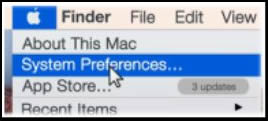
  1. Click the Apple menu, and then click System Preferences.

  2. Click Printers & Scanners, Print & Scan, or Print & Fax.

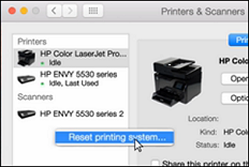
  3. Right-click (or Control + click) anywhere inside the Printers window, and then click Reset printing system.

    Figure : Clicking Reset printing system

    Image: Click Reset printing system
  4. Click Reset or OK.

  5. If prompted, type your username and password, and then click OK.

    The printing system resets.

  6. Turn off the printer, wait 5 seconds, and then turn on the printer.

  7. Wait until the printer is idle and silent.

  8. In the Printers window on the Mac, click the Add button .

  9. Select your printer from the list, and then click Add.

    It might take a few seconds before your printer displays in the Printers list.

Try printing.


Hope this helps! Keep me posted. 


Please click “Accepted Solution” if you feel my post solved your issue, it will help others find the solution. Click the “Kudos/Thumbs Up" on the bottom right to say “Thanks” for helping!


I am an HP Employee

HP Recommended

I tried the steps multiple times but it didnt help. Still same error.


However, Scanning from the printer works perfectly fine, only printing is the issue. 

HP Recommended

Are you using the HP Smart App?


I am an HP Employee

HP Recommended

Yes, I tried all the ways but none help.

I  downloaded and used smart apps. It shows Ready but does not print. Screen Shot 2021-11-27 at 4.08.03 PM.pngScreen Shot 2021-11-27 at 4.01.48 PM.pngScreen Shot 2021-11-27 at 4.09.35 PM.pngScreen Shot 2021-11-27 at 4.09.35 PM.png

HP Recommended

I recommend you to contact the HP Support Team regarding this as they can remotely access your MAC and help you with this.


Link: www.hp.com/contacthp/


Note:  Select the country accordingly to get the contact details for support.


Let me know if this helps.


If the information I've provided was helpful, give us some reinforcement by clicking the "Accept as solution" button, that'll help us and others see that we've got the answers!


Thanks!

Have a great day!


I am an HP Employee

† The opinions expressed above are the personal opinions of the authors, not of HP. By using this site, you accept the <a href="https://www8.hp.com/us/en/terms-of-use.html" class="udrlinesmall">Terms of Use</a> and <a href="/t5/custom/page/page-id/hp.rulespage" class="udrlinesmall"> Rules of Participation</a>.