• ×
    Information
    Need Windows 11 help?
    Check documents on compatibility, FAQs, upgrade information and available fixes.
    Windows 11 Support Center.
  • post a message
  • ×
    Information
    Need Windows 11 help?
    Check documents on compatibility, FAQs, upgrade information and available fixes.
    Windows 11 Support Center.
  • post a message
Guidelines
Here is the solution for the error: "Encryption Credentials have expired" when attempting to print or scan from Mac OS or iOS devices: Click here to view the troubleshooting steps!
Check some of the most frequent questions about Instant Ink: HP INSTANT INK, HP+ PLANS: INK AND TONER.


Check out our WINDOWS 11 Support Center info about: OPTIMIZATION, KNOWN ISSUES, FAQs AND MORE.
HP Recommended

Hi Betty,


I've tried this before coming here and it will print but only in black and white.

HP Recommended

Please try the below steps and let me know if this helps-


  1. Make sure you have a color printer and that the admin settings support color printing.

  2. Make sure a Windows Quick Set is not selected that contradicts the desired setting.

    1. Open the Windows App and open the document you want to print.

    2. Select Print and click Properties.

    3. Select the Finishing tab.

    4. If selected, clear the check box Print in Grayscale and click Apply.

  3. Update the driver settings.

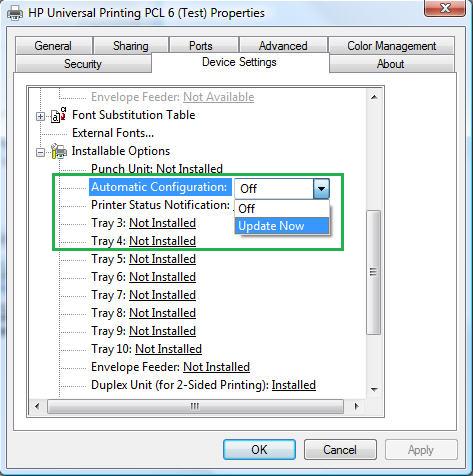
    1. Click the Device Settings tab.

    2. Under Installable Options, click Automatic Configuration: Off (the default) to display the drop-down list.

    3. Select Update Now.

    4. Click Apply and wait for the driver to retrieve the printer information.

    5. Try again to print a color job.

      • If the page prints in color, the issue is resolved.

      • If the page does not print in color, continue to the next step.

  4. If the update fails or the issue persists, manually change the color setting.

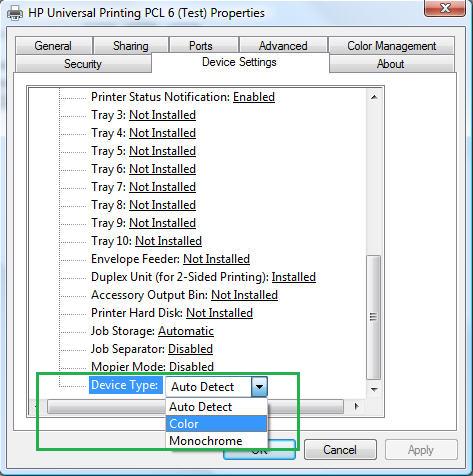
    1. Click the Device Settings tab.

    2. Under Installable Options, click Device Type: Auto Detect to display the drop-down list.

    3. Select Color and click Apply.

    4. Try again to print a color job.

Hope this helps!

HP Recommended

Hi Jay,


I tried to print again by setting up a TCP/IP Port and the first document I printed came out in color. I then logged into my router and reserved this IP address for my printer. From there, I tried to print again and it came out in black and white. 


As far as your request below, my responses:

1. I have a color printer installed - it prints in color from all devices except for my PC. I am the only PC admin user. I'm not sure where to see that the admin setting support color printing.

2. When I open an Excel document to print, I don't have a Properties option to click on.When I click on "Printer Preferences" there is not "Finishing" tab. I'm using Windows 10 / Office 365

3. Here is my Printer Properties menu, with the Device Settings tab selected:

Capture.PNG

4. I can't continue due to the menu #3


HP Recommended

Capture.PNG

HP Recommended

For some reason my picture isn't uploading, but to describe it: The 'Device Settings' tab only has "Installable Options: Automatic Duplexing Unit [Not Installed]".

The "Not Installed" is grayed out, and there are no more listings on this tab.

HP Recommended

This thread fixed the problem for me. I made sure to select "Replace the driver" and now it's printing in color consistently.


https://h30434.www3.hp.com/t5/Inkjet-Printing/HP-OfficeJet-3830-will-not-print-in-color-all-of-a-sud...

† The opinions expressed above are the personal opinions of the authors, not of HP. By using this site, you accept the <a href="https://www8.hp.com/us/en/terms-of-use.html" class="udrlinesmall">Terms of Use</a> and <a href="/t5/custom/page/page-id/hp.rulespage" class="udrlinesmall"> Rules of Participation</a>.