-
×InformationNeed Windows 11 help?Check documents on compatibility, FAQs, upgrade information and available fixes.
Windows 11 Support Center. -

-
×InformationNeed Windows 11 help?Check documents on compatibility, FAQs, upgrade information and available fixes.
Windows 11 Support Center. -
- HP Community
- Printers
- Printer Setup, Software & Drivers
- HP6950 won't scan double sided

Create an account on the HP Community to personalize your profile and ask a question
06-03-2023 08:11 AM
Got a new laptop and can't find driver to download the HP Printer Assistant. Only option is to use HP Smart app which doesn't scan double sided!! Any solutions to this please or indeed any recommendations on how I can revert back to old ways by downloading the HP Printer Assistant which allows double sided scanning? Thank you
06-03-2023 09:28 AM - edited 06-03-2023 02:35 PM
Welcome to the HP Community --
We are a Peer-to-Peer Forum for people who use HP Technology.
The printer does not support automatic 2-sided scan.
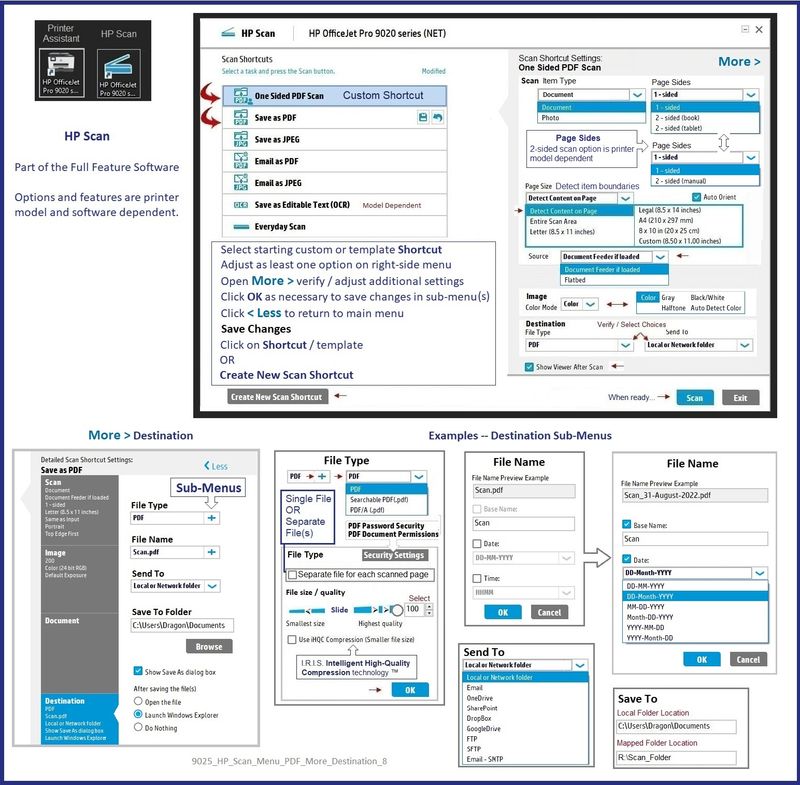
You can scan 2-sides using the full driver and the HP Scan software.
HP Document - How to Scan
HP Printers - How to Scan (Windows, Mac, Mobile) | HP® Customer Support
"Old ways" - Full driver printer software
=========================
Printer - Full Feature Software - Install
If you have not done so, consider
- HP Full Feature Software / Full Driver printer software - supports printing and scanning from the web, printing in in other software and programs (for example, Word), and provides access to the full range of Printing Preferences / Shortcuts. The full driver adds at least two shortcuts to the Desktop: Printer Assistant and HP Scan. If the printer model includes built-in Fax hardware, the software supports the setup and use of the Fax driver. No Sign-in required.
If the full driver printer software is (already) installed but not working,
- Uninstall any printer software from Control Panel > icon view > Programs and Features
- Restart the computer and sign in.
Next,
- Check (for the Printer) in Devices and Printers > If found, Right-Click Printer and Remove -- If any changes are made, that is, you remove anything, Restart the computer and sign in.
Next,
- If using a printer USB cable between the printer and the computer, disconnect the cable before installing the printer software.
- Download and Save the Full Feature Software installation package
or the Easy Start Software
Details Page - Driver - For your Printer
>>> Full Feature Software - Web Pack Installation Package - Information - Download <<<
HP OfficeJet 6950 All-in-One Print and Scan Driver and Accessories
Installation
- Open File Explorer
- Navigate to the folder in which you saved the installation file (likely Downloads)
- Right-Click on the installation package and “Run as Administrator”
- If using a printer USB cable between the printer and the computer, connect the cable when instructed (near the end of the installation).
- After the software is installed, Restart the computer and log in
====================================
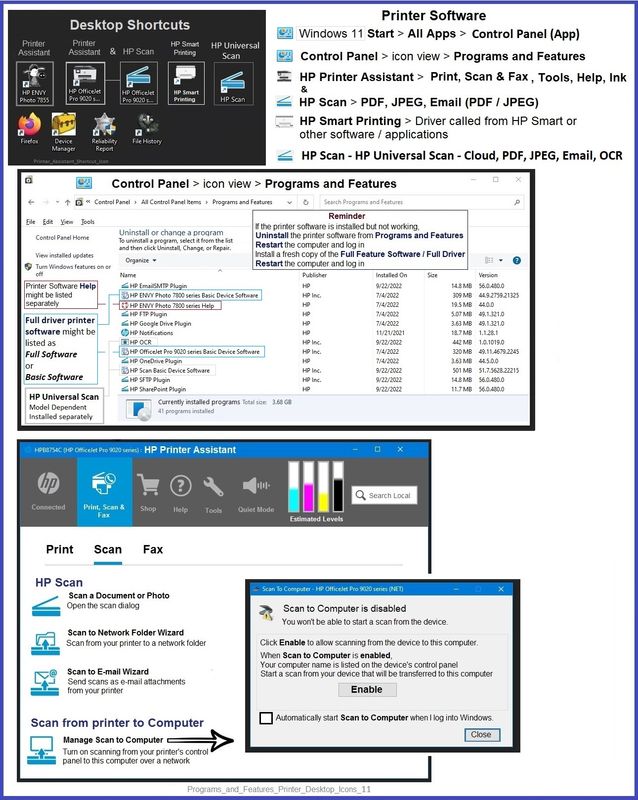
The installation of the full driver adds at least two shortcuts to the Desktop:
Printer Assistant
HP Scan
Example - Windows - Full Feature Software - Installed in Programs and Features
Programs_and_Features_Printer_Desktop_Icons_11
Example - HP Scan - Menu > More > Destination
9025_HP_Scan_Menu_PDF_More_Destination_8
=+=+=+=+=+=+=+=+=+=+=+=+=+=+=+=+=+=+=+=+=+=
References / Resources
Different printer model - similar process
Video
HP Officejet Pro 8025 | 8025e | 8020 | 8035 Printer: Scan 2-sided document using HP Scan
HP Printer Home Page - References and Resources
Learn about your Printer - Solve Problems
“Things that are your printer”
When the website support page opens, Select (as available) a Category > Topic > Subtopic
NOTE: Content depends on device type and Operating System
Categories: Alerts, Access to the Print and Scan Doctor (Windows), Warranty Check, HP Drivers / Software / Firmware Updates, How-to Videos, Bulletins/Notices, Lots of How-to Documents, Troubleshooting, Manuals > User Guides, Product Information (Specifications), Supplies, and more
Open
HP OfficeJet 6950 All-in-One Printer series
Thank you for participating in the HP Community --
People who own, use, and support HP devices.
Click Yes to say Thank You
Question / Concern Answered, Click my Post "Accept as Solution"
06-03-2023 10:07 AM
Hi,
You may download and install its Full Feature below to get the HP Printer Assistant and HP Scan software:
Shlomi
Click the Yes button to reply that the response was helpful or to say thanks.
If my post resolve your problem please mark it as an Accepted Solution 🙂