• ×
    Information
    Need Windows 11 help?
    Check documents on compatibility, FAQs, upgrade information and available fixes.
    Windows 11 Support Center.
  • post a message
  • ×
    Information
    Need Windows 11 help?
    Check documents on compatibility, FAQs, upgrade information and available fixes.
    Windows 11 Support Center.
  • post a message
Guidelines
Join the HP Community Solve‑a‑thon | Help Others & Share Your Solutions | Live on Zoom | 2:30 PM to 2:30 AM IST | Every Wednesday Click here to know more
Check some of the most frequent questions about Instant Ink: HP INSTANT INK, HP+ PLANS: INK AND TONER.


Check out our WINDOWS 11 Support Center info about: OPTIMIZATION, KNOWN ISSUES, FAQs AND MORE.
HP Recommended
Home Office
Microsoft Windows 10 (64-bit)

8620 officejet printhead CR322A

1 REPLY 1
HP Recommended

@Robby347 If you need to check the printhead, or remove it, here's everything you need to know: (let us know if there's anything else you need to check it for, please elaborate)

If you want to Remove the cartridges and the printhead

  1. Load unused, plain white paper in the input tray.

  2. Press the Power button to turn on the printer, if it is not already on.

  3. Insert your fingers into the slot on the left side of the printer, and then pull forward to open the cartridge access door. The carriage moves to the left side of the printer. Wait until the carriage is idle and silent before you proceed.

    Figure : Open the cartridge access door

    1. Location of the cartridge access door slot

  4. Lift the latch handle on the carriage.

    Figure : Lift the latch handle on the carriage

    Image: Lift the latch handle on the carriage
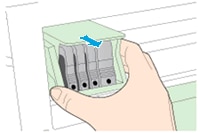
  5. Grasp the sides of the printhead, and then lift the printhead and pull it toward you to remove it.

    NOTE: 

    Do not remove the cartridges from the printhead. You can safely remove the printhead with all of the cartridges inserted.

    Figure : Remove the printhead

    Image: Remove the printhead
       CAUTION: 

    Handle the printhead carefully to avoid ink stains. Avoid touching the underside of the printhead.

  6. Dispose of the printhead:
    • If a postage-paid mailing label and a return envelope were included with the new printhead, HP would like to have the old part back for analysis. Skip to the step to return the failed parts to HP, and then follow the instructions to return the printhead.

    • If no post-paid mailing label came with the new printhead, you can recycle the old part. Put the printhead (with the cartridges still inserted) into a plastic bag, and then go to hp.com/recycle for information on recycling the old printhead and cartridges.

FOR DETAILS & FURTHER INSTRUCTIONS, USE THIS LINK: CLICK HERE

(By the end of this article all the issues should be resolved)


P.S: Welcome to HP Community 😉


Keep us posted,

If you would like to thank us for our efforts to help you, 

Give us a virtual high-five by clicking the 'Thumbs Up' icon below, followed by clicking on the "Accept as solution" on this post, 

Have a great day!

Riddle_Decipher
I am an HP Employee


Learning is a journey, not a destination.
Let's keep asking questions and growing together.
† The opinions expressed above are the personal opinions of the authors, not of HP. By using this site, you accept the <a href="https://www8.hp.com/us/en/terms-of-use.html" class="udrlinesmall">Terms of Use</a> and <a href="/t5/custom/page/page-id/hp.rulespage" class="udrlinesmall"> Rules of Participation</a>.