• ×
    Information
    Need Windows 11 help?
    Check documents on compatibility, FAQs, upgrade information and available fixes.
    Windows 11 Support Center.
  • post a message
  • ×
    Information
    Need Windows 11 help?
    Check documents on compatibility, FAQs, upgrade information and available fixes.
    Windows 11 Support Center.
  • post a message
Guidelines
Seize the moment! nominate yourself or a tech enthusiast you admire & join the HP Community Experts!
Check some of the most frequent questions about Instant Ink: HP INSTANT INK, HP+ PLANS: INK AND TONER.


Check out our WINDOWS 11 Support Center info about: OPTIMIZATION, KNOWN ISSUES, FAQs AND MORE.
HP Recommended
HP 2722e

Hi. Not used to this new printer. I can print from photo option or pdf  or drive ,but how do I print from my emails?

1 REPLY 1
HP Recommended

@Lcb49 


Welcome to the HP Community.


Printing - and scanning - operations are supported in the Full Feature Software / full driver printer software.


After installing the full driver,

Printing is supported from browsers, from Windows Mail (if you have your email address added to that application), from Office software, and other programs.


Video Help to install the full driver:

HP DeskJet 2700 series printer : Download Offline Copy of Software and Install on Win 10 computer


and / or


==============================================================================

The full driver provides the foundation on which other programs and printing software depend.


Preparation


If you have not done so,

In addition to the HP Smart application,

Install the Full Feature Software / full driver printer software for the printer.

HP Smart and other print software / applications benefit from having the full driver installed.


Printer Software Check


Notes

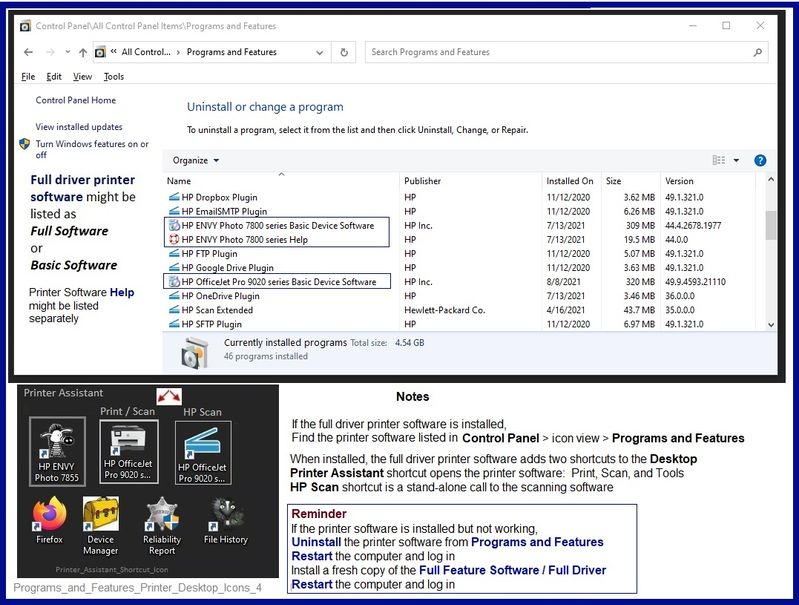
If the full driver printer software is installed, you will see the printer listed in Control Panel > icon view > Programs and Features.


The installation of the printer software adds two shortcut icons to the Desktop.

The Printer Assistant is named for the printer and provides access to Print , Scan , and Tools

HP Scan is named for itself and provides a direct call to the HP Scan software.

Programs_and_Features_Printer_Desktop_Icons_4Programs_and_Features_Printer_Desktop_Icons_4


Printer software not installed?


NOTE:  If the printer software shows installed but is not working as expected,

Uninstall the printer software from Control Panel > icon view > Programs and Features

Restart the computer and log in

Reminder:  If using USB, disconnect the USB printer cable between the printer and the computer before installing software.  (Re)Connect the USB cable when instructed to do so near the end of the installation procedure.

Install a fresh copy of the Full Feature Software / Full Driver printer software

Restart the computer and log in


Method - Use the Easy Start Wrapper to Install the Full Feature / Full Driver Software


For printers that support the option,

Use the Easy Start wrapper to install and configure the printer software.


  • Home Page - HP Easy Start 
  • Open Category Software and Drivers 
  • Topic: Software-Utility 
  • Download-and-Save  the current version of the Easy Start wrapper to install your print software 
  • If using USB:  Disconnect the USB cable between the printer and computer before installing the software.
  • Right-Click on the downloaded package and "Run as Administrator" to start the installation
  • When asked, Select to install the “Full Driver” / “Full Feature Software”
  • If using USB:  Connect the cable when instructed to do so (near the end of the installation process).
  • After the software is installed, Restart the computer and log in.


Notes >> Easy Start... The Journey


  1. Full Administrator Rights are required to complete the HP Software installation.
  2. About 2/3 of the way through the setup, you will be given the opportunity to select the software - select the "Full Driver" set (as opposed to the basic driver or other application).
  3. You can skip / ignore suggestion(s) that you add the HP Account – you’ll need the account at some point, for now, you can skip this suggestion (as many times as it insists it’s a good idea) during the full driver software installation.
  4. If you see it, you can skip / ignore suggestion(s) regarding Instant Ink subscription.  Instant Ink subscription is NOT mandatory.
  5. Full driver includes print and scan functions supported by your printer and provides the printer features on which other applications / software might depend.

=================================================================================


HP Printer Home Page - References and Resources – Learn about your Printer  - Solve Problems

 “Things that are your printer”

NOTE:  Content depends on device type and Operating System

Categories:  Alerts, Access to the Print and Scan Doctor (Windows), Warranty Check, HP Drivers / Software / Firmware Updates, How-to Videos, Bulletins/Notices, Lots of How-to Documents, Troubleshooting, Manuals > User Guides, Product Information (Specifications), more

When the website support page opens, Select (as available) a Category > Topic > Subtopic

HP DeskJet 2722e All-in-One Printer 


Printer and  HP+ service

Contact HP+ Support

OR

>>> Open your HP+ Printer Homepage > Concierge Help > Click Contact Us link in the Orange box


Note that Concierge assistance is only available for registered HP+ printers.


NOTE:  Where available, the Homepage website for the non HP+ model includes any missing "Category" sections not found in the HP+ printer site.  What?  The “+” and “not +” printers are the same printer – HP+ is a benefit / service.


HP+ > Benefits, Requirements, Your Responsibilities

HP+ Printing – Website / Information / FAQ


“Print Anywhere App” Supported on Select Printers

  HP Printers - Print Anywhere with the HP Smart App

 Step 3:  Use Print Anywhere

Open Subsection:  Private Pickup (HP+ printers only)

Enable / Disable the service to hold the print job until the person who sent it is near the printer.


Thank you for participating in the HP Community.

The Community is a separate wing of the HP website - We are not an HP business group.

Our Community is comprised of volunteers - people who own and use HP devices.

Click Thumbs Up to say Thank You.

Question / Concern Answered, Click "Accept as Solution"

Dragon-Fur

† The opinions expressed above are the personal opinions of the authors, not of HP. By using this site, you accept the <a href="https://www8.hp.com/us/en/terms-of-use.html" class="udrlinesmall">Terms of Use</a> and <a href="/t5/custom/page/page-id/hp.rulespage" class="udrlinesmall"> Rules of Participation</a>.