• ×
    Information
    Need Windows 11 help?
    Check documents on compatibility, FAQs, upgrade information and available fixes.
    Windows 11 Support Center.
  • post a message
  • ×
    Information
    Need Windows 11 help?
    Check documents on compatibility, FAQs, upgrade information and available fixes.
    Windows 11 Support Center.
  • post a message
Guidelines
Here is the solution for the error: "Encryption Credentials have expired" when attempting to print or scan from Mac OS or iOS devices: Click here to view the troubleshooting steps!
Check some of the most frequent questions about Instant Ink: HP INSTANT INK, HP+ PLANS: INK AND TONER.


Check out our WINDOWS 11 Support Center info about: OPTIMIZATION, KNOWN ISSUES, FAQs AND MORE.
HP Recommended
Laserjet Pro M281fdw
Microsoft Windows 10 (64-bit)

I managed to change the default to 1-sided portrait printing. 


How do I create a new instruction for 2-sided portrait printing and another for 2-sided landscape?


Sorry if this is obvious--my aging brain doesn't function like it once did 😞  


Thank you

1 REPLY 1
HP Recommended

@Dobeluvr


Welcome to the HP support community.


I understand that you want to change the printer settings to print 2 sided printing.

Follow these steps:- 

  1. Open the document or photo on your computer, click File or the menu icon , and then click Print.

    Print or Print Pictures window or pane opens with general print job settings, including the menu to select the printer you want to print to.

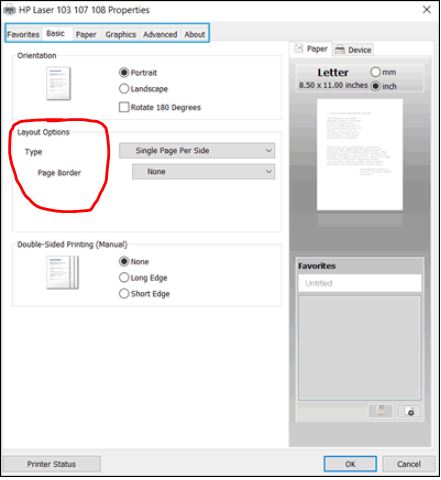
  2. Open Document Properties or Printing Preferences from the main print window or pane to access the HP Laser print driver settings. The button or link name varies depending on the app you are printing from.

    • Microsoft Word: Click Printer Properties

    • Paint and WordPad: Click Preferences

    • Windows Photo Viewer: Click Options... in the lower right corner of the screen, and then click Printer Properties... in the Print Settings window

    • Adobe PDF Reader: Click Properties

  3. To view the different settings, click the tabs along the top of the window.

  4. Layout Options: Select the layout option for your print.

  5. Pages per sheet: Print multiple pages of a document on one sheet of paper, and select the order they are printed on the page.

  6. Booklet printing: Select page flip binding settings for booklet reading.

  7. Poster printing: Enlarges an image and divides it across multiple pages so that can be taped together as a poster.

  8. Click the Favorites tab to use shortcuts that have essential settings already selected for common print job types.

Refer to this HP document for more assistance:- Click here


Let me know how it goes.

To thank me for my efforts to help you, please mark my post as an accepted solution so that it benefits several others.

Cheers.

Sandytechy20
I am an HP Employee

† The opinions expressed above are the personal opinions of the authors, not of HP. By using this site, you accept the <a href="https://www8.hp.com/us/en/terms-of-use.html" class="udrlinesmall">Terms of Use</a> and <a href="/t5/custom/page/page-id/hp.rulespage" class="udrlinesmall"> Rules of Participation</a>.