-
×InformationNeed Windows 11 help?Check documents on compatibility, FAQs, upgrade information and available fixes.
Windows 11 Support Center. -

-
×InformationNeed Windows 11 help?Check documents on compatibility, FAQs, upgrade information and available fixes.
Windows 11 Support Center. -
- HP Community
- Printers
- Printer Setup, Software & Drivers
- IMac won't recognize printer -- thinks its a scanner

Create an account on the HP Community to personalize your profile and ask a question
12-29-2019 09:04 AM - edited 12-29-2019 09:04 AM
I have had my HP1102W for years. It is a great printer. But as other users have reported for years, the auto install feature of the printer -- configured for Windows machines -- prevents installation on a Mac. Sometimes I have been able to fool it by running the Self Test (pressing the X button on the front of the printer) but now that won't work. Given the fact that this problem has plagued HP customers for years I am at a loss to understand why HP has not addressed this problem. I have the latest driver and I have now spent hours on the problem. It makes me reluctant to ever buy another HP product.
Please -- HP or anyone else -- what is the solution? And please don't suggest that I plug the printer into a Window's machine to turn off this feature. I don't have one.
Thank you.
Jack
12-31-2019 05:18 PM - edited 12-31-2019 05:18 PM
Welcome to the HP Support Community. I'd be happy to assist you.
HP LaserJet Pro P1102w Printer is AirPrint compatible, installing the printer using the AirPrint driver may resolve this issue.
Please ensure that the printer is up to date with its firmware and Mac is up to date with it's software. If you are unsure you may use the links below to update the printer firmware and Mac software:
1.) Click the Apple menu, click System Preferences, and then click Print & Scan or Printers & Scanners.
2.) Check if your printer name displays in the Printers list, If your printer is listed, click the printer name, click the minus sign to delete the printer.
3.) If you see multiple printer queues for the same printer, remove all extra printers by selecting them one at a time, and then clicking the minus button at the bottom of the list.
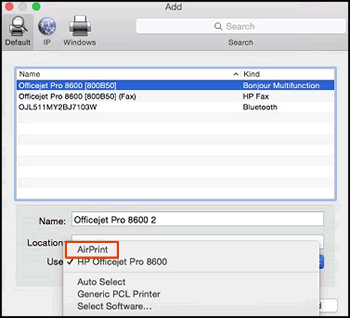
4.) Click the plus sign, click Add Printer or Scanner, click the printer name.
5.) Click the Use or Print Using menu, select AirPrint in the pop-up menu. Then click Add.

6.) Try to print.
Note: Make sure to select 'Bonjour multifunction' under kind while installation.
Hope this helps! Keep me posted.
Please click “Accept as Solution” if you feel my post solved your issue, it will help others find the solution.
Click the “Kudos, Thumbs Up" on the bottom right to say “Thanks” for helping!
Have a great day!
KUMAR0307
I am an HP Employee