• ×
    Information
    Need Windows 11 help?
    Check documents on compatibility, FAQs, upgrade information and available fixes.
    Windows 11 Support Center.
  • post a message
  • ×
    Information
    Need Windows 11 help?
    Check documents on compatibility, FAQs, upgrade information and available fixes.
    Windows 11 Support Center.
  • post a message
Guidelines
Here is the solution for the error: "Encryption Credentials have expired" when attempting to print or scan from Mac OS or iOS devices: Click here to view the troubleshooting steps!
Check some of the most frequent questions about Instant Ink: HP INSTANT INK, HP+ PLANS: INK AND TONER.


Check out our WINDOWS 11 Support Center info about: OPTIMIZATION, KNOWN ISSUES, FAQs AND MORE.
HP Recommended
HP ENVY Pro 6432 All-in-One Printer
macOS 10.15 Catalina

I have a HP Envy Pro printer that stopped working, I think it was a problem with my Mac rather that the printer. I uninstalled the drivers for my printer and tried to reinstall them. Everything was fine until I tried to open the Smart App from the App Store. It just downloaded  the same app from the cloud ( I think). 

When I tried to open the smart app it asked me to login. I did but all I get is the message 'Find the open browser window, then sign in to your HP account. It might be behind another open browser or minimised' Ive no other browser window open.

Please help. 

Thank you


3 REPLIES 3
HP Recommended

@Mikex0011


Welcome to the HP support community.


I understand that you are getting printer installation issues, I am glad to assist you.

You can install the printer using Apple AirPrint.

Add the AirPrint printer to the Mac printer queue

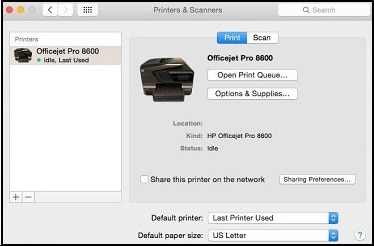
  1. Click the Apple menu, click System Preferences, and then click Print & Scan or Printers & Scanners.

    Figure : Example of the Printers & Scanners window

     Example of the Printers & Scanners window
  2. Check if your printer name displays in the Printers list, and then do one of the following steps.

    • If your printer is listed, remove and re-add the printer to confirm it is set up for AirPrint. Click the printer name, click the minus sign  to delete the printer, click the plus sign , click Add Printer or Scanner, click the printer name and then continue to the next step.
    • If your printer is not listed, click the plus sign, click Add Printer or Scanner, click the name of your printer, and then continue to the next step.

    • If your printer is not listed in the Add Printer or Scanner window, go to the Frequently asked questions in this document to resolve connection issues, try to add the printer again, and then continue to the next step.

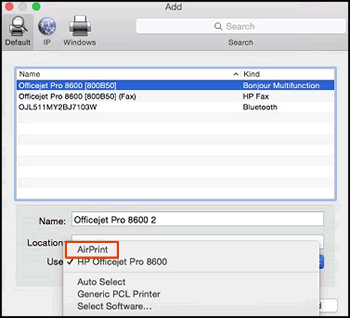
  3. Confirm AirPrint or Secure AirPrint displays in the Use or Print Using menu, and then click Add.

    Figure : AirPrint displays in the Use menu

    Select AirPrint from the Use menu
  4. Open a document or photo, click File, and then click Print.

Refer to this HP document for further assistance:- Click here


Keep me posted.

If this helps, please mark the public post as an accepted solution so that it benefits several others.

Cheers.

Sandytechy20
I am an HP Employee

HP Recommended

Are you able to help me with this issue?

HP Recommended

@Mikex0011


Did you try the steps mentioned in the above post?

If yes, let me know the outcome for further assistance.


Cheers.

Sandytechy20
I am an HP Employee

† The opinions expressed above are the personal opinions of the authors, not of HP. By using this site, you accept the <a href="https://www8.hp.com/us/en/terms-of-use.html" class="udrlinesmall">Terms of Use</a> and <a href="/t5/custom/page/page-id/hp.rulespage" class="udrlinesmall"> Rules of Participation</a>.