
-
×InformationNeed Windows 11 help?Check documents on compatibility, FAQs, upgrade information and available fixes.
Windows 11 Support Center. -
-
×InformationNeed Windows 11 help?Check documents on compatibility, FAQs, upgrade information and available fixes.
Windows 11 Support Center. -
- HP Community
- Printers
- Printer Setup, Software & Drivers
- LaserJet1018 on Win10 - No driver found

Create an account on the HP Community to personalize your profile and ask a question
Your account also allows you to connect with HP support faster, access a personal dashboard to manage all of your devices in one place, view warranty information, case status and more.
Check some of the most frequent questions about Instant Ink: HP INSTANT INK, HP+ PLANS: INK AND TONER.
Check out our WINDOWS 11 Support Center info about: OPTIMIZATION, KNOWN ISSUES, FAQs AND MORE.

It has been a while since anyone has replied. Simply ask a new question if you would like to start the discussion again.

03-17-2018 10:10 AM
 HP Recommended
Product: LaserJet 1018
Operating System: Microsoft Windows 10 (64-bit)
I have LaserJet 1018 connected to WinXP computer in my network and shared. Its printing fro other Win7 computers in same network. When I try to connect to this printer from my new Win10 laptop, I can see it but when connecting I get error: No driver found > The file *.INF on (Unknown) is needed.
I cant't find such driver, all suggestions point to Built-in print driver in Windows 10, which is not working.
Where can I get traditional driver (with '.ini) for LaserJet1018 Win10 64bit
Solved! Go to Solution.
1 ACCEPTED SOLUTION
Accepted Solutions


03-19-2018 02:36 PM
HP Recommended
Thank you for your reply.
The Deskjet 990c drivers are a part of the inbuilt printer drivers from the Windows operating system. Below mentioned are the steps to install the inbuilt printer drivers in Windows:
-
Search Windows for devices, and then click Devices and Printers in the list of results.
-
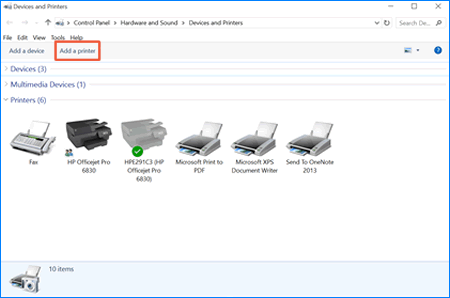
Click Add a printer.
Figure : Clicking Add a printer
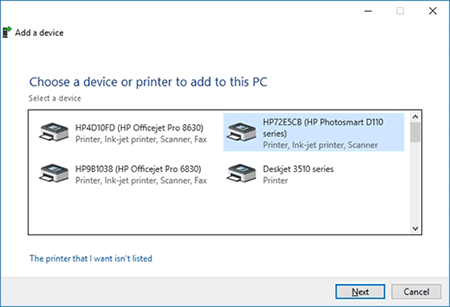
A Choose a device or printer to add to this PC window opens.
Figure : Example of printers found in the Choose a device or printer to this PC window
-
If your printer is in the list, select it, click Next, and then follow the on-screen instructions to install the driver. You can now use your printer.
-
If your printer is not in the list, continue to the next step.
-
-
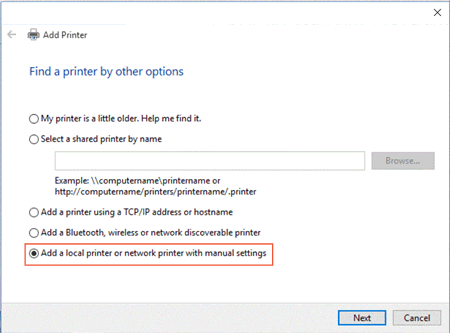
Click The printer I want isn't listed, and then select Add a local printer or network printer with manual settings.
Figure : Selecting Add a printer using local or network printer with manual settings
-
Click Next.
-
Select Use an existing port (USB001: Virtual printer port for USB), and then click Next.
-
Click Windows Update, and then wait for the print drivers to update.
-
Click HP, Hewlett-Packard, or Hewlett Packard in the Manufacturer pane, and then click the name of your printer in the Printers pane. Over here you can look for Deskjet 990c or a similar laserjet printer and add them.
-
Click Next, and then follow the on-screen instructions to install the driver. You can now use your printer.
-
Disconnect the printer USB cable from the computer, and then reconnect the cable. You can now use your printer.
Hope this helps. Let me know.
Cheers! 🙂
9 REPLIES 9
03-18-2018 01:50 PM
HP Recommended
Welcome to HP Support Forums. 🙂
I came across your post and would like to help.
I understand that you have an HP LaserJet 1018 Printer that is connected to a network. The printer prints fine from other computers and not from the new Win10 computer. There is an error saying "No drivers found".
During my research, I found that there are no full featured drivers available for Win10. The only option is to install the inbuilt in drivers from the Windows operating system. I understand that when you tried this option, the printer did not get installed.
But, let me know if you have explored the options mentioned in "Step 3: Install the print driver with the Add a Printer wizard" from this HP document: http://hp.care/2igKeU1
A workaround could be to try installing the drivers for "HP Deskjet 990c" (if available in the list) while installing the inbuilt printer drivers. Because the drivers of the HP Deskjet 990c are compatible with a lot of HP printers.
Secondly, if the drivers of HP Deskjet 990c drivers do not help then try searching for a similar HP laserjet printer and try installing it.
I genuinely hope the issue gets resolved without hassles and the unit works great. Keep me posted.
Cheers! 🙂
03-19-2018 02:12 AM
HP Recommended
HP document: http://hp.care/2igKeU1 does not help. As I wrote, printer is connected with USB to Windows7 PC and its' working correctly. On this PC printer is shared for network use. I can use it from other computers, but not from my new Win10.
I dont' understand your workaround? I dont' see any list of printers during install, to choose another type ("HP Deskjet 990c") Only option after error message is to browse to *.INI file, whitch does not exists for Win10 as I understand from your answer.
03-19-2018 02:36 PM
HP Recommended
Thank you for your reply.
The Deskjet 990c drivers are a part of the inbuilt printer drivers from the Windows operating system. Below mentioned are the steps to install the inbuilt printer drivers in Windows:
-
Search Windows for devices, and then click Devices and Printers in the list of results.
-
Click Add a printer.
Figure : Clicking Add a printer
A Choose a device or printer to add to this PC window opens.
Figure : Example of printers found in the Choose a device or printer to this PC window
-
If your printer is in the list, select it, click Next, and then follow the on-screen instructions to install the driver. You can now use your printer.
-
If your printer is not in the list, continue to the next step.
-
-
Click The printer I want isn't listed, and then select Add a local printer or network printer with manual settings.
Figure : Selecting Add a printer using local or network printer with manual settings
-
Click Next.
-
Select Use an existing port (USB001: Virtual printer port for USB), and then click Next.
-
Click Windows Update, and then wait for the print drivers to update.
-
Click HP, Hewlett-Packard, or Hewlett Packard in the Manufacturer pane, and then click the name of your printer in the Printers pane. Over here you can look for Deskjet 990c or a similar laserjet printer and add them.
-
Click Next, and then follow the on-screen instructions to install the driver. You can now use your printer.
-
Disconnect the printer USB cable from the computer, and then reconnect the cable. You can now use your printer.
Hope this helps. Let me know.
Cheers! 🙂

03-21-2018 10:31 AM
HP Recommended
Thanks for sharing the image.
Select "create a new port" and check if the USB001: Virtual printer port for USB options appears.
Cheers! 🙂
03-21-2018 11:49 AM
HP Recommended
This is strange. Because in my Win10 laptop, I got the USB option "USB local port" after selecting "use an existing port".
You may create a new user account in Windows and then try to install the printer in the new user account.
Please refer to "Creating a new account" from this HP document: http://hp.care/2IsTtcz
Hope this works out.
Good luck! 🙂
03-21-2018 02:35 PM
HP Recommended
Problem solved finally.
I connected printer directly to USB port of laptop and installation went without problems.
Now USB001 virtual port also appeared in ports list.
Disconnected printer from laptop and connected it to back to another PC in network
Now when I browsed to shared network printer, installation finished successfully.
Thank you for good hint about USB001 virtual port.
03-21-2018 03:48 PM
HP Recommended
You're most welcome.
I must say that technical solution can be provided but it was you who implemented them to perfection. Kudos to you.
I'm glad that the printer is working and hope it remains this way.
Happy printing! 🙂

Be alert for scammers posting fake support phone numbers and/or email addresses on the community.
If you think you have received a fake HP Support message, please report it to us by clicking on "Flag Post".
† The opinions expressed above are the personal opinions of the authors, not of HP. By using this site, you accept the Terms of Use and Rules of Participation.


Didn't find what you were looking for?
Ask the community
† The opinions expressed above are the personal opinions of the authors, not of HP. By using this site, you accept the <a href="https://www8.hp.com/us/en/terms-of-use.html" class="udrlinesmall">Terms of Use</a> and <a href="/t5/custom/page/page-id/hp.rulespage" class="udrlinesmall"> Rules of Participation</a>.