• ×
    Information
    Need Windows 11 help?
    Check documents on compatibility, FAQs, upgrade information and available fixes.
    Windows 11 Support Center.
  • post a message
  • ×
    Information
    Need Windows 11 help?
    Check documents on compatibility, FAQs, upgrade information and available fixes.
    Windows 11 Support Center.
  • post a message
Guidelines
Here is the solution for the error: "Encryption Credentials have expired" when attempting to print or scan from Mac OS or iOS devices: Click here to view the troubleshooting steps!
Check some of the most frequent questions about Instant Ink: HP INSTANT INK, HP+ PLANS: INK AND TONER.


Check out our WINDOWS 11 Support Center info about: OPTIMIZATION, KNOWN ISSUES, FAQs AND MORE.
HP Recommended
Laser jet pro M277dw
macOS 10.14 Mojave

After upgrading to Mojave I have had endless problems with my printer. A major loss was the inability to print booklets (haviing selected booklet printing) but generally the printer is now less reliable all round. When printing from tray 1 having inserted paper it cleans itself over and over again while asking for paper. It can often not be found by my computer ... in short I am despairing and have hundreds of pounds invested in this machine and repleacement cartridges, Apple cannot help - it is a driver problem apparently!

3 REPLIES 3
HP Recommended

@zannefin


A warm welcome to HP Community!

Removing the existing printer driver and setting up the printer with Apple AirPrint may resolve the issue. Let's try these steps:

Please ensure that the printer is up to date with its firmware and Mac is up to date with it's software. If you are unsure you may use the links below to update the printer firmware and Mac software:

Update printer firmware

Update software on Mac 


1.) Click the Apple menu, click System Preferences, and then click Print & Scan or Printers & Scanners.
2.) 
Check if your printer name displays in the Printers list, If your printer is listed, click the printer name, click the minus sign to delete the printer.

3.) If you see multiple printer queues for the same printer, remove all extra printers by selecting them one at a time, and then clicking the minus button  at the bottom of the list.

4.) Click the plus sign , click Add Printer or Scanner, click the printer name.
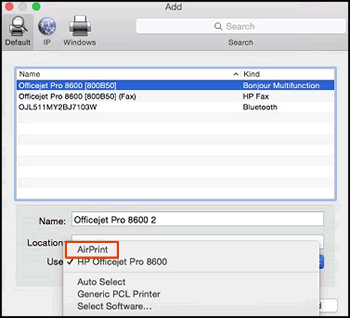
5.) Click the Use or Print Using menu, select AirPrint in the pop-up menu. Then click Add.

Select AirPrint from the Use menu


6.) Try to print.

Let me know how it goes!


If the information I've provided was helpful, give us some reinforcement by clicking the Accepted Solution and Kudos buttons, that'll help us and others see that we've got the answers!
Have a great day!

Senan6806


I am an HP Employee

HP Recommended

Hi I am really grateful for your response – the very first thing I did was delete my printer and re-install it and look for new firmware – there is none on the HP site – and I updated my OS software. None of this worked, in fact the printer became more unrelaible after those steps. 

Some kind person directed me to HP Easy Start which seems to have solved the main problem (booklet printing) and although I would love Airprint to be active as I use other devices but every time I try to comnnect to my network the connection fails – even after Easy Start - but I am not sure I am brave enough to risk losing the stabilityI have regained though the kindness of others. 

But thank you for taking the time to respond I was at a complete loss. 

HP Recommended

@zannefin


You are welcome 🙂

Glad to hear that the issue is resolved. If you need any help, feel free to reach out to us.

Have a great day!

Senan6806


I am an HP Employee

† The opinions expressed above are the personal opinions of the authors, not of HP. By using this site, you accept the <a href="https://www8.hp.com/us/en/terms-of-use.html" class="udrlinesmall">Terms of Use</a> and <a href="/t5/custom/page/page-id/hp.rulespage" class="udrlinesmall"> Rules of Participation</a>.

