
-
×InformationNeed Windows 11 help?Check documents on compatibility, FAQs, upgrade information and available fixes.
Windows 11 Support Center. -
-
×InformationNeed Windows 11 help?Check documents on compatibility, FAQs, upgrade information and available fixes.
Windows 11 Support Center. -
- HP Community
- Printers
- Printer Setup, Software & Drivers
- MacOS Calatina and HP6500

Create an account on the HP Community to personalize your profile and ask a question
Your account also allows you to connect with HP support faster, access a personal dashboard to manage all of your devices in one place, view warranty information, case status and more.
Check some of the most frequent questions about Instant Ink: HP INSTANT INK, HP+ PLANS: INK AND TONER.
Check out our WINDOWS 11 Support Center info about: OPTIMIZATION, KNOWN ISSUES, FAQs AND MORE.

It has been a while since anyone has replied. Simply ask a new question if you would like to start the discussion again.

03-05-2021 07:41 AM
 HP Recommended
Product: 6500a
Operating System: macOS 10.15 Catalina
I've seen other posts on this on both HP and Apple boards.
No longer able to print due to driver signing problems, and there seems to be no fix.
The workaround is supposedly Airprint. In order to use that it seems that "web services" need to be enabled on the 6500a.
That has never worked: it insists on being given a proxy address. I'm on a home DSL and there is no proxy.
It is not even clear what "web services" actually means in this case
In any event, why does the printer need access to an internet connection in order to print from an adjacent Mac on the same LAN?
As it stands, the 6500a is a dead brick (the scan function died several upgrades ago, fax never worked but I don't care). I guess it still serves as a photocopier.
7 REPLIES 7


03-09-2021 11:55 AM - edited 03-09-2021 11:55 AM
HP Recommended
@koborn, Welcome to HP Support Community!
Enabling web services is not required to add the printer using AirPrint drivers.
Follow the steps below-
ensure that the printer is up to date with its firmware and Mac is up to date with its software. If you are unsure you may use the links below to update the printer firmware and Mac software:
Remove and add the printer
Click the Apple menu, and then select System Preferences.
Depending on your operating system version, click Print & Fax, Print & Scan, or Printers & Scanners.
Click the name of your printer, click the Minus sign , and then delete the printer.
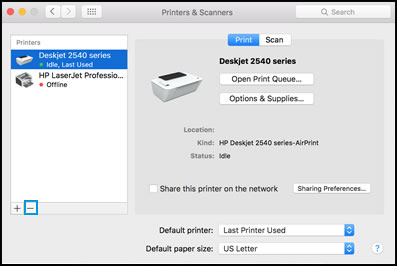
Click the Plus sign , and then click Add Printer or Scanner.
Click the Use or Print Using box, and then select AirPrint
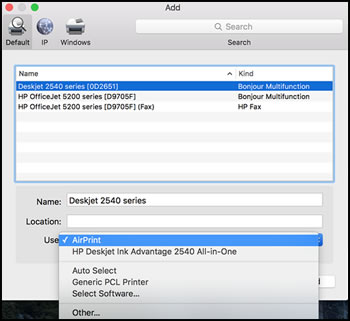
Click Add to add the printer to the list.
Try to print.
Keep me posted for further assistance.
Please click “Accepted Solution” if you feel my post solved your issue, it will help others find the solution. Click the “Kudos/Thumbs Up" on the bottom right to say “Thanks” for helping!
TEJ1602
I am an HP Employee
03-10-2021 08:03 AM
HP Recommended
Thanks, that worked for printing. However, scanning still doesn't work from the HP Easyscan utility or the Preferences>Printers>Officejet>Scan option - once again it's a signing issue.
The "web scan" from the embedded web server does work.
03-12-2021 01:51 PM
HP Recommended
Try scanning using Apple Image Capture. Refer to the document Scan images in Image Capture on Mac for help. (This is a third-party link. Please do not click on any ad, image, download, popup or link or anywhere else as this is a third-party link meant only for viewing information).
Also, share the screenshot of the error while using HP Easy Scan.
Keep me posted.
Please click “Accepted Solution” if you feel my post solved your issue, it will help others find the solution. Click the “Kudos/Thumbs Up" on the bottom right to say “Thanks” for helping!
TEJ1602
I am an HP Employee
03-13-2021 03:36 AM
HP Recommended
OK, three things here.
1: Easyscan has not worked since (from memory) OS/X 9.x. There is no detailed error, just the generic Scanner reported an error, Failed to open connection" one (note: this has always been common with this application on all OS/X versions I've used, and the printer and HP Utility always worked immediately before and after).

2: I have tended to use the HP Utility to check that I can see the unit. It has always been the most reliable of the suite of applications provided. Now, new with OS/X 11.2.3 it starts, but any attempt to use any of the functions ("Supplies Levels") tends to cause a crash - this is intermittent but more often than not.

3: Using Image Capture hits the signing problem: "HP Scanner 3" will damage your computer.

03-13-2021 11:40 AM
HP Recommended
Follow the instructions below to remove and reinstall the HP printer software.
-
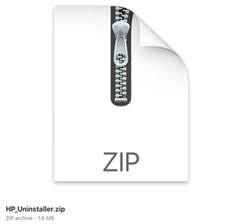
Download HP Uninstaller.zip.
-
Double-click the HP Uninstaller icon.
-
Double-click the HP Uninstaller app.

-
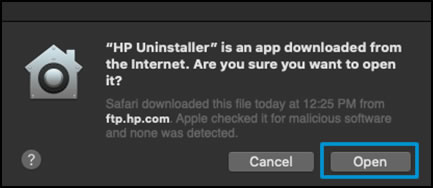
If a confirmation message opens, click Open.
-
Follow the in-app instructions to uninstall all the HP software from your system.
-
If you are prompted for credentials to continue, type the User Name and Password, and then click OK.
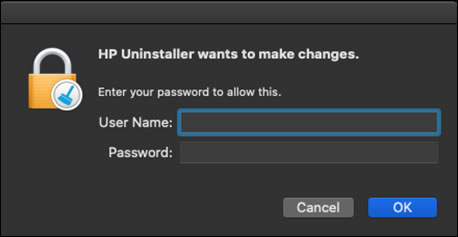
-
Once the Uninstaller removes the software, close the HP Uninstaller app.
-
Type your printer model, and then click Submit.
-
Under Driver or Driver-Product Installation Software, download the latest software for your printer.
NOTE:
This might be HP Easy Start, HP Smart, or Mac Printer Driver version 5.1. System administrators and those unable to use HP Easy Start can use HP Easy Admin to download the software pkg files directly for use in managed or remote deployment environments.
-
Once the download completes, open the software and follow the prompts to complete installation.
-
For Mac Printer Driver version 5.1, open System Preferences, and then open Printers & Scanners to re-add your printer.
follow the instructions below to remove and reinstall the HP printer software.
Hope this helps! Keep me posted.
Please click “Accepted Solution” if you feel my post solved your issue, it will help others find the solution. Click the “Kudos/Thumbs Up" on the bottom right to say “Thanks” for helping!
TEJ1602
I am an HP Employee
03-14-2021 04:30 AM
HP Recommended
Oh dear!
The Uninstaller throws multiple “legacy driver may cause damage” reports for:
Devguru
Sierrawireless
- but it did at least remove all HP content from Applications.
Now at least I know the source of those errors, which have been appearing now and then since the first version of OS/X 10!
HP Customer Support - Software and Driver Downloads (https://support.hp.com/redirect/hub/s-002) is a 404
So I went to support.hp.com, which says:

Airprint and Webscan still work--.
03-16-2021 09:13 AM
HP Recommended
There are no drivers available for your OS. You will still be able to scan using AirPrint drivers when you add the printer as bonjour multifunction.
How do I scan with AirPrint?
Start scans from the Print & Scan or Printers and Scanners window or from Image Capture when using AirPrint.
-
Click the Apple menu, click System Preferences, and then click Print & Scan or Printers & Scanners.
-
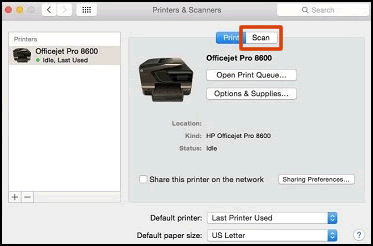
Click Scan, and then click Open Scanner. If the Scan button is not available, open Image Capture from the list of Applications, which also supports scanning.
Figure : Click Scan in the Printers & Scanners window
-
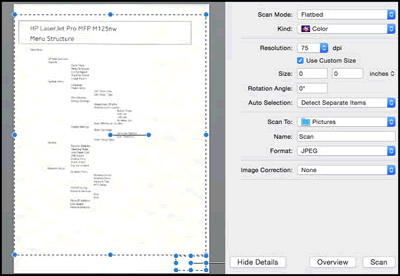
In the Scanner window, click Show Details.
-
After the overview scan completes, change any settings, and then click Scan.
Figure : Scanner window with Show Details setting on
Refer to the document HP Printers - Printing with Apple AirPrint (Mac) for help.
Hope this helps! Keep me posted.
Please click “Accepted Solution” if you feel my post solved your issue, it will help others find the solution. Click the “Kudos/Thumbs Up" on the bottom right to say “Thanks” for helping!
TEJ1602
I am an HP Employee

Be alert for scammers posting fake support phone numbers and/or email addresses on the community.
If you think you have received a fake HP Support message, please report it to us by clicking on "Flag Post".
† The opinions expressed above are the personal opinions of the authors, not of HP. By using this site, you accept the Terms of Use and Rules of Participation.


Didn't find what you were looking for?
Ask the community
† The opinions expressed above are the personal opinions of the authors, not of HP. By using this site, you accept the <a href="https://www8.hp.com/us/en/terms-of-use.html" class="udrlinesmall">Terms of Use</a> and <a href="/t5/custom/page/page-id/hp.rulespage" class="udrlinesmall"> Rules of Participation</a>.