
-
×InformationNeed Windows 11 help?Check documents on compatibility, FAQs, upgrade information and available fixes.
Windows 11 Support Center. -
-
×InformationNeed Windows 11 help?Check documents on compatibility, FAQs, upgrade information and available fixes.
Windows 11 Support Center. -
- HP Community
- Printers
- Printer Setup, Software & Drivers
- MacOS Sequoia > HP LaserJet M1136 installation issues

Create an account on the HP Community to personalize your profile and ask a question
Your account also allows you to connect with HP support faster, access a personal dashboard to manage all of your devices in one place, view warranty information, case status and more.
Check some of the most frequent questions about Instant Ink: HP INSTANT INK, HP+ PLANS: INK AND TONER.
Check out our WINDOWS 11 Support Center info about: OPTIMIZATION, KNOWN ISSUES, FAQs AND MORE.

It has been a while since anyone has replied. Simply ask a new question if you would like to start the discussion again.

09-17-2025 09:29 AM
 HP Recommended
Operating System: macOS 15.0 Sequoia
I'm using MacOS Sequoia. I was trying instal my old HP LaserJet M1136 MFP. But the driver not available. Please suggest what needs to be done to connect the printer to my MacProd MacOS Sequoia.
6 REPLIES 6


09-19-2025 09:07 AM
HP Recommended
@vsreekakulam, Welcome to HP Support Community,
Thank you for posting your query; I’m here to help by guiding you through steps to resolve this issue
It seems you're experiencing some challenges with connecting your HP LaserJet M1136 MFP to macOS Sequoia. Here are a few suggestions that might help resolve the issue:
HP App: Install the HP app from the HP App – For HP Printers, Laptops, and Tech Accessories | HP® Official Site. This app can help in detecting HP printers and may guide you through the set-up process.
Software Update: Go to 'System Preferences' > 'Software Update' on your Mac to check for any updates that might include printer drivers.
Use Generic Drivers: If no specific driver is available, try using generic drivers available within macOS. You can go to 'System Preferences' > 'Printers & Scanners,' then click the '+' to add your printer and choose 'General PostScript Printer' or 'Generic PCL Printer' from the driver list.
Download from HP Website: Visit the HP support page to see if there's any recent driver or firmware update compatible with your printer that might work with newer macOS versions.
AirPrint: Check if your printer supports AirPrint. If it does, you might be able to connect it without installing a driver. Go to 'System Preferences' > 'Printers & Scanners,' then add your printer using AirPrint.
I hope this helps.
Please feel free to reply here if you have any questions or if you need further clarification on any of the steps.
Take care and have a good day.
Did we resolve the issue? If yes, please consider marking this post as "Accepted Solution" and click "Yes" to give us a helpful vote - your feedback keeps us going!
Regards,
Garp_Senchau
I am an HP Employee
09-21-2025 11:03 PM
HP Recommended
Thanks for the inputs. I have tried installing HP App. It does not recognise HP LaserJet M1136. I tried using both Setup a new pinter option / Choose an available printer. I have ensured that my MacPro system software is upto date.
While installing the HP LaserJet M1136 printer, when I selected Add Printer, I was able to see the printer name but when trying to associate it with the driver, the driver was not available. Further Generic Drivers - 'General PostScript Printer' or 'Generic PCL Printer' were also not available for selection. My printer does not support AirPrint so installation of driver is mandatory.
I was not able to find any recent driver or firmware update compatible with HP LaserJet M1136 printer that might work with newer macOS versions. Appreciate if you can help here.


09-22-2025 04:15 AM
HP Recommended
Some older Laserjet printers are a little bit difficult to install on new MacOS systems. 🤔
Please try to install with the next steps:
(1) First connect a USB cable between Laserjet printer and Mac computer:

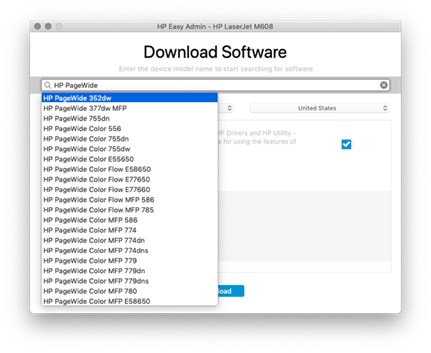
(2) Then install the next HP Easy Admin to download and install a driver for your printer:
>> https://ftp.hp.com/pub/softlib/software12/HP_Quick_Start/osx/Applications/HP_Easy_Admin.app.zip
(3) Maybe 🤔 you need to install some driver related to that printer model,
- it could be something like Laserjet M1536.
(4) In the search window enter "Laserjet M1536" and download and install that to check if you can install driver
* Click YES to say thank you,
* Click Accepted as Solution when question is answered.
Best regards,
ferRX.

@ferRX / I am a volunteer posting answers.
09-23-2025 03:45 AM
HP Recommended
Followed all the steps provided. I have downloaded from the FTP file and selected the driver - 'HP LaserJet M1536dnf MFP' though my printer is HP LaserJet M1136. I have completed printer setup by adding the cited driver. But when I shootout a print, it does not give me any output. For a min, I see that there was some job it wanted to execute. However after a min suddenly the job vanishes and there is no output provided.
09-24-2025 02:32 AM
HP Recommended
1. Ok, then try to Reset printer system in MacOS, following the steps from the next video:
>> https://www.youtube.com/watch?v=vO0D1iSh6I8&ab_channel=HPSupport
2. Then Add your printer again and check if the printer works.
* Click YES to say thank you,
* Click Accepted as Solution when question is answered.
Best regards,
ferRX.
@ferRX / I am a volunteer posting answers.

This video is updated https://youtu.be/ifpwzokW-Qo If you are experiencing 'Printer Offline' or 'Printer Not Responding' error messages on your Mac, follow the steps in this video to reset the printing system and resolve these common printing problems. We'll show you how to fix the problem by ...
09-24-2025 03:16 AM
HP Recommended
Followed all the steps as indicated. I have reset the printers. All the existing printers vanished. Later I have added my HP LaserJet M1136 MFP printer and selected driver as HP LaserJet M1536dnf MFP. The status was showing as 'Idle, Last Used'. I have tried shooting a print out, it showed as if it was trying to process something and after few seconds the print job vanished without providing any output / information.

Be alert for scammers posting fake support phone numbers and/or email addresses on the community.
If you think you have received a fake HP Support message, please report it to us by clicking on "Flag Post".
† The opinions expressed above are the personal opinions of the authors, not of HP. By using this site, you accept the Terms of Use and Rules of Participation.


Didn't find what you were looking for?
Ask the community
† The opinions expressed above are the personal opinions of the authors, not of HP. By using this site, you accept the <a href="https://www8.hp.com/us/en/terms-of-use.html" class="udrlinesmall">Terms of Use</a> and <a href="/t5/custom/page/page-id/hp.rulespage" class="udrlinesmall"> Rules of Participation</a>.