
-
×InformationNeed Windows 11 help?Check documents on compatibility, FAQs, upgrade information and available fixes.
Windows 11 Support Center. -
-
×InformationNeed Windows 11 help?Check documents on compatibility, FAQs, upgrade information and available fixes.
Windows 11 Support Center. -
- HP Community
- Printers
- Printer Setup, Software & Drivers
- Re: My HP Envy 7640 All-in-One does everything but print.

Create an account on the HP Community to personalize your profile and ask a question
Your account also allows you to connect with HP support faster, access a personal dashboard to manage all of your devices in one place, view warranty information, case status and more.
Check some of the most frequent questions about Instant Ink: HP INSTANT INK, HP+ PLANS: INK AND TONER.
Check out our WINDOWS 11 Support Center info about: OPTIMIZATION, KNOWN ISSUES, FAQs AND MORE.

It has been a while since anyone has replied. Simply ask a new question if you would like to start the discussion again.

12-10-2018 10:24 PM
 HP Recommended
Product: Envy 7640
Operating System: Microsoft Windows 10 (64-bit)
I have had this printer for about 2 years. To give you an idea of how much use it gets, I am still on my first, post-purchase, instant ink refills. So, I doubt very much that any is worn out or broken. I have it connected wirelessly to my HP Envy Desktop PC. I printed out several sheets roughly 3 weeks ago with no issues. Today, I was attempting to print a document and nothing happened. Wasn't even put in the queue. I tried all the common steps - rebooting my PC, uninstalling drivers & printer software, trying different documents, resetting my printer. Nothing. However, I can scan & print, copy and print, and when I was checking on my printers settings I found nothing awry. In fact, I printed out -from the printer - a printer status report. All came out normal. I did a network test and it determined my printer was connected.
So, the unit has very little wear & tear on it, it is obviously still able to print, and the diagnostic tests I've run sow nothing wrong. Wh, then, will it not print something sent from my PC - like I say it doesn't get stuck in queue because it never arrives in the queue
Any ideas?
12 REPLIES 12


12-11-2018 06:15 PM
HP Recommended
Hi @richfed
Welcome to HP Forums!
I would like to take a moment and thank you for using this forum, it is a great place to find answers.
Since you're a part of Instant Ink, I need some information about your subscription.
Since the instant ink account details are confidential, please send me the required information via private message.
I am sending you a private message with the information required. Please check the mailbox icon at the top-right corner of this screen.
Please check your Private message icon on the upper right corner of your HP Forums profile.
Next, to your profile Name, you should see a little blue envelope, please click on it.
Cheers
MathewT
I am an HP Employee
12-12-2018 06:58 AM
HP Recommended
Hi @richfed
Thanks for the update. I received both your messages.
I would request you to run HP Print and Scan Doctor on your computer.
nstall HP Print and Scan Doctor on the computer connected to your printer.
-
Make sure your printer is turned on and connected to the computer.
-
Download HP Print and Scan Doctor, and then follow the on-screen prompts to install and open the tool.
-
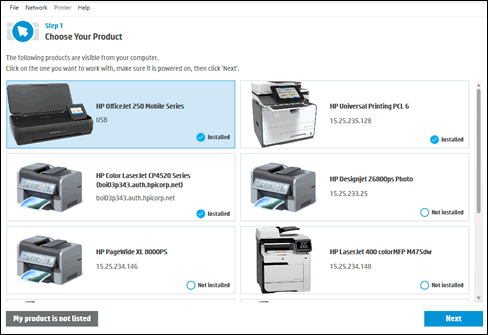
On the Welcome screen, click Start to view a list of available printers.
-
Select your printer in the list, and then click Next.
If your printer is not listed or a connection problem is detected, click My product is not listed or select your connection type, follow the on-screen instructions, and then click Retry.
-
Click either Fix Printing or Fix Scanning.
If you are prompted to install the printer software, follow the on-screen instructions. The software can resolve many printer issues.

-
Review the list of test results, and then resolve any issues found.
-
If you see a checkmark
 , the printer passed the test.
 -
If you see a wrench
 , HP Print and Scan Doctor found an issue and repaired it.
 -
If you see an exclamation point
 , the test failed and required user action, but the step was skipped.
 -
If you see an X
 , follow the on-screen instructions to resolve the issue.

-
Let me know if this helps.
If you feel I was helpful, simply click on Accept as Solution to help the community grow.
Cheers
MathewT
I am an HP Employee
12-12-2018 12:39 PM
HP Recommended
No, I have tried that process already, at least twice. But, I went through it again. Same result. It detects my printer green check mark next to an image of my model. Says, "installed".] but will not connect. In addition, it puts icons on my desktop [printer 7640 series] and shop for supplies. BOTH try to install the device software instead of doing what they should.
Recap - I can copy & print, scan & print, and print from my iPhone. Cannot directly print from my PC. Device Manager shows no errors. I have reset the printer. I have downloaded fresh installation files from HP, uninstalled, rebooted, reinstalled. Several times. HP Doctor basically has me run those steps again, but fixes nothing.
12-12-2018 01:16 PM
HP Recommended
Hi @richfed
Thanks for the update.
What is the wireless led light status on your printer? Is it blinking or steady?
Is your computer connected to the same wireless network as your printer?
Let me know.
Cheers
MathewT
I am an HP Employee
12-12-2018 05:12 PM
HP Recommended
Hi @richfed
Thanks for the update. Let's do a deep uninstallation and re-installation of your printer driver and software.
1.) In Windows, search for and open Programs and features
2.) Select your HP Printer
3.) Select Uninstall
4.) In Windows, search for and open Devices and printers
5.) In the Devices and Printers windows look for your HP printer. If you see it listed right-click on it and choose 'Delete' or 'Remove Device'
6.) Open up the run command with the "Windows key + R" key combo.
7.) Type printui.exe /s and click Ok. (Note: there is a space in between “printui.exe” and “/s”)
8.) Click on the "Drivers" tab
9.) Look for HP Printer driver. If you see it Click on it and click Remove at the bottom
10.) Select Ok
11.) Select Apply and Ok on the Print Server Properties windows
12.) Close Devices and Printers
Once this is done, restart your computer and then install the Full Feature software and driver from the link below.
Link: https://ftp.hp.com/pub/softlib/software13/printers/en7640/EN7640_Full_WebPack_40.11.1135.exe
Let me know if this helps you fix the issue.
To simply say thanks for my efforts to assist you, please click the "Thumbs Up" button to give me a Kudos.
And mark my public post as Accepted Solution to help others find a similar solution as you have.
Cheers
MathewT
I am an HP Employee
12-12-2018 10:01 PM
HP Recommended
I think I figured it out. For as long as I've had this printer I never used it via the USB port. I hooked that up, and still nothing. I then ran HP Print & Scan Doctor. It printed a test print from that. Also, it told me that HP 7640 (Network) was my default printer. I checked in Windows, and sure enough, it was, but now there was also a "plain" HP 7640 appearing as well. I switched to that as my default. Still won't connect wirelessly, but as long as I can print, I am happy.

Be alert for scammers posting fake support phone numbers and/or email addresses on the community.
If you think you have received a fake HP Support message, please report it to us by clicking on "Flag Post".
† The opinions expressed above are the personal opinions of the authors, not of HP. By using this site, you accept the Terms of Use and Rules of Participation.


Didn't find what you were looking for?
Ask the community
† The opinions expressed above are the personal opinions of the authors, not of HP. By using this site, you accept the <a href="https://www8.hp.com/us/en/terms-of-use.html" class="udrlinesmall">Terms of Use</a> and <a href="/t5/custom/page/page-id/hp.rulespage" class="udrlinesmall"> Rules of Participation</a>.