• ×
    Information
    Need Windows 11 help?
    Check documents on compatibility, FAQs, upgrade information and available fixes.
    Windows 11 Support Center.
  • post a message
  • ×
    Information
    Need Windows 11 help?
    Check documents on compatibility, FAQs, upgrade information and available fixes.
    Windows 11 Support Center.
  • post a message
Guidelines
Here is the solution for the error: "Encryption Credentials have expired" when attempting to print or scan from Mac OS or iOS devices: Click here to view the troubleshooting steps!
Check some of the most frequent questions about Instant Ink: HP INSTANT INK, HP+ PLANS: INK AND TONER.


Check out our WINDOWS 11 Support Center info about: OPTIMIZATION, KNOWN ISSUES, FAQs AND MORE.
HP Recommended
HP Officejet pro 8600
Microsoft Windows 10 (64-bit)

I Bought a Netgear87 router a few months ago. Ever since the HP Officejet pro 8600 wont print thru the router either by ethernet or wireless if the printer has gone into sleep mode. It appears the router is not sending the correct wakeup code to the printer.  I have to manually press the power button, or cycle the printer off and on to get them to communicate.  As long as the printer is not in sleep mode both ethernet and wireless printing is fine.

1 REPLY 1
HP Recommended

@Edwards11


Welcome to HP support community.


Are you getting any error message?


Meanwhile:


Use HP Print and Scan Doctor to check connectivity

Download HP Print and Scan Doctor.

  1. Run HPPSdr.exe from the download location on your computer.

  2. Once HP Print and Scan Doctor opens, click Start, and then select your printer.

    • If your printer in not in the list, turn it off and on, and then click Retry.

    • If there is a connection problem, follow the instructions in HP Print and Scan Doctor.

  3. If a screen prompts you to turn on printer updates, click Yes.

  4. If a screen prompts you to make your printer the default printer, click Yes.

  5. Try to print.

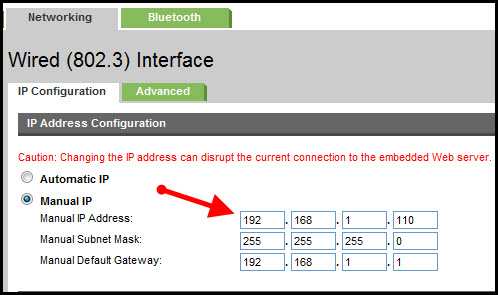
Assign manual IP address and that should fix the issue.

  1. Load plain, white paper in the product input tray.

  2. On the product control panel, touch the Right Arrow (), and then touch Setup. The setup menu displays.

  3. Touch the Down Arrow (), and then touch Reports.

  4. Touch Network Configuration Page. The product prints a network configuration page.

Setting a Static IP Address

Once you know your printer’s IP address, entering it is pretty easy. Here’s what you do:

HP Printer Static IP Address

  1. Run your Web browser.
  2. In the Web browser’s address bar, type the IP address of your printer and press Enter. Assuming you entered the right address, the HP printer control panel should appear.
  3. Click the Networking tab.
  4. Under Connections, click Wireless.
  5. Under IP Address Configuration, click Manual IP.
  6. Enter the IP address, subnet mask, and default gateway in the appropriate boxes.
  7. Click Apply.

You can refer this HP document for more assistance:- Click here


Let me know how it goes.

To thank me for my efforts to help you, please mark my post as an accepted solution so that it benefits several others.

Cheers.

Sandytechy20
I am an HP Employee

† The opinions expressed above are the personal opinions of the authors, not of HP. By using this site, you accept the <a href="https://www8.hp.com/us/en/terms-of-use.html" class="udrlinesmall">Terms of Use</a> and <a href="/t5/custom/page/page-id/hp.rulespage" class="udrlinesmall"> Rules of Participation</a>.