• ×
    Information
    Need Windows 11 help?
    Check documents on compatibility, FAQs, upgrade information and available fixes.
    Windows 11 Support Center.
  • post a message
  • ×
    Information
    Need Windows 11 help?
    Check documents on compatibility, FAQs, upgrade information and available fixes.
    Windows 11 Support Center.
  • post a message
Guidelines
Seize the moment! nominate yourself or a tech enthusiast you admire & join the HP Community Experts!
Check some of the most frequent questions about Instant Ink: HP INSTANT INK, HP+ PLANS: INK AND TONER.


Check out our WINDOWS 11 Support Center info about: OPTIMIZATION, KNOWN ISSUES, FAQs AND MORE.
HP Recommended
HP OfficeJet 4655
Microsoft Windows 10 (64-bit)

My printer suddenly showed my HP Printer as offline. I went into "Printers and Scanners" under "Devices" to ensure that I wasn't using the printer offline. I tried restarting my computer, resetting my printer and subsequently reconnected it to my wireless network. In resetting my printer, I disconnected the USB from behind the printer and its wall socket connection for over a minute. My printer was still shown as being offline. I reset my modem and router, to no avail. I then went onto uninstalling all of the drivers pertaining to the printer and reinstalling them. Upon doing so, my HP OfficeJet will not connect to the printer by USB/Wireless connection. I have checked the USB cords to make sure they weren't damaged and tried using other cords. The driver seems to recognize the printer over the network, but when I try installing the device, it gives me the "Unsuccessful Network Installation" error. I clicked 'Help' and downloaded a troubleshooter. I tried every single solution, and as they all failed to work, I went onto the HP Customer Service website. I tried inputting my serial number and detecting the printer, but neither option would work. This process took place over the past week, having tried everything in this forum that concerned the Network Installation error and the steps in the troubleshooter multiple times.

11 REPLIES 11
HP Recommended

@Aesop_Andy,


Welcome to the HP Support Community!


I recommend you root uninstall the printer and then reinstall it and check if it helps.


Here is how it is done.


1.) In Windows, search for and open Programs and features

2.) Select your HP Printer

3.) Select Uninstall

4.) In Windows, search for and open Devices and printers

5.) In the Devices and Printers windows look for your HP printer. If you see it listed right-click on it and choose 'Delete' or 'Remove Device'

6.) Open up the run command with the "Windows key + R" key combo.

7.) Type printui.exe /s and click Ok. (Note: there is a space in between “printui.exe” and “/s”)

8.) Click on the "Drivers" tab

9.) Look for HP Printer driver. If you see it Click on it and click Remove at the bottom

10.) Select Ok

11.) Select Apply and Ok on the Print Server Properties windows

12.) Close Devices and Printers

13.) Restart the PC

14.) Download and install the printer software from the below link.


http://hp.care/2nikIQ9


If you continue facing the issue, then Obtain the IP address of the printer – You can touch the “wireless” icon on the printer control panel to get the IP address.

Type the IP address on your web browser to obtain the printer EWS page on your computer.

Go to "Network" tab - General - Select "Network protocols" - Select "Enable IPv4 only" (or similar) - Apply the settings.

Go to the “Network” tab – Click on “Wireless (802.11) – Then click on “Network address (IPv4)

Click on the radio button which says “Manual IP” and then click “Suggest a manual IP address” to give a manual IP address to your printer.

Click on radio button which says “Manual DNS Server” and under manual preferred type 8.8.8.8 and under manual alternate type 8.8.4.4 (This is Google DNS server address)


Now, try the steps below to install the printer over the network:

First, unplug the USB cable from the printer if present.

Go to Control panel – Programs and feature – Select all the HP Officejet printer entries and uninstall them.

Now go to Control panel – Devices and printer – Select all the printer entries and remove the device.

Restart your computer.

Open the Run window (Press Windows logo key + R), type “services.msc” and press ok to get services window.

Scroll down to “Remote Procedure Call (RPC)” – right-click and go to properties. Make sure the service is started and startup type is “Automatic”.

Now scroll up and go to “Function Discovery Provider Host” – right-click and select properties – Change the startup type to “manual” and start the service.

Repeat the same exercise on “Function Discovery Resource Publication” as well.

Click on https://support.hp.com/in-en/drivers and install the software.

Select Wireless option on the connection page and then finish the installation.


Let me know how it goes and you have a great day!


If you wish to show appreciation for my efforts, mark my post as Accept as Solution. Your feedback counts!


Cheers!


The_Fossette
I am an HP Employee

HP Recommended

I apologize for replying as late as I have. I proceeded with all of those steps, to no avail.


It didn't work.


The issue I had requiring the use of the printer was so urgent, I went and used another instead. I ended up forgetting about this issue. I'd still like to reconcile it and see what more I can do, if possible. Thank you.

HP Recommended

Hi! @Aesop_Andy,


Thanks for writing back to us.


Try running HP print and scan doctor on the PC and check if it helps.


Refer this article to know more information about using HP print and scan doctor. Click Here


Let me know if this helps!

Take Care! 


Please click “Accept as Solution” if you feel my post solved your issue, it will help others find the solution.

Click the “Kudos, Thumbs Up" on the bottom right to say “Thanks” for helping!

A4Apollo
I am an HP Employee

HP Recommended

HP Print and Scan Doctor was able to recognize the printer over the network, but even after power cycling both devices and waiting a minute, it wouldn't work.


I proceeded to 'continue' and 'printer not connected to network' (even though it is) where it asked me to input my IP address. (trying to install here). It was unable to find the printer, saying the IP addresses isn't the same (when it is).


(EDIT: I also tried configuring my Wireless connection over USB, which showed 'unsuccessful'). New wires too.)


I've been sure to check every character. I power cycled, I unplugged, I installed full and simple drivers, it seems like I've tried all but wiping my computer and reinstalling everything from scratch.

HP Recommended

@Aesop_Andy,


I recommend you restore network defaults on the printer and then connect the printer to the router and check.


Here is how it is done.


1. From the Home screen, touch (Wireless) and then touch ( Settings ).

2. Touch Restore Network defaults.


If you continue facing the issue, then create a new user account on the computer following the steps in the below article and then install the printer and check.


https://support.microsoft.com/en-in/help/4026923/windows-10-create-a-local-user-or-administrator-acc...


If you wish to show appreciation for my efforts, mark my post as Accept as Solution. Your feedback counts!


Cheers!

The_Fossette
I am an HP Employee

HP Recommended

I restored network defaults on my printer (didn't work), and made a new user account (also didn't work). I've been printing from my phone. Any other ideas? Thank you for your help, by the way.

HP Recommended

Hi! @Aesop_Andy


Thanks for writing back to us again.


Try the steps recommended below.


Use the Microsoft System File Checker (SFC) utility to repair damaged or corrupt system files.

  1. Close all open programs and apps running in Windows.

  2. Search Windows for command, right-click command prompt from the list of search results, and then select Run as Administrator.

  3. Type sfc /scannow in the command prompt, and then press Enter.

    The Microsoft SFC utility attempts to find and repair any damaged or corrupt files.

    • If a Windows Resource Protection did not find any integrity violations message displays, continue to the next step.

    • If a Windows Resource Protection found corrupt files and successfully repaired them message displays, continue with these steps.

    • If a Windows Resource Protect could not perform the requested operation or was unable to fix the corrupt files message displays, go to Use the System File Check tool to repair missing or corrupted system files (in English) for more information.

  4. Try to install the HP driver and software again.

Also, try the steps recommended below.


Use the Devices and Printers app in Windows to install the printer by adding a new TCP/IP port.

  1. Turn on the printer, if it is not already on.

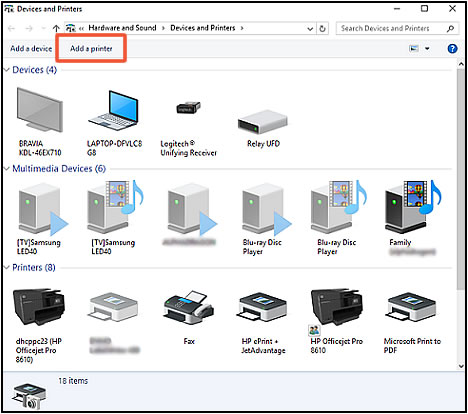
  2. Search Windows for devices and printers, and then select Devices and Printers from the list of results.

  3. Click Add a printer.

    Clicking Add a printer in the Devices and Printers window

  4. If necessary, click Add a network, wireless or Bluetooth printer.

  5. Click The printer that I want isn't listed.

  6. Select Add a printer using TCP/IP address or hostname, and then click Next.

  7. Select TCP/IP Device in the Device type drop-down menu.

  8. Type the printer IP address in the Hostname or IP address box. For more information about obtaining the IP address, see the documentation that came with your printer.

  9. Deselect the Query the printer and automatically select the driver to use box, and then click Next.

    The computer detects the TCP/IP port.

    Deselecting the Query the printer  and automatically select the driver to use box and clicking Next

  10. On the Install the printer driver window, click Windows Update.

  11. After the update completes, select HP in the Manufacturer list, select your printer in the Printers list, and then click Next.

Let me know if this helps!

Take Care!


Please click “Accept as Solution” if you feel my post solved your issue, it will help others find the solution.

Click the “Kudos, Thumbs Up" on the bottom right to say “Thanks” for helping!

A4Apollo
I am an HP Employee

HP Recommended

My printer still doesn't connect to my laptop. This solution was also brought up in the troubleshooter I initially tried. The Windows Update fails to work after restarting my computer and waiting some time. The printer wouldn't show up on the list.

HP Recommended

@Aesop_Andy You've been quite patient with this whole episode and I see that you've gone through a lot of steps, however, I have a few more suggestions and this should do the trick:

  • try restore network defaults - click here for steps & visit page. 59 - Change network settings
  • update firmware - click here for details.
  • reconnect the printer to the network & then install the drivers using this link: click here

If you wish to thank me for my efforts, you could click on "Accept as solution" on my post as the solution should help others too.

Riddle_Decipher
I am an HP Employee


Learning is a journey, not a destination.
Let's keep asking questions and growing together.
† The opinions expressed above are the personal opinions of the authors, not of HP. By using this site, you accept the <a href="https://www8.hp.com/us/en/terms-of-use.html" class="udrlinesmall">Terms of Use</a> and <a href="/t5/custom/page/page-id/hp.rulespage" class="udrlinesmall"> Rules of Participation</a>.