• ×
    Information
    Need Windows 11 help?
    Check documents on compatibility, FAQs, upgrade information and available fixes.
    Windows 11 Support Center.
  • post a message
  • ×
    Information
    Need Windows 11 help?
    Check documents on compatibility, FAQs, upgrade information and available fixes.
    Windows 11 Support Center.
  • post a message
Guidelines
Here is the solution for the error: "Encryption Credentials have expired" when attempting to print or scan from Mac OS or iOS devices: Click here to view the troubleshooting steps!
Check some of the most frequent questions about Instant Ink: HP INSTANT INK, HP+ PLANS: INK AND TONER.


Check out our WINDOWS 11 Support Center info about: OPTIMIZATION, KNOWN ISSUES, FAQs AND MORE.
HP Recommended
LaserJet Pro MFP 127
macOS 10.14 Mojave

I think I downloaded the drivers on the my MacBook Air but it doesn't seem to show up anywhere.  This is a networked printer.  I have my other 2 macs working just fine with it but not this one. Any suggestions? Thanks

1 REPLY 1
HP Recommended

Hi @JPS8,


I'd like to help!


I'd like to know the following to isolate the issue further-


1.) Are the printer and Mac connected to the same network?

2.) Is your router dual-band enabled i.e., both 2.4GHz and 5GHz? If yes, make sure the dual band has different SSIDs for 2.4G and 5G networks.

3.) What is the distance between the router and the printer?

4.) Is there an antivirus software installed on your Mac?

5.) Could you perform a ping test using the Mac Network Utility and let me know the results? Use the printer IP address to perform a ping test, the printer IP can be located by selecting the wireless icon on the printer display.


The wireless status menu on your Mac should also give us quite a lot of information that would help us identify the issue. You can press and hold option-click the WiFi icon and then use shift-command-5 to take the screenshot. Press the space bar when the icon turns into a camera. Share the ping test results and the screenshot with us.


Meanwhile, Try the below suggestions:-


Update mac, refer -How to update the software on your Mac


Also, try updating the printer's firmware - HP Printers - Updating or Upgrading Printer Firmware


Add the AirPrint printer to the Mac printer queue

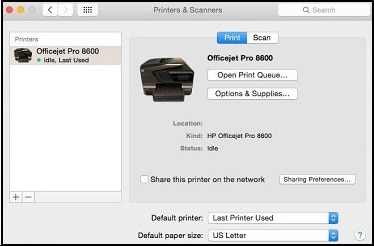
Confirm you are using AirPrint by adding the printer in System Preferences.

  1. Click the Apple menu, click System Preferences, and then click Print & Scan or Printers & Scanners.

    Figure : Example of the Printers & Scanners window

     Example of the Printers & Scanners window
  2. Check if your printer name displays in the Printers list, and then do one of the following steps.

    • If your printer is listed, remove and re-add the printer to confirm it is set up for AirPrint. Click the printer name, click the minus sign to delete the printer, click the plus sign , click Add Printer or Scanner, click the printer name and then continue to the next step.
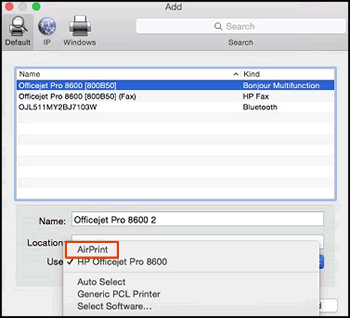
    • If your printer is not listed, click the plus sign, click Add Printer or Scanner, click the name of your printer, and then continue to the next step.

    • If your printer is not listed in the Add Printer or Scanner window, go to the Frequently asked questions in this document to resolve connection issues, try to add the printer again, and then continue to the next step.

  3. Confirm AirPrint or Secure AirPrint displays in the Use or Print Using menu, and then click Add.

    Figure : AirPrint displays in the Use menu

    Select AirPrint from the Use menu
  4. Open a document or photo, click File, and then click Print

You can download the drivers from here -Software and drivers for HP LaserJet Pro MFP M127 series


Hope this helps! Keep me posted. 


And, Welcome to the HP Support Community. 


Please click “Accept as Solution” if you feel my post solved your issue, it will help others find the solution.

Click the “Kudos, Thumbs Up" on the bottom right to say “Thanks” for helping

† The opinions expressed above are the personal opinions of the authors, not of HP. By using this site, you accept the <a href="https://www8.hp.com/us/en/terms-of-use.html" class="udrlinesmall">Terms of Use</a> and <a href="/t5/custom/page/page-id/hp.rulespage" class="udrlinesmall"> Rules of Participation</a>.