• ×
    Information
    Need Windows 11 help?
    Check documents on compatibility, FAQs, upgrade information and available fixes.
    Windows 11 Support Center.
  • post a message
  • ×
    Information
    Need Windows 11 help?
    Check documents on compatibility, FAQs, upgrade information and available fixes.
    Windows 11 Support Center.
  • post a message
Guidelines
Seize the moment! nominate yourself or a tech enthusiast you admire & join the HP Community Experts!
Check some of the most frequent questions about Instant Ink: HP INSTANT INK, HP+ PLANS: INK AND TONER.


Check out our WINDOWS 11 Support Center info about: OPTIMIZATION, KNOWN ISSUES, FAQs AND MORE.
HP Recommended
Deskjet 2636
Microsoft Windows 10 (64-bit)

Just purchased the Deskjet 2636. Trying to set up the printer but the same thing keeps happening. It cycles through then the wifi light blinks for a while then goes to solid blued, then the power button, color ink light, paper indicator button and the information button are all blinking with a red light next to them. The first time the power cord wasn't plugged in completely. Pushed it all the way in, the wifi button blinked blue for a while then went to solid then the lights start blinking red again. 

1 REPLY 1
HP Recommended

@Saturn207


Welcome to HP support community.


Clean the ink cartridge contacts

  1. Gather the following materials:

    • Dry foam-rubber swabs or lint-free cloth (eyeglass wipes or coffee filters work well)

    • Distilled, filtered, or bottled water (tap water might contain contaminants that can damage the ink cartridges)

         CAUTION: 

      Do not use platen cleaners or alcohol to clean the ink cartridge contacts. These can damage the ink cartridge or the printer.

  2. Turn on the printer.

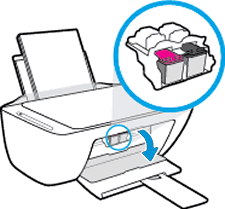
  3. Open the ink cartridge access door.

    The carriage moves to the center of the printer. Wait until the carriage is idle and silent before continuing.

    Open the ink cartridge acesss door

  4. Disconnect the power cord and any Ethernet or USB cables, unless your printer is connected to a wireless network.

  5. Lightly press down on the ink cartridge to release it, and then pull the ink cartridge out of its slot.

    Remove the ink cartridge

       CAUTION: 

    Do not remove both ink cartridges at the same time. Remove and then clean each ink cartridge one at a time. Do not leave an ink cartridge outside the printer for more than 30 minutes.

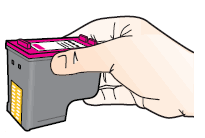
  6. Hold the ink cartridge by its sides.

    Hold the ink cartridge by its sides

  7. Dip a clean foam-rubber swab or lint-free cloth into distilled water, and then squeeze any excess water from it.

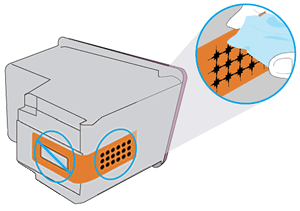
  8. Clean only the copper-colored contacts, and then allow the ink cartridge to dry for approximately 10 minutes.

    Clean the contacts

  9. Lightly moisten another foam-rubber swab with distilled water, and then squeeze any excess water from the swab.

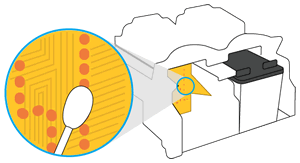
  10. Use the swab to clean the electrical contacts in the carriage, located inside the printer.

    The carriage contacts

  11. Either let the ink cartridge sit for 10 minutes to allow the cleaned area to dry, or use a new swab to dry it.

    NOTE: 

    Make sure the ink cartridge is not left out of the printer for more than 30 minutes.

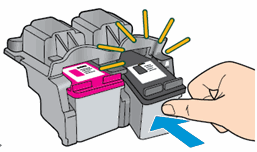
  12. Hold the ink cartridge by its sides with the contacts toward the printer, and then insert the ink cartridge into its proper slot.

    Snap the ink cartridge into place

  13. Slide the ink cartridge at a slight upward angle into the empty slot, and then gently push the ink cartridge until it snaps into place.

  14. Repeat these steps to clean and then reinsert the other ink cartridge.

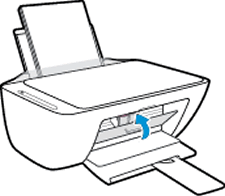
  15. Close the ink cartridge access door.

    Close the ink cartridge access door

  16. Reconnect the power cord and any Ethernet or USB cables, unless your printer is connected to a wireless network.

  17. Turn on the printer if it does not turn on automatically.


You can refer this HP document for more assistance:- Click here


I hope that helps.

To thank me for my efforts to help you, please mark my post as an accepted solution so that it benefits several others.

Cheers.

Sandytechy20
I am an HP Employee

† The opinions expressed above are the personal opinions of the authors, not of HP. By using this site, you accept the <a href="https://www8.hp.com/us/en/terms-of-use.html" class="udrlinesmall">Terms of Use</a> and <a href="/t5/custom/page/page-id/hp.rulespage" class="udrlinesmall"> Rules of Participation</a>.