• ×
    Information
    Need Windows 11 help?
    Check documents on compatibility, FAQs, upgrade information and available fixes.
    Windows 11 Support Center.
  • post a message
  • ×
    Information
    Need Windows 11 help?
    Check documents on compatibility, FAQs, upgrade information and available fixes.
    Windows 11 Support Center.
  • post a message
Guidelines
Join the HP Community Solve‑a‑thon | Help Others & Share Your Solutions | Live on Zoom | 2:30 PM to 2:30 AM IST | Every Wednesday Click here to know more
Check some of the most frequent questions about Instant Ink: HP INSTANT INK, HP+ PLANS: INK AND TONER.


Check out our WINDOWS 11 Support Center info about: OPTIMIZATION, KNOWN ISSUES, FAQs AND MORE.
HP Recommended
Envy Photo 6220
Microsoft Windows 10 (64-bit)

Borderless printing of photos works fine from the Android app. But I can not find borderless printing in the computer software. There is no such alternative in the printing dialog.

Is there a solution or download to fix this problem?

1 REPLY 1
HP Recommended

@Swe123 


True - Borderless printing is supported.


Product Specifications for the HP ENVY Photo 6220 All-in-One Printer (K7G20D)


Yes - If you have not done so,

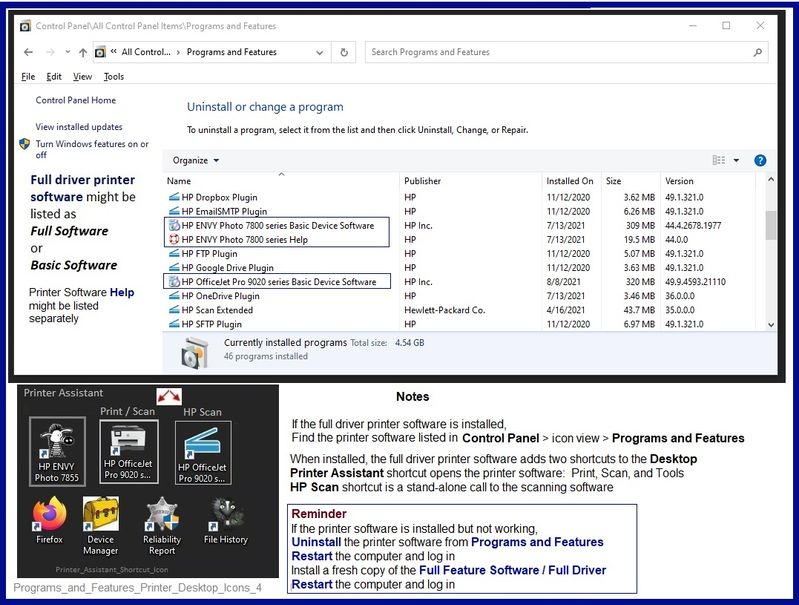
Install the Full Feature Software / full driver printer software


Printer Software

HP ENVY Photo 6200 All-in-One Print and Scan Driver and Accessories


If the printer software is already installed but not working...

Uninstall Existing Printer Software (Full Feature Software)


Control Panel > icon view > Programs and Features >

Find / Select > Uninstall the printer software

Restart the computer and log in


If software will not uninstall, appears to be removed and is “still hanging around” after you uninstall / Restart...

Microsoft:  Fix problems that block programs from being installed or removed

OR

Revo Uninstaller (Free version)

then

Restart the computer and log in


Basic Instructions - Install the Full Feature Software / Full Driver printer software


  • If using VPN, shut it off to install software
  • Download and Save the Full Feature Software installation package or the Easy Start wrapper
  • Open File Explorer
  • Navigate to the folder in which you saved the installation file  (likely Downloads)
  • Reminder:  If using USB cable between printer and computer, disconnect the cable before installing software.
  • Right-Click on the installation package and “Run as Administrator
  • If using Easy Start > When asked, opt for "Full Driver" (exact wording might vary).
  • If using Easy Start > Skip any extra software / offers you do not want (wording varies).
  • After the software is installed, Restart the computer and log in


After the printer software is installed, look for shortcuts on the Desktop.

Example

Programs_and_Features_Printer_Desktop_Icons_4Programs_and_Features_Printer_Desktop_Icons_4


=================================================================================


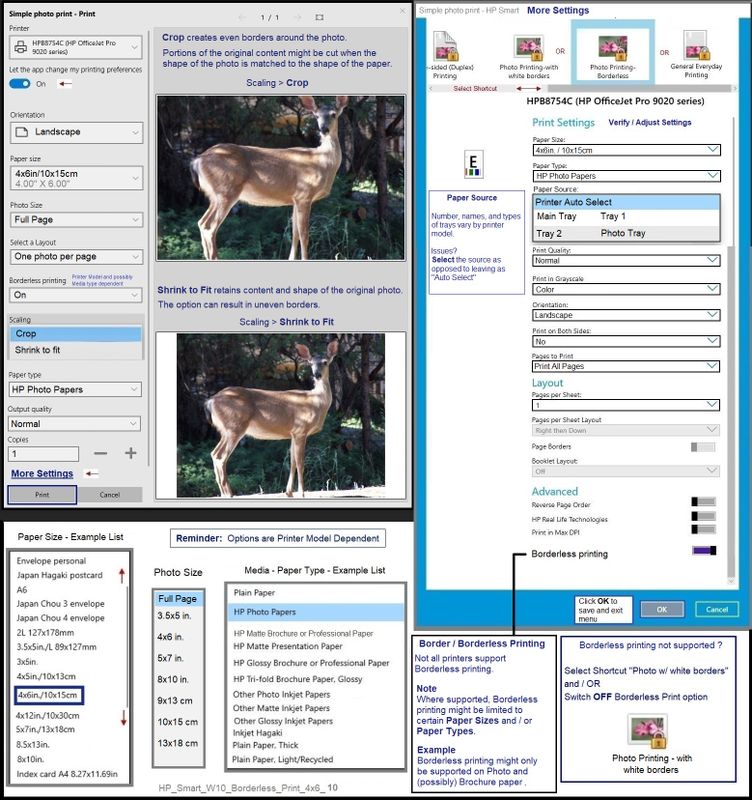
HP Smart Windows – Print Photo


Open HP Smart Windows

If not done, Sign into the application

Click to Print Photos

Select and Open the photo(s) you want to print

Adjust the options on the Main Print Menu

Click to open More Settings

Select a Shortcut from the top ribbon area

Verify / Adjust the rest of the settings in the More Settings Menu

If tray selection is a problem - select the Tray as opposed to leaving "Automatic"

At the bottom, if enabled, switch OFF "HP Real Life Technologies"

Click OK to save any change(s) and leave the More Settings menu

Back on the main menu, when ready, Click to Print


Example - HP Smart - Windows - Simple Photo Print - 4x6 inch - Borderless

HP_Smart_W10_Borderless_Print_4x6_10HP_Smart_W10_Borderless_Print_4x6_10


=================================================================================


References / Resources


HP Smart for Windows


HP Smart is an application available in the Microsoft Store

OR

Open the Homepage / Support Website for your printer

Category Software and Drivers > Check the Box Get the App


Open and Read >>> HP printer setup (HP Smart app)


NOTES: 

  • Disconnect from Virtual Private Network (VPN) connection before downloading.
  • Turn on Wi-Fi on your computer or mobile device and connect to your network. If the computer is connected to the network with an Ethernet cable, temporarily disconnect the cable and use the Wi-Fi connection during the setup.


  • HP Smart requires that you sign into the application using your HP Account credentials.


  • HP Smart benefits (likes) having the Full Feature Software / full driver printer software installed.  For example, full driver provides access to Shortcuts and Printing Preferences.


  • Document includes the HP Smart application download links for Windows and Mobile devices, plus an FAQ section to assist with questions / issues.
    •  FAQ examples: 
      • What are the requirements to use the HP Smart app?
      • Which printers are compatible with the HP Smart app?
      • Why do I need to sign in or create an account to use the HP Smart app features?
      • Which languages does the HP Smart app support?


================================================================================


HP Printer Support Home Page - References and Resources – Learn about your Printer  - Solve Problems

 “Things that are your printer”

NOTE:  Content depends on device type and Operating System

Categories:  Alerts, Access to the Print and Scan Doctor (Windows), Warranty Check, HP Drivers / Software / Firmware Updates, How-to Videos, Bulletins/Notices, Lots of How-to Documents, Troubleshooting, Manuals > User Guides, Product Information (Specifications), more

When the website support page opens, Select (as available) a Category > Topic > Subtopic

HP ENVY Photo 6220 All-in-One Printer 


Thank you for participating in the HP Community.

The Community is a separate wing of the HP website - We are not an HP business group.

Our Community is comprised of volunteers - people who own and use HP devices.

Click Helpful = Yes to say Thank You.

Question / Concern Answered, Click "Accept as Solution"

Dragon-Fur

† The opinions expressed above are the personal opinions of the authors, not of HP. By using this site, you accept the <a href="https://www8.hp.com/us/en/terms-of-use.html" class="udrlinesmall">Terms of Use</a> and <a href="/t5/custom/page/page-id/hp.rulespage" class="udrlinesmall"> Rules of Participation</a>.