• ×
    Information
    Need Windows 11 help?
    Check documents on compatibility, FAQs, upgrade information and available fixes.
    Windows 11 Support Center.
  • post a message
  • ×
    Information
    Need Windows 11 help?
    Check documents on compatibility, FAQs, upgrade information and available fixes.
    Windows 11 Support Center.
  • post a message
Guidelines
Seize the moment! nominate yourself or a tech enthusiast you admire & join the HP Community Experts!
Check some of the most frequent questions about Instant Ink: HP INSTANT INK, HP+ PLANS: INK AND TONER.


Check out our WINDOWS 11 Support Center info about: OPTIMIZATION, KNOWN ISSUES, FAQs AND MORE.
HP Recommended
HP ENVY Photo 6230

Hi, I’ve had this 1 year and printed like 5-10 A4 text pages each month. 
today I wanted to print out a picture in color. But no chance.   I did a clean head till level/stage 3 bu still no colors. Original HP inks. The black and white photo comes out in the poorest quality I’ve seen. 
I’ve also restarted it and reset it, but still no colors. Only blacks. The test print out document to see if everything is alright is also only in blacks. I have plenty of color ink. 

what should I do? 

michael

1 REPLY 1
HP Recommended

@Foxybox


Welcome to HP support community.


Manually clean the area around the ink nozzles

  1. Gather the following materials:

    • A clean, lint-free cloth or a clean, dry cotton swab

    • Distilled or bottled water

         CAUTION: 

      Do not use tap water because it might contain contaminants that can damage the printhead.

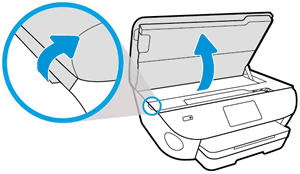
  2. Open the ink cartridge access door.

    Image: Open the ink cartridge access door

  3. Wait until the printer is idle and silent before you continue.

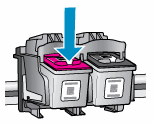
  4. Lightly press down on the ink cartridge to release it, and then pull the ink cartridge out of its slot.

    Pressing down to remove the ink cartridge

       CAUTION: 

    Do not remove both ink cartridges at the same time. Remove and then clean each ink cartridge one at a time. Do not leave an ink cartridge outside the printer for more than 30 minutes.

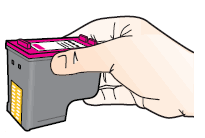
  5. Hold the ink cartridge by its sides.

    Holding the ink cartridge by its sides.

  6. Lightly dampen a clean, lint-free cloth or swab with bottled or distilled water.

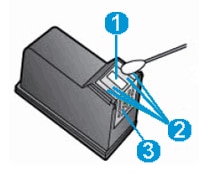
  7. Clean the face and edges around the ink nozzle with the cloth or swab.

       CAUTION: 

    Do not clean the ink nozzle plate.

    Cleaning the area around the ink nozzle

    1. Nozzle plate - Do not clean

    2. Area surrounding ink nozzle - Do clean

    3. Ink cartridge contacts - Do not clean

  8. Wait 10 minutes for the cleaned area to dry before you continue.

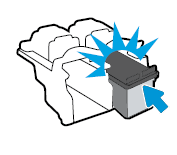
  9. Hold the ink cartridge by its sides with the contacts toward the printer, insert the ink cartridge into its slot, and then gently push the ink cartridge until it snaps into place.

    Snapping the ink  cartridge into place

  10. Repeat these steps to clean around the nozzles on the other ink cartridge.

  11. Close the ink cartridge access door.

You can refer this HP document for more assistance:- Click here


I hope that helps.

To thank me for my efforts to help you, please mark my post as an accepted solution so that it benefits several others.

Cheers.

Sandytechy20
I am an HP Employee

† The opinions expressed above are the personal opinions of the authors, not of HP. By using this site, you accept the <a href="https://www8.hp.com/us/en/terms-of-use.html" class="udrlinesmall">Terms of Use</a> and <a href="/t5/custom/page/page-id/hp.rulespage" class="udrlinesmall"> Rules of Participation</a>.