• ×
    Information
    Need Windows 11 help?
    Check documents on compatibility, FAQs, upgrade information and available fixes.
    Windows 11 Support Center.
  • post a message
  • ×
    Information
    Need Windows 11 help?
    Check documents on compatibility, FAQs, upgrade information and available fixes.
    Windows 11 Support Center.
  • post a message
Guidelines
Join the HP Community Solve‑a‑thon | Help Others & Share Your Solutions | Live on Zoom | 2:30 PM to 2:30 AM IST | Every Wednesday Click here to know more
Check some of the most frequent questions about Instant Ink: HP INSTANT INK, HP+ PLANS: INK AND TONER.


Check out our WINDOWS 11 Support Center info about: OPTIMIZATION, KNOWN ISSUES, FAQs AND MORE.
HP Recommended
3830 PRINTER
Microsoft Windows 10 (32-bit)

CANNOT SCAN BY TOUCHING PRINTER SCREEN TO SCAN ALL TYPES OF MSGS BUT NONE WORK


1 REPLY 1
HP Recommended

@GRIEGAC,


Thank you for reaching out to the HP Support community!

  • Is the printer connected to the PC by a cable or WiFi?
  • Do you get any message when you try to scan?
  • Have you installed the full feature printer software?
  • Are you able to scan from the PC?


For you to scan from the printer to the PC, the full feature printer software must be installed and the scan to computer feature must be enabled from the printer software.


Step 1: Check if the full feature printer software is installed

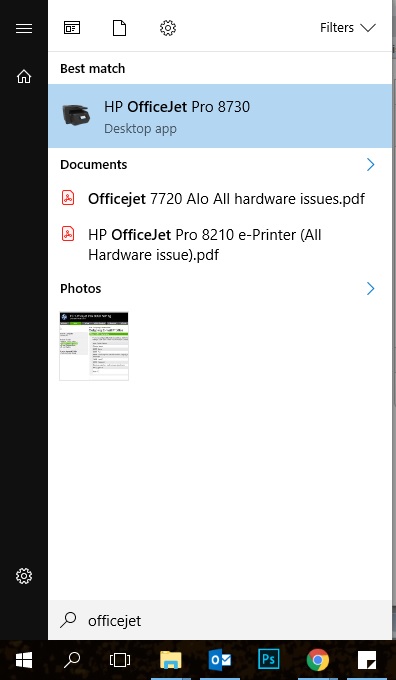
  • Press the Windows button and search for the name of your HP Printer
  • If there is a match for your search, the printer name shows up along with the icon


  • If there is no match, it means the full feature software is not installed.
  • Click on this link to download the full feature software or manually search for the drivers from link https://support.hp.com/us-en/drivers/printers
  • Open the downloaded file and follow the onscreen instructions to complete the installation.
  • Try to scan from the printer front panel again
  • If the issue persists, proceed to the next step.


Step 2: Enable Scan to Computer feature from the printer software

  • Press the Windows button and search for the name of your HP Printer
  • The printer name shows up along with the icon.
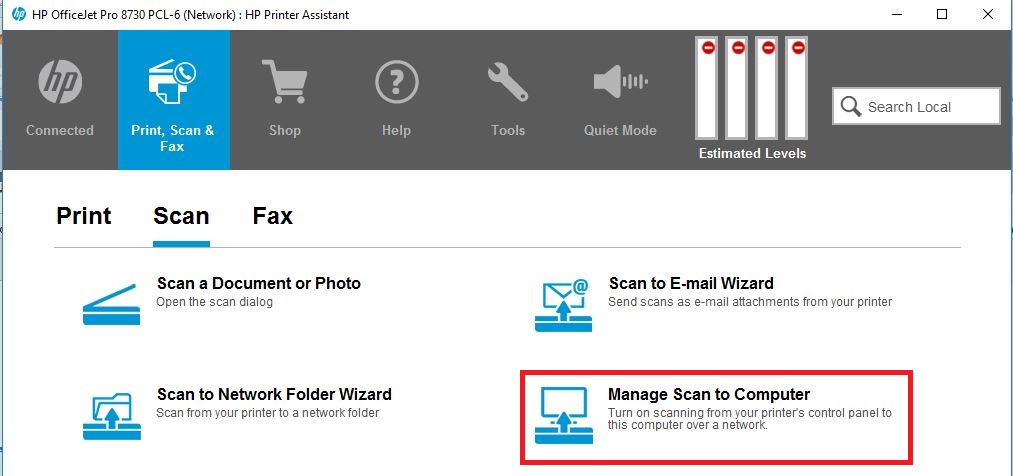
  • Click on the icon to open the printer software
  • Select the Scan Menu.
  • Select 'Manage Scan to Computer'


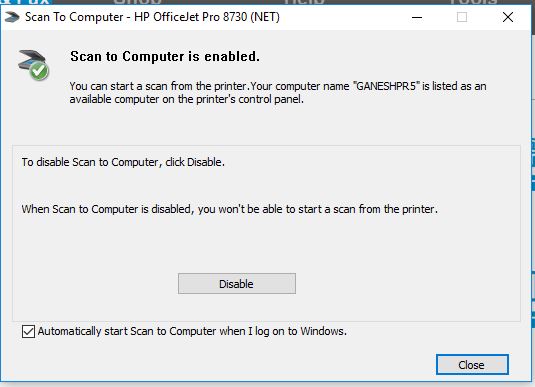
  • Make sure the 'Scan to Computer' feature is enabled.


  • Try to scan again.
  • If the issue persists, proceed to the next step.


Step 3: Restart the Printer, PC, and Router

  • Turn off the router, wait for 60 seconds and turn it back on. (If the printer is on a WiFi network)
  • Power Reset the printer
    • Make sure this printer is plugged into a direct wall, not a surge protector.
    • Turn the printer on.
    • Wait until the printer is idle and silent before you continue.
    • With the printer turned on, disconnect the power cord from the rear of the printer.
    • Unplug the power cord from the wall outlet. Wait at least 60 seconds
    • Plug the power cord back into the wall outlet.
    • Reconnect the power cord to the rear of the printer.
    • Turn on the printer, if it does not automatically turn on.
  • Restart the PC
  • Try to scan from the printer control panel.


Let me know if this information helps. 


Please click “Accept as Solution” if you feel my post solved your issue, it will help others find the solution.

Click the “KudosThumbs Up" on the bottom right to say “Thanks” for helping.

ATHARVA_GP
I am an HP Employee

† The opinions expressed above are the personal opinions of the authors, not of HP. By using this site, you accept the <a href="https://www8.hp.com/us/en/terms-of-use.html" class="udrlinesmall">Terms of Use</a> and <a href="/t5/custom/page/page-id/hp.rulespage" class="udrlinesmall"> Rules of Participation</a>.