
-
×InformationNeed Windows 11 help?Check documents on compatibility, FAQs, upgrade information and available fixes.
Windows 11 Support Center. -
-
×InformationNeed Windows 11 help?Check documents on compatibility, FAQs, upgrade information and available fixes.
Windows 11 Support Center. -
- HP Community
- Printers
- Printer Setup, Software & Drivers
- Officejet Pro 8600 Plus won't scan with Image Capture and ot...

Create an account on the HP Community to personalize your profile and ask a question
Your account also allows you to connect with HP support faster, access a personal dashboard to manage all of your devices in one place, view warranty information, case status and more.
Check some of the most frequent questions about Instant Ink: HP INSTANT INK, HP+ PLANS: INK AND TONER.
Check out our WINDOWS 11 Support Center info about: OPTIMIZATION, KNOWN ISSUES, FAQs AND MORE.

It has been a while since anyone has replied. Simply ask a new question if you would like to start the discussion again.

06-03-2020
05:34 AM
- last edited on
01-08-2026
12:22 PM
by
 Animatryx
 HP Recommended
Product: Officejet Pro 8600 Plus
Hi,
I use a MacOS app called PDF scanner to scan documents and OCR the text. However, since I upgraded to Catalina this has stopped working.

The scanner doesn't appear in Image Capture either.

The HP app Utility is able to scan, but I want to be able to use other apps too.

The printer is installed via AirPrint:

I have tried removing the driver and re-adding it numerous times.
I understand there is an issue with the HP driver in Catalina. Does anyone have any update when this will be fixed?
I am using MacOS version 10.15.4 (19E287)
8 REPLIES 8


06-08-2020 11:27 AM
HP Recommended
@paulmuk, Welcome to HP Support Community!
Do you have the HP Easy Scan app installed on the computer? If not install it from the App store and try adding the printer to it.
If you have issues, try the solutions below, and then try to add your printer to HP Easy Scan.
-
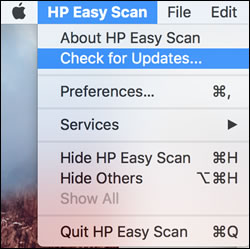
Update HP Easy Scan: Open HP Easy Scan. On the upper bar, click HP Easy Scan, click Check for Updates, and then install any available updates.
-
Reinstall the print drivers: Click the Apple menu
 , click System Preferences, and then click Printers and Scanners. Right-click or control-click the blank space in the list of printers, and then click Reset printing system. After resetting the printing system, go to 123.hp.com, search for your printer, and then install the recommended software.
Hope this helps! Keep me posted.
Please click “Accepted Solution” if you feel my post solved your issue, it will help others find the solution. Click the “Kudos/Thumbs Up" on the bottom right to say “Thanks” for helping!
TEJ1602
I am an HP Employee
06-09-2020 05:57 AM
HP Recommended
Hi @tej1602
I didn't have the HP Easy Scan app, so I have installed it. It didn't have an option to update - presumably because it's already installed the latest version from the app store.

I followed your instructions to reset the printing system and re-install the driver from 123.hp.com (which recommended using the HP Smart app), however the scanner still does not appear in either HP Easy Scan or Image Capture:


The scanner worked fine before I upgraded to Catalina so I think the issue is with the driver.
Regards,
Paul
06-11-2020 03:36 PM - edited 06-11-2020 03:37 PM
HP Recommended
Thanks for replying!
ensure that the printer is up to date with its firmware and Mac is up to date with its software. If you are unsure you may use the links below to update the printer firmware and Mac software:
Remove and add the printer
Click the Apple menu, and then select System Preferences.
Depending on your operating system version, click Print & Fax, Print & Scan, or Printers & Scanners.
Click the name of your printer, click the Minus sign , and then delete the printer.
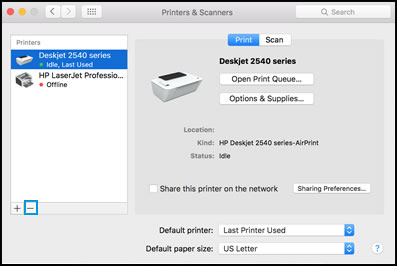
Click the Plus sign , and then click Add Printer or Scanner.
Click the Use or Print Using box, and then select AirPrint
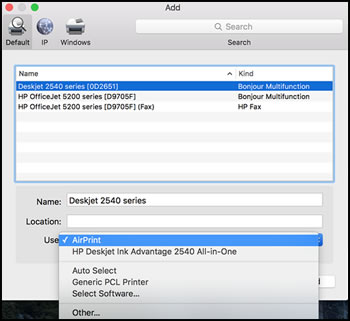
Click Add to add the printer to the list and ensure you select kind as bonjour multifunction.
Try to print.
Keep me posted for further assistance.
Please click “Accepted Solution” if you feel my post solved your issue, it will help others find the solution. Click the “Kudos/Thumbs Up" on the bottom right to say “Thanks” for helping!
TEJ1602
I am an HP Employee
06-13-2020 07:15 AM
HP Recommended
I've checked to ensure I have the latest versions:
Printer firmware version: CLP1CN1829AR
Mac OS version: 10.15.5 (19F101)
I then removed and re-added the printer as you described, however it is still not showing up as a scanner in Image Capture or PDF Scanner.

06-25-2020 01:28 PM
HP Recommended
Uninstall the HP Printer Software completely and reinstall, refer to the document HP Printers - Uninstalling HP Printer Software (Mac) for help.
Also, are you able to scan from the printer to the computer?
Keep me posted.
Please click “Accepted Solution” if you feel my post solved your issue, it will help others find the solution. Click the “Kudos/Thumbs Up" on the bottom right to say “Thanks” for helping!
TEJ1602
I am an HP Employee

Be alert for scammers posting fake support phone numbers and/or email addresses on the community.
If you think you have received a fake HP Support message, please report it to us by clicking on "Flag Post".
† The opinions expressed above are the personal opinions of the authors, not of HP. By using this site, you accept the Terms of Use and Rules of Participation.


Didn't find what you were looking for?
Ask the community
† The opinions expressed above are the personal opinions of the authors, not of HP. By using this site, you accept the <a href="https://www8.hp.com/us/en/terms-of-use.html" class="udrlinesmall">Terms of Use</a> and <a href="/t5/custom/page/page-id/hp.rulespage" class="udrlinesmall"> Rules of Participation</a>.