• ×
    Information
    Need Windows 11 help?
    Check documents on compatibility, FAQs, upgrade information and available fixes.
    Windows 11 Support Center.
  • post a message
  • ×
    Information
    Need Windows 11 help?
    Check documents on compatibility, FAQs, upgrade information and available fixes.
    Windows 11 Support Center.
  • post a message
Guidelines
Seize the moment! nominate yourself or a tech enthusiast you admire & join the HP Community Experts!
Check some of the most frequent questions about Instant Ink: HP INSTANT INK, HP+ PLANS: INK AND TONER.


Check out our WINDOWS 11 Support Center info about: OPTIMIZATION, KNOWN ISSUES, FAQs AND MORE.
HP Recommended
HP Envy Inspire 7258e All-in-One Printer

Paper tray continuously shows empty when it's full of paper in my phone app. This is a recently purchased printer. I've reloaded the paper several times with no change. 

6 REPLIES 6
HP Recommended

@HDRIDER55,m m Welcome to HP Support Community,


Thank you for posting your query.


Ah, the joys of technology! 😅 It’s always a great feeling when you just got something new, only to have it act like it's too cool for school. Don’t worry – I’ve got your back! Let’s get that paper tray behaving like it’s supposed to. Ready to troubleshoot your HP Envy Inspire 7258e with me? Let’s dive in!


Check the surface the product rests on


Make sure that the product rests on a flat and level surface to avoid paper feed issues.

  • Make sure that the surface the printer rests on is flat, level, and hard.
  • Make sure that part of the printer's base does not rest on anything that might cause the printer to tilt, even slightly.
  • Pull out the paper tray.
  • Load 10 sheets of U.S. letter or A4 plain white paper in the paper tray.
  • Push the paper tray back into the printer.

Check the paper, and then reload it


Paper feed issues might result from using ripped, dusty, curled, wrinkled, or bent paper. The quality of the paper can also make a difference. Use these guidelines to help avoid the issue.

  • Use only good quality paper that meets printer specifications.
  • Store all paper in a dry, cool place. Paper feed issues occur more often in humid environments.
  • Do not print on paper that is already printed. The dampness of the ink can cause the paper to stick together.
  • Wait for the printer to complete a job or to display a Load paper in tray message before you load more paper.

Removing the stack of paper

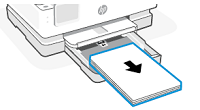
  1. Open the main tray, slide the paper-width guides outwards, and then remove the stack of paper from the main tray.
  2. Remove any severely bent, wrinkled, or torn paper from the stack.
  3. Check for and remove any obstructions inside the main tray. Even small pieces of paper can cause paper feed issues.
  4. With both hands, hold the stack of paper, and then tap the bottom edge of the stack on a flat surface so that the stack is even on all sides.
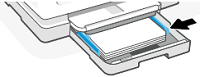
  5. Insert the stack of paper into the main tray, push the stack of paper, and then slide the paper-width guides inwards until they touch the edges of the paper.

Sliding in the paper-width guides

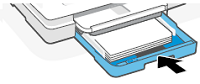
  • Close the main tray.

Closing the main tray

  • Make sure the paper loaded matches the paper size and type settings in the printer software, HP Smart app, or printer control panel

Garp_Senchau
I am an HP Employee

HP Recommended

Ensure the Paper Is the Right Type

  • Confirm that the paper you are using is compatible with the printer. For instance, ensure that the paper weight and size are appropriate for the HP Envy Inspire 7258e.
  • Avoid using damp or curled paper, as it can cause misfeeds.

Check the Paper Sensor

  • The paper sensor may be dirty or malfunctioning. To clean the sensor, open the printer and locate the paper feed area. There might be a small sensor that detects the paper. You can try gently cleaning it with a dry microfiber cloth.

Clear jammed paper from the paper tray areas

Remove any jammed paper accessible from the paper trays.

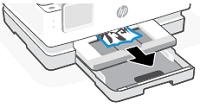
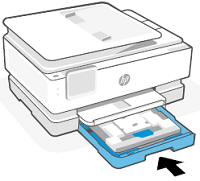
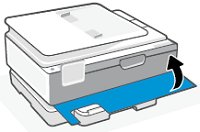
  • Open the main tray.

Opening the main tray

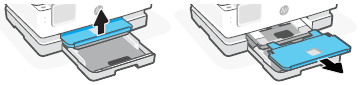
  • Lift, and then remove the output tray.

Lifting, and then removing the output tray

  • Remove any jammed paper from the photo tray.

Removing any jammed paper from the photo tray

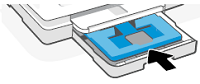
  • Push the photo tray in, and then remove any jammed paper from the main tray.

Pushing the photo tray and removing any paper from the main tray

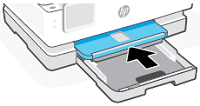
  • Replace the output tray.

Replacing the output tray

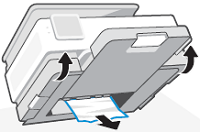
  • Gently tilt the printer from the front (about 60°) to access the printer base, and then remove any jammed paper.

Tilting the printer, and then removing any jammed paper

  • Close the main tray.

Closing the main tray

Garp_Senchau
I am an HP Employee

HP Recommended

Clear jammed paper from inside the printer


Remove any jammed paper accessible from inside the printer.

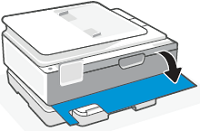
  • Open the front door.

Opening the front door

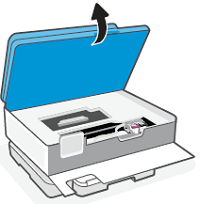
  • Open the cartridge access door.

Opening the cartridge access door

  • If the print carriage is not obstructed, gently move the print carriage to the left or right of the printer, and then remove any jammed paper.
    Warning:
    Do not move the print carriage too far to the left or right side of the printer.

Removing any jammed paper from the print zone

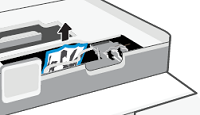
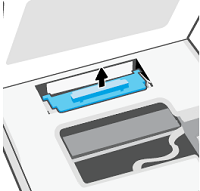
  • Lift the handle of the paper path cover, and then remove the cover.

Removing the paper path cover

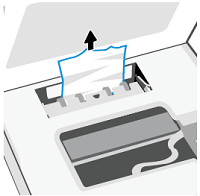
  • Locate any jammed paper inside the printer, and then use both hands to remove the jammed paper.

Removing jammed paper from inside the printer

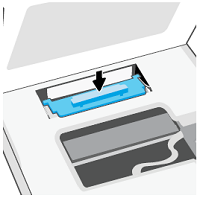
  • Reinsert the paper path cover until it snaps into place.

Reinserting the paper path cover

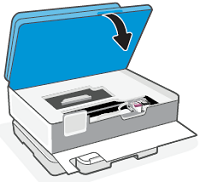
  • Close the cartridge access door.

Closing the cartridge access door

  • Close the front door.

Closing the front door

Garp_Senchau
I am an HP Employee

HP Recommended

Remove debris from inside the paper path


When small bits of paper become lodged inside the paper path, paper jams are more likely to occur. To remove debris from the paper path and output rollers, run thicker paper through the printer, such as photo paper.

  • Remove any paper from the input tray, and then load one full-size page of photo paper (letter or A4).
  • Send a blank print or copy job.
  • After the paper ejects, open the input tray.
  • Lift the front of the printer, and then remove any torn paper or debris from inside the tray and rollers.
  • Close the tray, and then reload normal paper.

Reset Printer 

Follow these steps to reset the product.

  • Disconnect the power cord from the rear of the product.
  • Unplug the power cord from the electrical outlet.
  • Wait 10 seconds, and then plug the power cord directly into the electrical outlet.
  • Connect the power cord to the rear of the product.
  • Many power cords have an LED light on the power module or on the end of the cord that plugs into the product. Make sure the LED light is lit and steady.
  • Press the Power button () to turn on the product.

Reinstall or Update Printer Software

  • Ensure that the HP software or app on your phone is up to date. Outdated drivers or firmware may cause communication issues between the printer and your phone.
  • If needed, uninstall and reinstall the HP Smart app or update it via the app store.

Perform a Printer Self-Test

  • Most HP printers offer a self-test print option, which can help detect hardware issues.
  • To run the self-test:
    • From the printer’s control panel, look for an option to print a test page or diagnostic page.
    • Check the results for any specific error codes or issues related to the paper tray.

Update Printer Firmware

  • Ensure your printer has the latest firmware. Check HP’s support website for firmware updates for your model.
    • Go to HP’s official site or the HP Smart app to check for and install any available firmware updates.

Alright, you’re now armed with all the tools to kick that paper tray into shape! 💪 


If all else fails, give your printer a pep talk—sometimes, that’s all it needs. 😆 If the issue persists, don’t hesitate to reach out to me directly—I’m always here to help you troubleshoot or point you in the right direction! 🤗 Let’s get your printer back in action!


Take care and have a good day. 😇


If this reply nailed it, 🔨 mark it as the "Accepted Solution"—it’s like a spotlight for future problem solvers.  And clicking 'yes' under 'Was this reply helpful?' is the cherry 🍒 on top of the solution sundae. Sharing is caring! 💕


Regards,

Garp_Senchau
I am an HP Employee

HP Recommended

So far so good, I just refilled the paper last night with newly opened paper. See what happens ghd next day or so.

Thanks for the inpùt

HP Recommended

Hey @HDRIDER55,


Thanks for letting us help you out! If you're all set, please mark this post as 'Accepted Solution' so I can do a virtual happy dance!


If you need anything else, I'm all ears (or rather, all text). Just let me know!


You're awesome, and I'm honored to have been your go-to guide today!


Stay fantastic, and have an amazing day ahead!


Best Regards,

Garp_Senchau
I am an HP Employee

† The opinions expressed above are the personal opinions of the authors, not of HP. By using this site, you accept the <a href="https://www8.hp.com/us/en/terms-of-use.html" class="udrlinesmall">Terms of Use</a> and <a href="/t5/custom/page/page-id/hp.rulespage" class="udrlinesmall"> Rules of Participation</a>.