• ×
    Information
    Need Windows 11 help?
    Check documents on compatibility, FAQs, upgrade information and available fixes.
    Windows 11 Support Center.
  • post a message
  • ×
    Information
    Need Windows 11 help?
    Check documents on compatibility, FAQs, upgrade information and available fixes.
    Windows 11 Support Center.
  • post a message
Guidelines
Seize the moment! nominate yourself or a tech enthusiast you admire & join the HP Community Experts!
Check some of the most frequent questions about Instant Ink: HP INSTANT INK, HP+ PLANS: INK AND TONER.


Check out our WINDOWS 11 Support Center info about: OPTIMIZATION, KNOWN ISSUES, FAQs AND MORE.
HP Recommended
HP OfficeJet Pro 9015e All-in-One Printer

I want to set up the Fax on my printer and it wants a password which I have never set. I tried leaving it blank and I have tried admin, but nothing works. I have also reset the printer but still no password.

2 REPLIES 2
HP Recommended

Hi @gjcevallos ,


Welcome to HP Support Community.  

Thank you for posting your query, I will be glad to help you.


If you've already tried the default options like leaving it blank or using "admin" without success, and you've also reset the printer, there might be a specific default password set by the manufacturer or your IT department. Here are a few steps you can take to troubleshoot the issue:


If you're having trouble accessing the fax setup on your HP OfficeJet Pro 9015e printer due to a password issue, you can try a few steps to resolve this:


Default Passwords:

  • Try using the default passwords that are commonly used for HP printers. Common default passwords are often "admin" or "password." Ensure that you are typing them correctly, as passwords are case-sensitive.

Check the Manual:

  • Consult the printer's user manual or documentation that came with the device. It might contain information about default passwords or steps to reset the password.

Factory Reset:

  • If you haven't already, perform a factory reset on the printer. This will reset all settings, including the password. Remember that this will erase any custom settings you have configured on the printer.
    • To perform a factory reset, refer to the printer's manual for specific instructions.

Update Firmware:

  • Ensure that your printer has the latest firmware installed. Sometimes, updating the firmware can resolve password-related issues. You can check for firmware updates on the HP support website.

Web Interface:

  • Access the printer settings through the web interface using its IP address. Open a web browser and enter the printer's IP address in the address bar. From there, you may be able to navigate to the fax settings and configure them without the need for a password.


    For Eg: The username is admin (all lowercase).


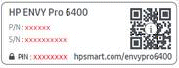
Open the cartridge access door and locate the label within this area, the listed PIN is the default administrator password:


c06595937


I hope this helps. 

Take care and have a good day.-


Please click “Accepted Solution” if you feel my post solved your issue, it will help others find the solution. Click the “Kudos/Thumbs Up" on the bottom right to say “Thanks” for helping!


A_Gayathri
HP Support Community Administrator.
HP Recommended

After trying all the solutions mentioned to no avail, I found out that the password is the pin on the door of the printer!

† The opinions expressed above are the personal opinions of the authors, not of HP. By using this site, you accept the <a href="https://www8.hp.com/us/en/terms-of-use.html" class="udrlinesmall">Terms of Use</a> and <a href="/t5/custom/page/page-id/hp.rulespage" class="udrlinesmall"> Rules of Participation</a>.