• ×
    Information
    Need Windows 11 help?
    Check documents on compatibility, FAQs, upgrade information and available fixes.
    Windows 11 Support Center.
  • post a message
  • ×
    Information
    Need Windows 11 help?
    Check documents on compatibility, FAQs, upgrade information and available fixes.
    Windows 11 Support Center.
  • post a message
Guidelines
Join the HP Community Solve‑a‑thon | Help Others & Share Your Solutions | Live on Zoom | 2:30 PM to 2:30 AM IST | Every Wednesday Click here to know more
Check some of the most frequent questions about Instant Ink: HP INSTANT INK, HP+ PLANS: INK AND TONER.


Check out our WINDOWS 11 Support Center info about: OPTIMIZATION, KNOWN ISSUES, FAQs AND MORE.
HP Recommended
HP Smart Tank 530 Wireless All-in-One
Microsoft Windows 11

I want to print a big image on a poster mode using my printer is it possible without using any third party software. 

1 REPLY 1
HP Recommended

@sathiyapriya 


Welcome to the HP Community Forum.


The short answer


You need software that knows how to create Poster pieces (tiles) for the printer.


Longer Explanation


Poster printing is a specialty operation and job type.


The printer is not aware of what it is printing.


By the time the printer gets the [romrequest, the configuration to create the job must be completed.


The printer translates the received content into printer language and expresses the results as print on paper.


Installing the HP full driver printer software provides a foundation that supports installing and using additional software and applications, including those programs and applications that are capable of providing features and options not available in the HP software.


==============================

Printer Software - Full Feature Software


If you have not done so, consider


If the software is already installed and you want to "reinstall":

Uninstall the printer software from Programs and Features

Restart the computer and log in

Check that all the pieces of the printer software have been removed - if anything is deleted, Restart computer and log in


Next,

Download, Save, (then) Install new copy of the printer software

After the software in installed, Restart the computer and log in


Details Page - Driver - For your Printer

>>> Full Feature Software - Web Pack Installation Package - Information - Download  <<<

HP Smart Tank 530 Print and Scan Driver and Accessories 


Next...

Supported for your printer - Optional


>>  Install HP Universal Scan Software - Model Dependent 


  • Download / Save / Install  HP Universal Scan Full Feature Software 
  • HPUS adds OCR libraries to installed HP Scan software. 
  • HPUS installs a new, full featured, (and separate) HP Scan software shortcut to the Desktop.
  • Note:  HPUS can be installed as standalone or installed after the full feature printer software.
  • After the software is installed, Restart the computer and sign in


 HP printers - Scan as Editable Text (OCR) with HP Scan (Windows)


==============================

Poster Print - Software


Example setup


Print PDF software > Install Adobe Reader DC


 Print PDF - Size or Poster


Print PDF in Adobe Reader DC 


Open the PDF document in Adobe Reader DC 

Click the Print icon

Open Properties

Set Shortcut to Everyday Printing or similar (Plain paper printing, single sided)

Select your Paper Size

Click OK to save change(s) and Exit the Properties menu

Main print menu

If printing at 100% or smaller, Page Sizing & Handling = Actual, Fit / Shrink to fit, percentage (wording varies)

OR

If printing “larger than 100%”, Page Sizing & Handling > Poster

Poster Printing - Notes

  • If the file is smaller than the paper size and you need it larger, increase the Tile Size
  • If the file is already larger than the paper size, it will be divided into Tiled sheets needed to print the file
  • Enter an "overlap" and whether you want the "cut marks" included

When ready, click to Print


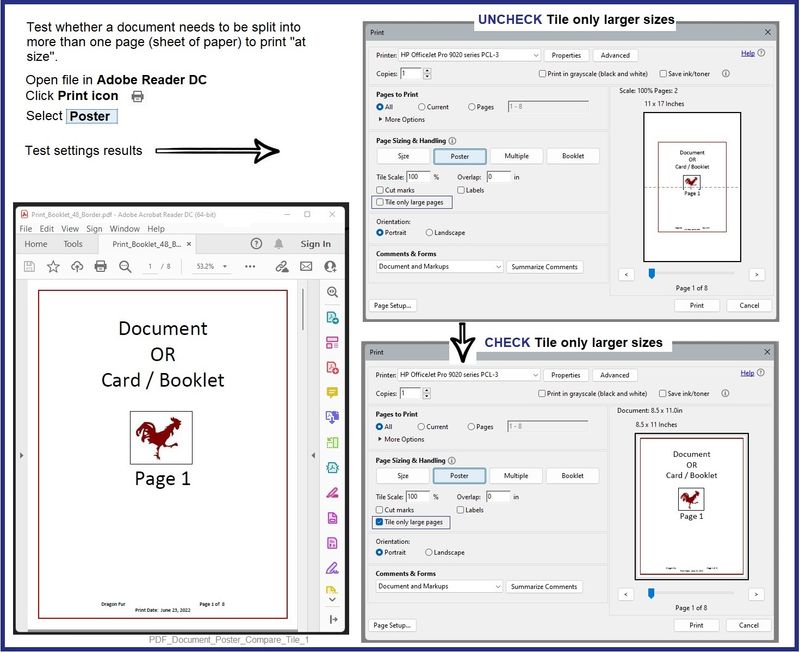
Example 1 - Document - Poster - basic check

PDF_Document_Poster_Compare_Tile_1PDF_Document_Poster_Compare_Tile_1


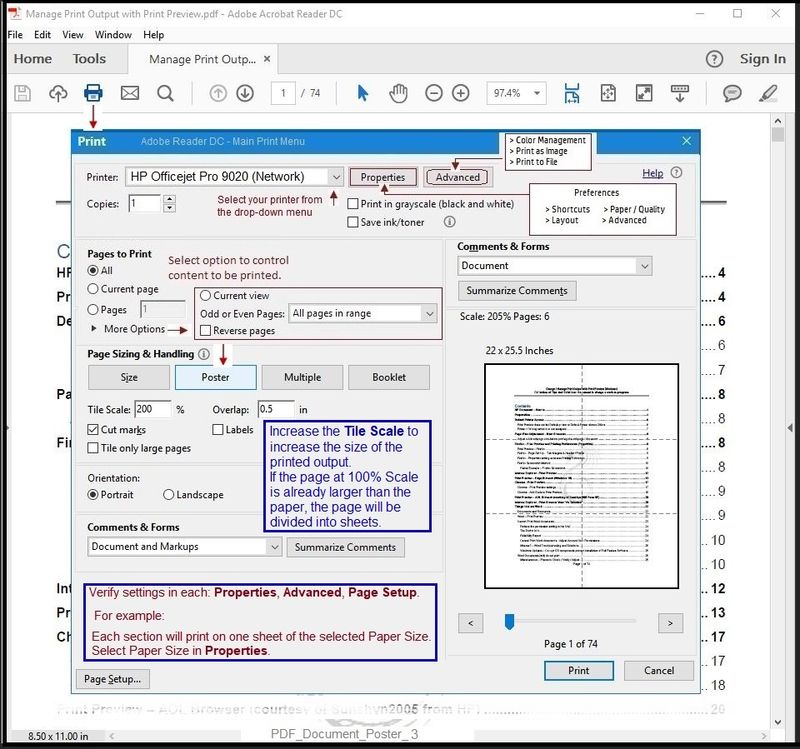
Example 2 - PDF - Poster Print

PDF_Document_Poster_3PDF_Document_Poster_3


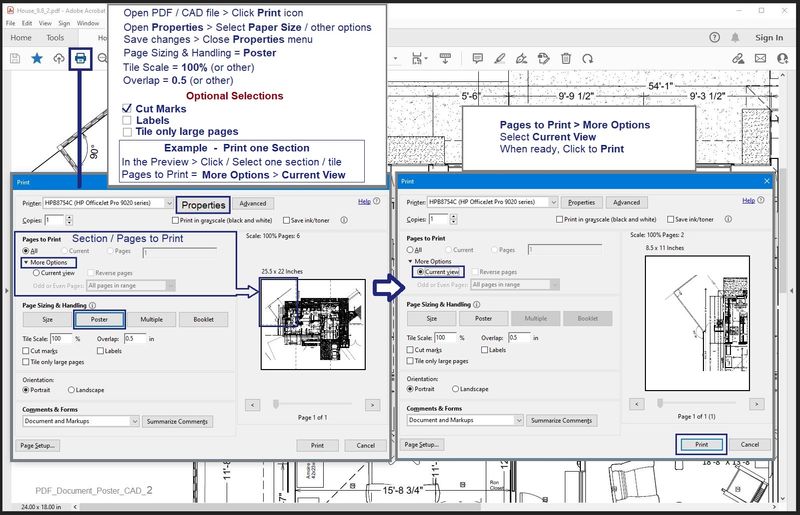
Example 3 - PDF - Poster Print - CAD drawing - full set or section printing

PDF_Document_Poster_CAD_2PDF_Document_Poster_CAD_2


=+=+=+=+=+=+=+=+=+=+=+=+=+=+=+=+=+=+=+=+=+=


References / Resources / Examples


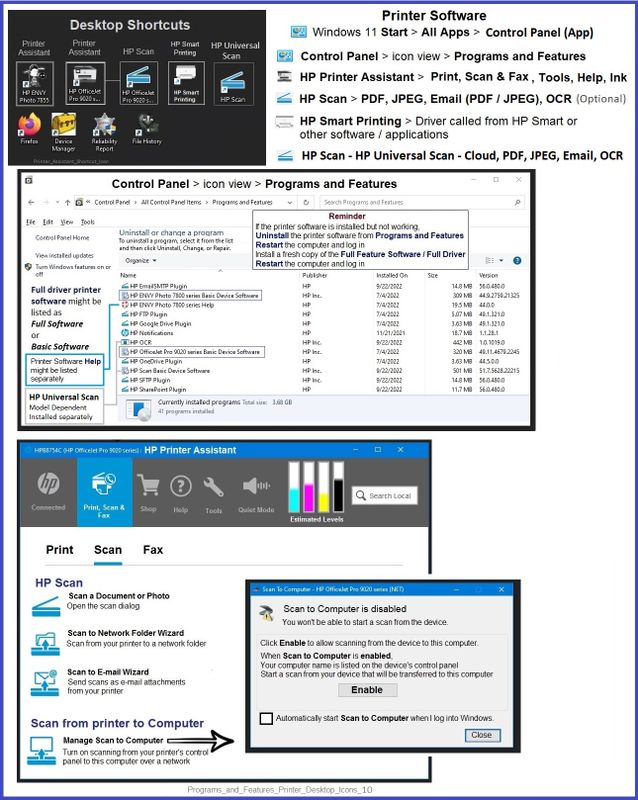
Example - Windows - Full Feature Software - Installed

Programs_and_Features_Printer_Desktop_Icons_10Programs_and_Features_Printer_Desktop_Icons_10


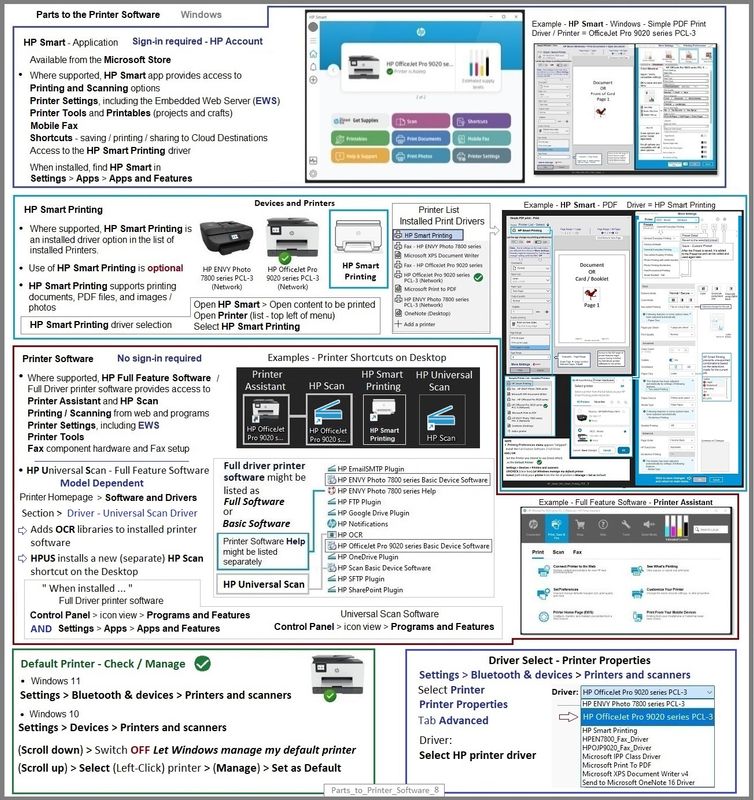
Example - Windows - Printer Software - Parts

Parts_to_Printer_Software_8Parts_to_Printer_Software_8


HP Printer Home Page - References and Resources

Learn about your Printer  - Solve Problems

“Things that are your printer”

When the website support page opens, Select (as available) a Category > Topic Subtopic

NOTE:  Content depends on device type and Operating System

Categories:  Alerts, Access to the Print and Scan Doctor (Windows), Warranty Check, HP Drivers / Software / Firmware Updates, How-to Videos, Bulletins/Notices, Lots of How-to Documents, Troubleshooting, Manuals > User Guides, Product Information (Specifications), Supplies, and more

Open

HP Smart Tank 530 Wireless All-in-One series 


Thank you for participating in the HP Community --

People who own, use, and support HP devices.

Click Yes to say Thank You

Question / Concern Answered, Click "Accept as Solution"


Dragon-Fur

† The opinions expressed above are the personal opinions of the authors, not of HP. By using this site, you accept the <a href="https://www8.hp.com/us/en/terms-of-use.html" class="udrlinesmall">Terms of Use</a> and <a href="/t5/custom/page/page-id/hp.rulespage" class="udrlinesmall"> Rules of Participation</a>.