• ×
    Information
    Need Windows 11 help?
    Check documents on compatibility, FAQs, upgrade information and available fixes.
    Windows 11 Support Center.
  • post a message
  • ×
    Information
    Need Windows 11 help?
    Check documents on compatibility, FAQs, upgrade information and available fixes.
    Windows 11 Support Center.
  • post a message
Guidelines
Seize the moment! nominate yourself or a tech enthusiast you admire & join the HP Community Experts!
Check some of the most frequent questions about Instant Ink: HP INSTANT INK, HP+ PLANS: INK AND TONER.


Check out our WINDOWS 11 Support Center info about: OPTIMIZATION, KNOWN ISSUES, FAQs AND MORE.
HP Recommended
HP ENVY Photo 7830 All-in-One Printer

I have recently started having a problem from my ASUS PC running Windows 10 where any application I try to print from causes the application to report Not Responding. Any ideas? I have other devices linked to this printer but they all print fine.

1 REPLY 1
HP Recommended

@ITBT72 


Welcome to the HP Community --


If a Windows Update stomped on your printer software (possible and somewhat common), it might help to uninstall / reinstall the full driver printer software.   Sometimes it is not even an Update - software can collapse for other reasons.


As a matter of completeness -- Perhaps add the uninstall / reinstall for the HP Universal Scan Software, too.


========================================

Printer - Printer Software - Windows


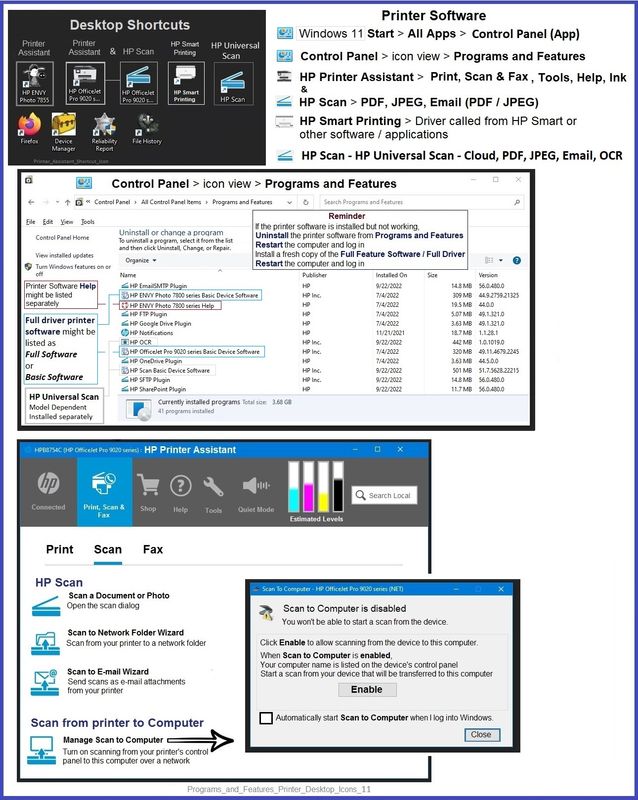
HP Full Feature Software / Full Driver printer software - supports printing and scanning from the web, printing in in other software and programs (for example, Word), and provides access to the full range of Printing Preferences / Shortcuts.  The full driver adds at least two shortcuts to the Desktop: Printer Assistant and HP Scan. If the printer model includes built-in Fax hardware, the software supports the setup and use of the Fax driver. No Sign-in required.


Basics - Printer Software


Note: Skip part(s) that are not relevant to your situation.


Uninstall the full driver printer software from Programs and Features

Restart computer and Sign in

Install a new copy of the Full Feature Software

Restart computer and Sign in


Full Feature Software / Full Driver printer software

Details Page - Driver - For your Printer

>>> Full Feature Software - Web Pack Installation Package - Information - Download / Save / Install <<<

HP ENVY Photo 7800 All-in-One Print and Scan Driver and Accessories 


After the software is installed, Restart the computer and log in


Next,

Optional – Supported for your printer

Next – HP Universal Scan Software - NOTE:  Model and Operating System version Dependent


 HP Universal Scan Full Feature Software adds OCR libraries to installed HP Scan software. 

HPUSS installs a new, full featured, (and separate) HP Scan software shortcut to the Desktop.

Note:  HPUSS can be installed as standalone or installed after the full feature printer software.

After the software is installed, Restart the computer and sign in

HP Universal Scan Software provides a larger GUI to make using the software easier on high-resolution screens.   New features have been added to the main menu to help with navigating the settings.


=== --- === --- === --- === --- ===

Printer Assistant - Manage Scan to Computer


The installation of the full driver generally adds at least two shortcuts to the Desktop.

NOTE > HP Scan is not installed if the printer does not support Scan.


Printer Assistant 

HP Scan


When needed / wanted, enable "Scan to Computer" using the Printer Assistant


Open the Printer Assistant > Tab Scan > Manage Scan to Computer > Enable


Example - Full Feature Software - Installed - Programs and Features

Programs_and_Features_Printer_Desktop_Icons_11Programs_and_Features_Printer_Desktop_Icons_11


=+=+=+=+=+=+=+=+=+=+=+=+=+=

References / Resources


-------------------- --------------------

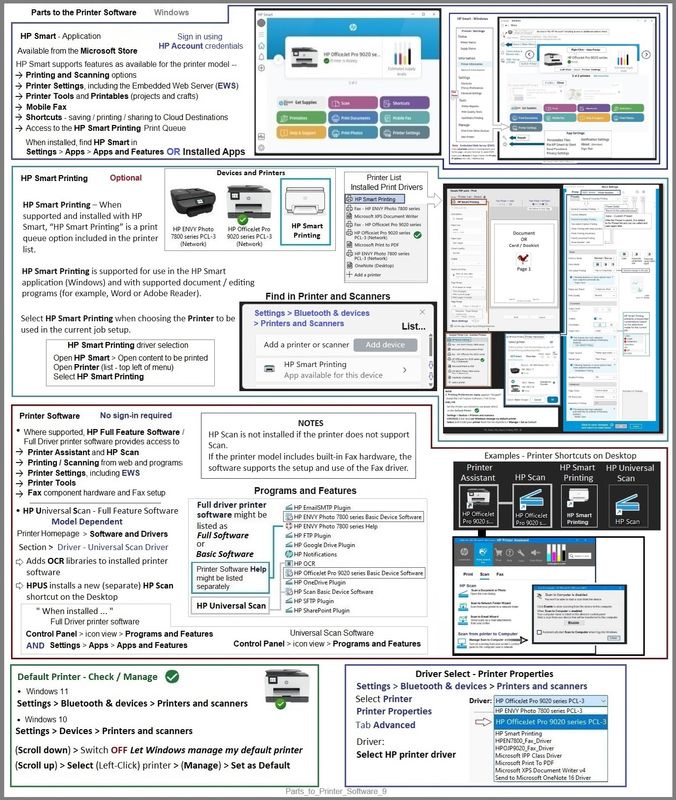
Parts to the Printer Software


DragonFur_0-1695655279908.png

Parts_to_Printer_Software_9Parts_to_Printer_Software_9


Examples

HP Smart application - supports printing and scanning PDF and Photos / Images.  HP Smart is supported in many regions and on many newer networked printers - The app is available from the  Microsoft Store . HP Smart might require that you sign in using your HP Account credentials. HP Smart can benefit when the full driver printer software is also installed.


HP Smart Printing – When supported and installed with HP Smart, “HP Smart Printing” is a print queue option included in the printer list. HP Smart Printing is supported for use in the HP Smart application (Windows) and with supported document / editing programs (for example, Word or Adobe Reader).  Select HP Smart Printing when choosing the Printer to be used in the current job setup. Example: Open HP Smart > Open the content to be printed > Printer (list – top left of menu) > Select HP Smart Printing -- Note – HP Smart Printing supports Custom Presets (Shortcuts).


HP Full Feature Software / Full Driver printer software - supports printing and scanning from the web, printing in in other software and programs (for example, Word), and provides access to the full range of Printing Preferences / Shortcuts.  The full driver generally adds at least two shortcuts to the Desktop: Printer Assistant and HP Scan. NOTES:  HP Scan is not installed if the printer does not support Scan.  If the printer model includes built-in Fax hardware, the software supports the setup and use of the Fax driver. No Sign-in required.


HP Universal Scan Software - Model and Operating System version Dependent >> HPUSS adds OCR libraries to installed HP Scan software. HPUSS installs a new, full featured, (and separate) HP Scan software shortcut to the Desktop. Note: When supported, HPUSS can be installed as standalone or installed after the full feature printer software.  Reference: Open  HP Universal Scan Full Feature Software  > If needful, Choose a different OS > Open all > Find / Download / Save / Install HP Universal Scan – Full Feature Software and Driver webpack > After the software is installed, Restart the computer and sign in. 


-------------------- --------------------


------------------------------------------------------------------

HP Printer Home Page - References and Resources

Learn about your Printer - Solve Problems

“Things that are your printer”

When the website support page opens, Select (as available) a Category > Topic > Subtopic

NOTE: Content depends on device type and Operating System

Categories: Alerts, Troubleshooting, Ink & Paper, HP Software / Drivers / Firmware Updates , Setup & User Guides, Product Specifications, Account & Registration, Warranty & Repair

Open

HP ENVY Photo 7830 All-in-One Printer  


Thank you for participating in the HP Community --

People who own, use, and support HP devices.

Click Yes to say Thank You

Question / Concern Answered, Click my Post "Accept as Solution"


Dragon-Fur

† The opinions expressed above are the personal opinions of the authors, not of HP. By using this site, you accept the <a href="https://www8.hp.com/us/en/terms-of-use.html" class="udrlinesmall">Terms of Use</a> and <a href="/t5/custom/page/page-id/hp.rulespage" class="udrlinesmall"> Rules of Participation</a>.