• ×
    Information
    Need Windows 11 help?
    Check documents on compatibility, FAQs, upgrade information and available fixes.
    Windows 11 Support Center.
  • post a message
  • ×
    Information
    Need Windows 11 help?
    Check documents on compatibility, FAQs, upgrade information and available fixes.
    Windows 11 Support Center.
  • post a message
Guidelines
Join the HP Community Solve‑a‑thon | Help Others & Share Your Solutions | Live on Zoom | 2:30 PM to 2:30 AM IST | Every Wednesday Click here to know more
Check some of the most frequent questions about Instant Ink: HP INSTANT INK, HP+ PLANS: INK AND TONER.


Check out our WINDOWS 11 Support Center info about: OPTIMIZATION, KNOWN ISSUES, FAQs AND MORE.
HP Recommended
HP Envy 4520
Mac OS X 10.10 Yosemite

Greetings; my HP Envy is connected to wifi but all print jobs remain stuck in the queue.  We are a Mac household and have attempted printing from multiple OS X laptops and iOS devices with similar results.


Thus far, we've:

_Attempted troubleshooting via virtual assistant.

_Disconnected from wifi then reconnected.

_Unplugged and plugged back in modem/router and printer.

_Uninstalled and re-installed printer.

_Reset printing system.

_Executed the troubleshooting guide provided by Customer Support (https://support.hp.com/us-en/product/hp-envy-4520-all-in-one-printer-series/5447920/document/c042493...).


All have failed...


Prior forum posts recommend leveraging the HP Scan & Print Doctor which is only available for Windows.


What now?

2 REPLIES 2
HP Recommended

@jhewi2, Welcome to HP Support Community!


Try the steps below-


Assign static IP to the printer-

The steps on how to set a manual IP address can be found here.

For the DNS servers please use 8.8.8.8 for the Manual Preferred DNS Server and 8.8.4.4 for the Alternate DNS server. These are Google’s public DNS servers.


Static IP needs to be setup outside DHCP range- Since the default DHCP address range is between 100 and 149, you'll want to avoid all of the addresses between 192.168.1.100 and 192.168.1.149 when you're assigning static IP addresses. That leaves the ranges from 2-99 and from 150-254 wide open, which is usually plenty for most home networks.


ensure that the printer is up to date with its firmware and Mac is up to date with its software. If you are unsure you may use the links below to update the printer firmware and Mac software:

Update printer firmware

Update software on Mac 


Remove and add the printer

Click the Apple menu, and then select System Preferences.

Depending on your operating system version, click Print & Fax, Print & Scan, or Printers & Scanners.

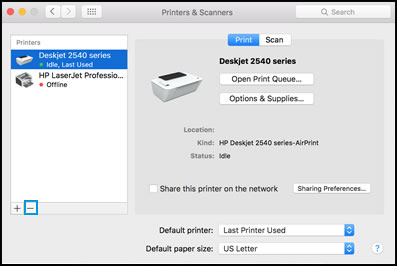
Click the name of your printer, click the Minus sign, and then delete the printer.


Select printer and click the minus sign

Click the Plus sign, and then click Add Printer or Scanner.
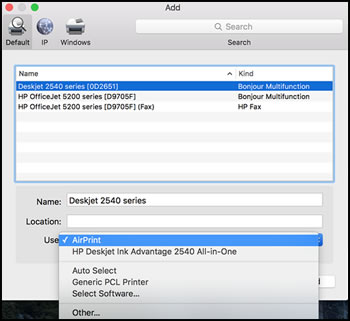
Click the Use or Print Using box, and then select AirPrint


Select AirPrint from the Use menu


Click Add to add the printer to the list.

Try to print.


Keep me posted for further assistance.


Please click “Accepted Solution” if you feel my post solved your issue, it will help others find the solution. Click the “Kudos/Thumbs Up" on the bottom right to say “Thanks” for helping!


TEJ1602
I am an HP Employee

HP Recommended

Thank you @TEJ1602.


That did not quite resolve the issue.  I followed the steps:

  • Setup a manual IP and ensured it didn't infringe on DCHP range
  • Set the DNS settings to 8.8.8.8 and 8.8.4.4. respectively.
  • Ensured my printer is up to date on firmware.
  • Ensured my mac is up to date (macOS mojave).
  • Removed the printer, attempted to add.

Attempting to add the printer results in an endless 'Setting up the device...' status.

Screen Shot 2020-05-01 at 3.43.21 PM.png


Interestingly, I am able to add the printer when I select 'HP ENVY 4520 All-in-One' from the Use dropdown.

Screen Shot 2020-05-01 at 3.45.11 PM.png


Attempts to print remain unsuccessful, however.  Printer status initially shows as 'Printing - Printing Page 1, 100% Complete...' followed by 'Printing - Waiting for job to complete.' before the job is finally no longer visible in the print queue.

Screen Shot 2020-05-01 at 3.47.43 PM.png Screen Shot 2020-05-01 at 3.48.04 PM.png

Any other thoughts?  Also, when doing the Manual IP, I was doing so in the IPv4 section.  Do I need to mess with IPv6?  My printer does seem to have that enabled.

† The opinions expressed above are the personal opinions of the authors, not of HP. By using this site, you accept the <a href="https://www8.hp.com/us/en/terms-of-use.html" class="udrlinesmall">Terms of Use</a> and <a href="/t5/custom/page/page-id/hp.rulespage" class="udrlinesmall"> Rules of Participation</a>.