• ×
    Information
    Need Windows 11 help?
    Check documents on compatibility, FAQs, upgrade information and available fixes.
    Windows 11 Support Center.
  • post a message
  • ×
    Information
    Need Windows 11 help?
    Check documents on compatibility, FAQs, upgrade information and available fixes.
    Windows 11 Support Center.
  • post a message
Guidelines
Seize the moment! nominate yourself or a tech enthusiast you admire & join the HP Community Experts!
Check some of the most frequent questions about Instant Ink: HP INSTANT INK, HP+ PLANS: INK AND TONER.


Check out our WINDOWS 11 Support Center info about: OPTIMIZATION, KNOWN ISSUES, FAQs AND MORE.
HP Recommended
HP ENVY 4520
Microsoft Windows 10 (64-bit)

My printer keeps crumpling every piece of paper that it sucks up and then proceeds to tell me that it is too small, even though it it is the correct size and is the same paper I have always used. NEED HELP ASAP 

1 REPLY 1
HP Recommended

@COCO6199 Dust, paper fiber, and other debris might accumulate on the paper feed rollers and cause paper jams and paper feed issues. Clean the rollers inside the printer, and then try to print again.

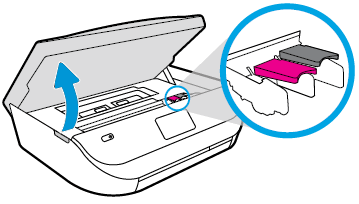
  1. Gently grasp the handles on either side of the printer, and then raise the ink cartridge access door until it locks into place.

    The carriage moves to the center of the printer.

    Image: Opening the ink cartridge access door.

  2. Wait until the carriage is idle and silent before you proceed.

  3. Turn off the printer.

  4. Disconnect the power cord from the rear of the printer.

  5. Disconnect the USB cable, if it is not already disconnected.

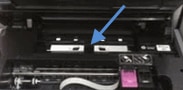
  6. Locate the paper path cover in the area behind the ink cartridge access area.

    Image: Example of the paper path cover.

  7. To remove the paper path cover, pinch the tabs together, and then lift up.

    1. Pinch the tabs together

    2. Lift up

  8. Lightly dampen a lint-free cloth with distilled water, and then squeeze any excess liquid from the cloth.

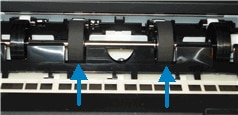
  9. Press the cloth against the rollers inside the printer, and then rotate them upward with your fingers.

    Apply a moderate amount of pressure to remove dust or dirt buildup.

    Image: Example of  rollers inside the printer

  10. Allow the rollers to dry completely (approximately 10 minutes).

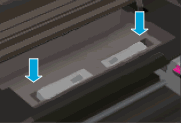
  11. Replace the paper path cover.

    Image: Replacing the paper path cover.

  12. Close the ink cartridge access door.

  13. Reconnect the power cord to the rear of the printer, and then turn on the printer.

  14. Reconnect the USB cable to the printer if necessary.

FOR DETAILS & FURTHER INSTRUCTIONS, USE THIS LINK: CLICK HERE & SKIP TO STEP 5 ONWARD

(By the end of this article all the issues should be resolved)


P.S: Welcome to HP Community 😉


Keep us posted,

If you would like to thank us for our efforts to help you, 

Give us a virtual high-five by clicking the 'Thumbs Up' icon below, followed by clicking on the "Accept as solution" on this post, 

Have a great day!

Riddle_Decipher
I am an HP Employee


Learning is a journey, not a destination.
Let's keep asking questions and growing together.
† The opinions expressed above are the personal opinions of the authors, not of HP. By using this site, you accept the <a href="https://www8.hp.com/us/en/terms-of-use.html" class="udrlinesmall">Terms of Use</a> and <a href="/t5/custom/page/page-id/hp.rulespage" class="udrlinesmall"> Rules of Participation</a>.