• ×
    Information
    Need Windows 11 help?
    Check documents on compatibility, FAQs, upgrade information and available fixes.
    Windows 11 Support Center.
  • post a message
  • ×
    Information
    Need Windows 11 help?
    Check documents on compatibility, FAQs, upgrade information and available fixes.
    Windows 11 Support Center.
  • post a message
Guidelines
Seize the moment! nominate yourself or a tech enthusiast you admire & join the HP Community Experts!
Check some of the most frequent questions about Instant Ink: HP INSTANT INK, HP+ PLANS: INK AND TONER.


Check out our WINDOWS 11 Support Center info about: OPTIMIZATION, KNOWN ISSUES, FAQs AND MORE.
HP Recommended
HP ENVY 4520 All-in-One Printer

My rarely used printer of just over a year is squealing when the display is on. Super annoying. Is there any way to fix this? I tried powering it off and turning it back  on, but it persists and is driving me nuts!

1 REPLY 1
HP Recommended

@Airumel


Welcome to the HP Forums 🙂 I would like to take a moment and thank you for using this forum, it is a great place to find answers. 


I’d suggest you clean the paper pick rollers and the paper path to try and fix the issue.


Go to HP Printers - 'Paper Jam' Error and follow Step 5.


If the issue still persists, perform a power reset

  1. Turn on the printer, if it is not already on.
  2. Wait until the printer is idle and silent before you continue.
  3. With the printer turned on, disconnect the power cord from the rear of the printer.
  4. Wait at least 30 seconds.
  5. Reconnect the power cord to the rear of the printer.
  6. Turn on the printer.

Clear any jammed paper from the printer.

Make sure that the printer is placed on a flat surface.

  1. Turn on the printer, if it is not already on.

  2. Wait until the printer is idle and silent before you continue.

  3. While the printer is still on, disconnect the power cord from the rear of the printer, and then unplug the power cord from the power source or electrical outlet.

  4. Disconnect the USB cable from the rear of the printer, if you have a cable connection to the printer.

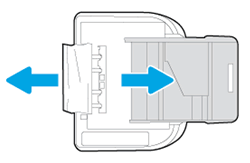
  5. Turn the printer onto its right side so you can access its underside. Make sure to hold the printer firmly with one hand to avoid tipping.


Figure: Turn the printer onto its right side

Image: Turn the printer onto its right side

  1. Use a flashlight to check the surface directly under and around where the printer sits for the following:

    • Pieces of paper trapped in the input tray

    • Small, hard objects, such as cables, pens, pencils, and books

    • Soft or uneven surfaces, such as placemats or carpet-like material

  2. Remove any obstructions that might remain.

  3. Push in the input tray, and then turn the printer over to the upright position.

  4. Reconnect the power cord to the rear of the printer, and then plug in the power cord to an electrical outlet.

  5. Reconnect the USB or Ethernet cable, unless your printer is connected to a wireless network.

  6. Turn on the printer.

Let me know if this helps.


If the information I've provided was helpful, give us some reinforcement by clicking the Accepted Solution and Kudos buttons, that'll help us and others see that we've got the answers!


Thanks!


Have a great day!


I am an HP Employee

† The opinions expressed above are the personal opinions of the authors, not of HP. By using this site, you accept the <a href="https://www8.hp.com/us/en/terms-of-use.html" class="udrlinesmall">Terms of Use</a> and <a href="/t5/custom/page/page-id/hp.rulespage" class="udrlinesmall"> Rules of Participation</a>.