
-
×InformationNeed Windows 11 help?Check documents on compatibility, FAQs, upgrade information and available fixes.
Windows 11 Support Center. -
-
×InformationNeed Windows 11 help?Check documents on compatibility, FAQs, upgrade information and available fixes.
Windows 11 Support Center. -
- HP Community
- Printers
- Printer Setup, Software & Drivers
- Printer does not print after W10 April update

Create an account on the HP Community to personalize your profile and ask a question
Your account also allows you to connect with HP support faster, access a personal dashboard to manage all of your devices in one place, view warranty information, case status and more.
Check some of the most frequent questions about Instant Ink: HP INSTANT INK, HP+ PLANS: INK AND TONER.
Check out our WINDOWS 11 Support Center info about: OPTIMIZATION, KNOWN ISSUES, FAQs AND MORE.

It has been a while since anyone has replied. Simply ask a new question if you would like to start the discussion again.

07-01-2018 01:25 AM
 HP Recommended
Product: LaserJet Pro MFP M125nw
Operating System: Microsoft Windows 10 (64-bit)
Hello,
I have a LaserJet Pro M125nw printer which stopped printing after the Windows 10 april update. When printing the job appears briefly in the print spooler as if printing, but nothing happens. Windows test page does not print, but the printer internal test page is printing. I have tried unistalling and re-installing the printer software (downladed latest version from HP site). I have tried running HP Print and Scan doctor. At home I have another PC without the Windows 10 April update and printer prints just fine. I don't have a restore point to roll back before the april update and I am reluctant to re-install my whole system if it is not absolutely necessary. The printer is connected through Wi-Fi to the network.
Thanks in advance for the help.
Best Regards,
Peter
Solved! Go to Solution.
1 ACCEPTED SOLUTION
Accepted Solutions
07-05-2018 11:50 AM - edited 07-05-2018 11:53 AM
HP Recommended
@DavidSMP
First, I have already mentioned in the original post that the printer works correctly on another Windows 10 computer.
Second I would argue that performing a push-button reset of Windows 10 is not without data loss.. Even the provided link to the procedure states "During the reset process, your apps are removed. Many of the apps can be reinstalled from the Store. However, if you have apps that are not available from the Store, a message displays a list of those apps. You need to reinstall those apps from the web or from installation discs.", which is exactly what I am desperately trying to avoid. Setting-up all out-of-store apps I am using is a real pain. Resetting/Reinstalling the OS is really a final-resort solution for me
So, having this said, after a couple of days of tinkering I have found a solution to the problem, and the printer now prints correctly. Posting a step-by-step solution for others who might find it useful
What I did
1. Uninstall current HP printer drivers and restart PC to completely finish drivers removal
2. Restart computer in Safe Mode
3. Navigate to folder %windir%\System32\spool
4. rename the folders PRINTERS and DRIVERS (e.g. to PRINTERS.OLD and DRIVERS.OLD for example)
5. Restart the computer in normal mode
6. Install the latest drivers
7. Enjoy your printing
As final words. Thank you all for participating in trying to find a solution for the problem, though honestly it would be good to have suggestions other than "Reinstall drivers" and "Reset your OS". I do understand that people can do more harm to their system tampering with the OS system files, but hey you can always reset it if it goes wrong 🙂
So thanks for the effort anyway.
7 REPLIES 7

07-01-2018 05:51 PM
HP Recommended
Welcome to HP Support Forums. A really great platform for posting all your questions and finding solutions.
I have gone through your Post and I understand that your LaserJet Pro M125nw printer stopped printing after a Windows 10 update
I appreciate all your efforts and expertise in troubleshooting this issue
I see that you already tried reinstalling the Full Feature Software
Let's uninstall the drivers from Root level and download the Full Feature Software and Firmware once again.
1.) In Windows, search for and open Programs and features
2.) Select your HP Printer
3.) Select Uninstall
4.) In Windows, search for and open Devices and printers
5.) In the Devices and Printers windows look for your HP printer. If you see it listed right-click on it and choose ‘Delete’ or ‘Remove Device’
6.) Open up the run command with the “Windows key + R” key combo.
7.) Type printui.exe /s and click Ok. (Note: there is a space in between “printui.exe” and “/s”)
8.) Click on the “Drivers” tab
9.) Look for HP Printer driver. If you see it Click on it and click Remove at the bottom
10.) Select Ok
11.) Select Apply and Ok on the Print Server Properties windows
12.) Close Devices and Printers
13.) Restart the computer and download the Full Feature Software and the Firmware from Here and follow the onscreen Instructions
Note: Connect the USB cable only when prompted during installation
If the issue persists, try creating a New User Account and check if that helps
-
Select the Start button, then select Settings > Accounts > Family & other people > Add someone else to this PC.
-
Enter a user name, password, password hint, and then select Next. Note: If you’re using Windows 10, version 1803, you can add security questions—instead of a hint—to your local account to help you reset your password in case you forget it.
- To make the new account an administrator account, select Start > Settings > Account > Family & other people and select Change account type. Under Account type, select Administrator > OK. Restart your machine and sign in with the new administrator account.
Please perform these steps at your convenience and let me know how it goes 👍
Thank you. Have a Great Day 😀
If the information I've provided was helpful, give us some reinforcement by clicking the "Solution Accepted"
KrazyToad
I Am An HP Employee
07-02-2018 02:05 PM
HP Recommended
Hello again..
Unfortunately none of the suggestions helped.
I have uninstalled the software from Apps and features.
After the uninstall was completed I was prompted for a reboot, which I did.
The printer and the driver were not present in steps 5-11 (apparently uninstalled by the software uninstall) so nothing is different from my initial uninstall attempt.
Restarted and re-installed the drivers.
Result.. Not printing.. Job still appears shortly in the printer queue, going through status "Printing", then it disappears but nothing happens.
I have also tried creating another local administrator account. Rebooted and logged with it. I still get the same behavior and no print.
07-02-2018 06:27 PM - edited 07-02-2018 06:28 PM
HP Recommended
Thanks for keeping me posted.
Try updating the Firmware from this Link: https://support.hp.com/us-en/drivers/selfservice/swdetails/HP-LaserJet-Pro-MFP-M125-series/5396664/m...
If the issue persists, I suggest you backup your computer and perform a Push Button Reset
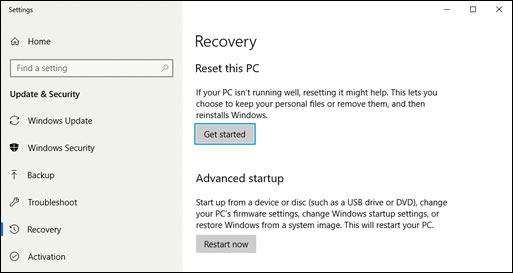
In Windows, search for and open Reset this PC.
Click the Recovery tab, and then click Get started under Reset this PC.
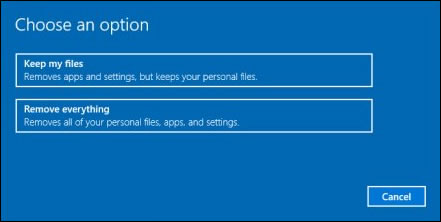
A prompt displays.
If you want to keep your personal files, apps, and customizations, click Keep my files, and then click Reset.
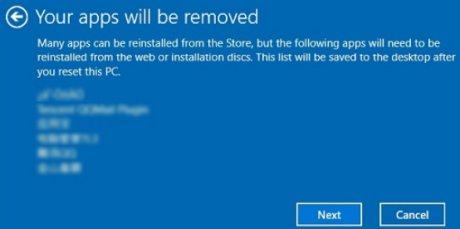
NOTE: During the reset process, your apps are removed. Many of the apps can be reinstalled from the Store. However, if you have apps that are not available from the Store, a message displays a list of those apps. You need to reinstall those apps from the web or from installation discs. A list of the removed apps display on your desktop after you reset your computer.
If you want to remove all your personal files, apps, and settings, click Remove everything, and then continue to the next step.
If you only want to remove everything from the drive where Windows is installed, click Only the drive where Windows is installed. If you want to remove all files from the computer, click All drives.
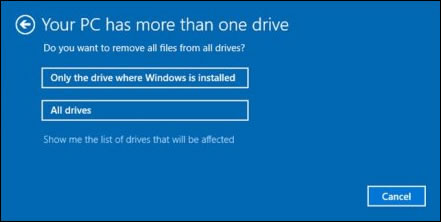
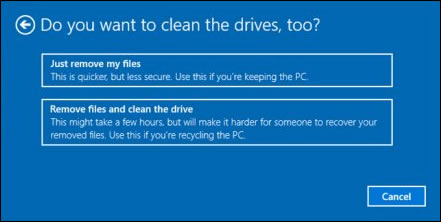
If you want to delete your files, click Just remove my files, or If you want to clean the drive, click Remove files and clean the drive.
Click Reset to confirm your selection, and then begin the reset process.
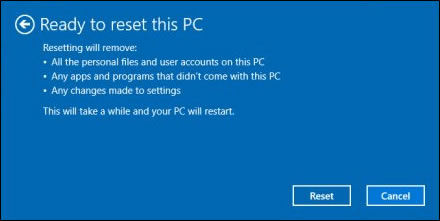
Windows reinstalls the operating system and the computer restarts.
Then download the Full Feature Software once again
Keep me posted how it goes
Thank you 😁
KrazyToad
I Am An HP Employee
07-03-2018 04:46 PM
HP Recommended
Updating the firmware didn't help. Anyway the release notes of the firmware concerned authentication of printer
cartridges and did't contain anything else. So you can understand I am very reluctant of resetting my Windows 10 just to see that will happen. I have lots of non-store programs I am using and I would be losing 3-4 days restoring my system for something that might not potentially work. Moreover I am starting to suspect that it is a driver compatibility problem with the latest Windows 10 updates (driver is from 2016, W10 had several major feature updates since then).
So what I have discovered.. Here is a screenshot of device manager
The HP Printer is listed
However when I request the device properties in the upper end it says 'Local Print Queue' which is strange because for all other devices it lists their names. Further on when I give 'Update Driver' and let the device manager search for the best drivers it lists 'Local Print Queue' as the best driver.
If I opt to choose the driver from a list and pick 'HP LaserJet Pro MFP M125-126 PCLmS' it throws an error instaliing the driver because it is not digitally signed. I am pretty sure I woulnd encounter this even if I reset my Windows and bring it again to 1803 update.


07-04-2018 02:58 PM
HP Recommended
I read your fabulous description. Thanks for the update. It is splendid to hear from you again. Your efforts and patience are appreciated. Your immaculate attitude, terrific temperament coupled with profound technical skills are commendable. Kudos to you for that. 🙂 As @KrazyToad I am responding on his behalf.
We need to isolate the issue further here. It clearly indicates that it is an issue with the Windows Operating System.
Please follow these steps:
Try to install the printer on a different Windows 10 based computer. If it works correctly on a different computer, then please back up your important data. Then perform a Microsoft Push-button reset of Windows 10 by following instructions from this link: https://hp.care/2uiBZLS There is an associated YouTube video on how to do it. If the correct on-screen instructions are followed then there is no data loss.
- Then reinstall the printer driver drivers from this link: https://hp.care/2Nq4ttN
This should do the trick for you. Otherwise please install the basic drivers from this link: https://hp.care/2hxY18e
Now check for issue resolution.
Perform all these steps patiently as it is critical to resolving the issue. Good luck to you. I will keep a watch for your response. Please remember that we are not overloading you with a lot of troubleshooting steps. Instead, we are as eager as you are to get the situation corrected.
Let me know how it goes and you have a great day!
To simply say thanks, please click the "Thumbs Up" button to give me a Kudos to appreciate my efforts to help. If this helps, please mark this as “Accepted Solution” as it will help several others with the same issue to get it resolved without hassles.
Take care and have a blessed week ahead. 🙂
DavidSMP
I am an HP Employee
07-05-2018 11:50 AM - edited 07-05-2018 11:53 AM
HP Recommended
@DavidSMP
First, I have already mentioned in the original post that the printer works correctly on another Windows 10 computer.
Second I would argue that performing a push-button reset of Windows 10 is not without data loss.. Even the provided link to the procedure states "During the reset process, your apps are removed. Many of the apps can be reinstalled from the Store. However, if you have apps that are not available from the Store, a message displays a list of those apps. You need to reinstall those apps from the web or from installation discs.", which is exactly what I am desperately trying to avoid. Setting-up all out-of-store apps I am using is a real pain. Resetting/Reinstalling the OS is really a final-resort solution for me
So, having this said, after a couple of days of tinkering I have found a solution to the problem, and the printer now prints correctly. Posting a step-by-step solution for others who might find it useful
What I did
1. Uninstall current HP printer drivers and restart PC to completely finish drivers removal
2. Restart computer in Safe Mode
3. Navigate to folder %windir%\System32\spool
4. rename the folders PRINTERS and DRIVERS (e.g. to PRINTERS.OLD and DRIVERS.OLD for example)
5. Restart the computer in normal mode
6. Install the latest drivers
7. Enjoy your printing
As final words. Thank you all for participating in trying to find a solution for the problem, though honestly it would be good to have suggestions other than "Reinstall drivers" and "Reset your OS". I do understand that people can do more harm to their system tampering with the OS system files, but hey you can always reset it if it goes wrong 🙂
So thanks for the effort anyway.
07-05-2018 03:02 PM
HP Recommended
Thanks for keeping us Posted
I'm glad you were able to get this issue sorted out and your Solution will be of great help to other community members with similar issues
Do visit out HP Forums and drop us a message anytime you need help
Thank you 😀
KrazyToad
I Am An HP Employee

Be alert for scammers posting fake support phone numbers and/or email addresses on the community.
If you think you have received a fake HP Support message, please report it to us by clicking on "Flag Post".
† The opinions expressed above are the personal opinions of the authors, not of HP. By using this site, you accept the Terms of Use and Rules of Participation.


Didn't find what you were looking for?
Ask the community
† The opinions expressed above are the personal opinions of the authors, not of HP. By using this site, you accept the <a href="https://www8.hp.com/us/en/terms-of-use.html" class="udrlinesmall">Terms of Use</a> and <a href="/t5/custom/page/page-id/hp.rulespage" class="udrlinesmall"> Rules of Participation</a>.