• ×
    Information
    Need Windows 11 help?
    Check documents on compatibility, FAQs, upgrade information and available fixes.
    Windows 11 Support Center.
  • post a message
  • ×
    Information
    Need Windows 11 help?
    Check documents on compatibility, FAQs, upgrade information and available fixes.
    Windows 11 Support Center.
  • post a message
Guidelines
Seize the moment! nominate yourself or a tech enthusiast you admire & join the HP Community Experts!
Check some of the most frequent questions about Instant Ink: HP INSTANT INK, HP+ PLANS: INK AND TONER.


Check out our WINDOWS 11 Support Center info about: OPTIMIZATION, KNOWN ISSUES, FAQs AND MORE.
HP Recommended
HP photosmart 7525
macOS 10.13 High Sierra

Printer has full ink cartridges but has stopped printing.  It prints the diagnostic tool perfectly, but when I try to print from iMac, the page comes out blank, or with color only but no black ink.  It is not a problem with the cartridges or the alignment.  the air vents are patent.

1 ACCEPTED SOLUTION

Accepted Solutions
HP Recommended

@Terrieg2, thank you for the response.


If you are not able to make a copy in black, it means this is a hardware issue. Let us try these steps:


Check estimated ink levels in all 5 ink cartridges.

From the home screen of the printer control panel, touch the Ink icon . The current ink levels display.

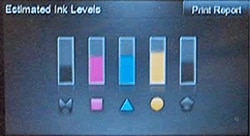
Estimated ink levels displaying on the control panel.

Replace any low or empty ink cartridges.


Clean the printhead

  1. On the printer control panel, touch the Settings icon .

  2. Touch Tools, and then touch Clean Cartridges.

  3. NOTE: 

    There are three cleaning levels. Complete all three if necessary. If the printhead is badly clogged, it might require another cleaning cycle. If so, wait 30 minutes before you perform all three levels of cleaning again.

If the issue persists, perform steps 10 and 15 from this document.


Print a Print Quality Diagnostic report and check for black

  1. On the printer control panel, touch the Settings icon .

  2. Touch Tools, and then touch Print Quality Report.

Hope this helps! Keep me posted. 


Please click “Accept as Solution” if you feel my post solved your issue, it will help others find the solution.

Click the “Kudos, Thumbs Up" on the bottom right to say “Thanks” for helping!

Have a great day! 


KUMAR0307
I am an HP Employee

View solution in original post

3 REPLIES 3
HP Recommended

Hi @Terrieg2

Welcome to the HP Support Community. I'd be happy to assist you.

  • Try making a standalone copy in black and check if that works. By this, we can conclude if this is a hardware or a driver issue.
  • Which application are you trying to print from?
  • Have you tried printing different types of documents like PDF, Word or Webpages and check if the issue persists?

Check the print settings on MAC, refer to this document.


Hope this helps! Keep me posted. 


Please click “Accept as Solution” if you feel my post solved your issue, it will help others find the solution.

Click the “Kudos, Thumbs Up" on the bottom right to say “Thanks” for helping!

Have a great day! 

KUMAR0307
I am an HP Employee

HP Recommended

Kumar0307,

making a copy in black does not work.  Does that mean that the driver has to be replaced?

Greatly appreciate your help!


Terrie

HP Recommended

@Terrieg2, thank you for the response.


If you are not able to make a copy in black, it means this is a hardware issue. Let us try these steps:


Check estimated ink levels in all 5 ink cartridges.

From the home screen of the printer control panel, touch the Ink icon . The current ink levels display.

Estimated ink levels displaying on the control panel.

Replace any low or empty ink cartridges.


Clean the printhead

  1. On the printer control panel, touch the Settings icon .

  2. Touch Tools, and then touch Clean Cartridges.

  3. NOTE: 

    There are three cleaning levels. Complete all three if necessary. If the printhead is badly clogged, it might require another cleaning cycle. If so, wait 30 minutes before you perform all three levels of cleaning again.

If the issue persists, perform steps 10 and 15 from this document.


Print a Print Quality Diagnostic report and check for black

  1. On the printer control panel, touch the Settings icon .

  2. Touch Tools, and then touch Print Quality Report.

Hope this helps! Keep me posted. 


Please click “Accept as Solution” if you feel my post solved your issue, it will help others find the solution.

Click the “Kudos, Thumbs Up" on the bottom right to say “Thanks” for helping!

Have a great day! 


KUMAR0307
I am an HP Employee

† The opinions expressed above are the personal opinions of the authors, not of HP. By using this site, you accept the <a href="https://www8.hp.com/us/en/terms-of-use.html" class="udrlinesmall">Terms of Use</a> and <a href="/t5/custom/page/page-id/hp.rulespage" class="udrlinesmall"> Rules of Participation</a>.