
-
×InformationNeed Windows 11 help?Check documents on compatibility, FAQs, upgrade information and available fixes.
Windows 11 Support Center. -
-
×InformationNeed Windows 11 help?Check documents on compatibility, FAQs, upgrade information and available fixes.
Windows 11 Support Center. -
- HP Community
- Printers
- Printer Setup, Software & Drivers
- Printer isn't installed?

Create an account on the HP Community to personalize your profile and ask a question
Your account also allows you to connect with HP support faster, access a personal dashboard to manage all of your devices in one place, view warranty information, case status and more.
Check some of the most frequent questions about Instant Ink: HP INSTANT INK, HP+ PLANS: INK AND TONER.
Check out our WINDOWS 11 Support Center info about: OPTIMIZATION, KNOWN ISSUES, FAQs AND MORE.

It has been a while since anyone has replied. Simply ask a new question if you would like to start the discussion again.

03-04-2019 12:40 PM
 HP Recommended
Product: HP Color LaserJet CP1518ni
Operating System: Microsoft Windows 10 (64-bit)
I installed my printer a long time ago. It is connected to ethernet. It is recognized by windows and I can print without issue.
However, if I go into HP Smart, select the printer, select "Printer Information" under General, the Installation Status says, "Not Installed". But it clearly IS installed. How can I get this status to reflect reality?
Or is it just trying to say it isn't installed locally via USB?
AND, when I click on Supported Cartridges, it says "Estimated Cartridge Levels", but the page is blank. Why doesn't it display the levels. (I know I can get the levels by using the control panel on the printer, but that wastes a page of paper so I'm looking for ways of getting the information on the computer. My Envy 5660 shows the information just fine)
5 REPLIES 5


03-05-2019 02:06 PM
HP Recommended
Welcome to HP support community.
Uninstall the app from your Windows 10 device through the All Apps list.
-
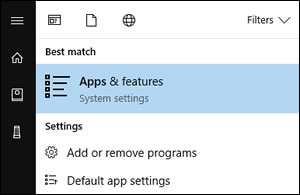
In Windows, search for and open Apps & features.
-
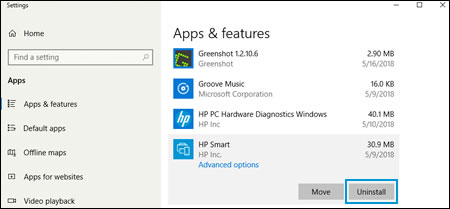
Click HP Smart in the list of apps, and then click Uninstall.
Install the HP Smart app again
-
On your Windows 10 device, go to HP Smart (in English) to get the app from the Windows Store, and then follow the on-screen instructions to download and install the app.
The app searches for printers connected to the network.
-
Add the printer to your network.
-
If you have one printer connected to the network, the app automatically selects your printer. If you have more than one printer on the network, click the printer icon
 , click Select a Different Printer, and then select your printer from the list.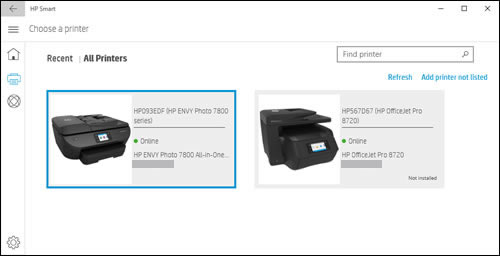
-
If you are setting up a new printer on the network, click the plus sign
 , click Set up a new printer, and then follow the on-screen instructions to complete the setup. If you have more than one printer on the network and want to set up a new printer, click the plus sign , click Add printer not listed, click Set up a new printer, and then follow the on-screen instructions to complete the setup.
-
You can refer this HP document for more assistance:- Click here
Let me know how it goes.
To thank me for my efforts to help you, please mark my post as an accepted solution so that it benefits several others.
Cheers.
Sandytechy20
I am an HP Employee
03-06-2019 10:09 AM - edited 03-06-2019 10:22 AM
HP Recommended
Thanks for the steps. Unfortunately, that is basically what I did before. But I did it again. It couldn't find the printer until I gave it the IP address of the printer (it has a hardcoded IP). So it finds the printer and it "replaced" the driver. Then it said Connection to printer or some such. When it was done, the printer had an orange triangle with an "!" in it. And below the printer it says, "Printer Status Unknown".
One thing that maybe I am doing differently than normal was where it asked if I wanted to Share the printer and I said no. I don't want the other computers to have depend on MY computer being up in order to use the network printer.
Any more ideas?
... time passes ...
I just noticed that this printer does not show up under device manager either. I PRESUME it should show, but maybe it doesn't because it is a network printer.
It isn't under printers or other devices, but does show up under print queues
03-06-2019 11:01 AM
HP Recommended
I made a research and see that there is no Windows 10 driver available for this printer, that might cause the connectivity issue.
However, you can use the universal driver for this printer.
Click here to download the universal driver.
I hope that helps.
To thank me for my efforts to help you, please mark my post as an accepted solution so that it benefits several others.
Cheers.
Sandytechy20
I am an HP Employee
03-06-2019 12:30 PM
HP Recommended
I'm sure at some time in the past I used that driver. I was just using the 1510 series driver.
Both of the drivers have much the same effect. When I go into HP Smart, I get the yellow triangle and the "Printer status unknown " and the "printer information|Installation Status = Not Installed".
On the other hand, I CAN make a status request in the Printers and Faxes printer icon and it shows levels of toner, which I was also looking for. (though it doesn't have counts, just relative levels)
Got anything else?
03-06-2019 06:28 PM
HP Recommended
This might require remote access of your computer to fix the issue.
I request you to talk to HP support.
They might have multiple options to help you with this.
1) Click on this link - www.hp.com/contacthp/
2) Click on "Continue as guest".
3) Enter the serial of your device.
4) Select the country from the drop-down.
5) Click on "Show Options".
Fill the web-form. A case number and phone number will now populate for you.
Cheers.
Sandytechy20
I am an HP Employee

Be alert for scammers posting fake support phone numbers and/or email addresses on the community.
If you think you have received a fake HP Support message, please report it to us by clicking on "Flag Post".
† The opinions expressed above are the personal opinions of the authors, not of HP. By using this site, you accept the Terms of Use and Rules of Participation.


Didn't find what you were looking for?
Ask the community
† The opinions expressed above are the personal opinions of the authors, not of HP. By using this site, you accept the <a href="https://www8.hp.com/us/en/terms-of-use.html" class="udrlinesmall">Terms of Use</a> and <a href="/t5/custom/page/page-id/hp.rulespage" class="udrlinesmall"> Rules of Participation</a>.