-
×InformationNeed Windows 11 help?Check documents on compatibility, FAQs, upgrade information and available fixes.
Windows 11 Support Center. -

-
×InformationNeed Windows 11 help?Check documents on compatibility, FAQs, upgrade information and available fixes.
Windows 11 Support Center. -
- HP Community
- Printers
- Printer Setup, Software & Drivers
- Printer will NOT print in color

Create an account on the HP Community to personalize your profile and ask a question
02-13-2019 10:04 AM
My printer seems to only print in black and white. When I print a word document, there is no option to select or deselect the Black & White option. This option shows up when I print a PDF (shown in first image), but even when I deselect it and the preview is shown in color, the photo still prints in black and white. I believe it may have something to do with the presets. All of the presets have Black & White turned on (shown in second image). I am unsure how to create a new preset with the option to print color, or how to turn the presets off. Any advice would be much appreciated! Desparately need to print something in color!
02-16-2019 01:46 PM
Thank you for joining the HP Support Community
To provide you with an accurate solution, I'll need a few more details:
Is the copy working fine in black?
If the copy is working fine, this could be a driver issue.
Let's update the printer firmware and Mac software:
Restart the printer and the MAC
Then, follow the below steps to remove the printer and add the printer as AirPrint.
Step 1: Remove multiple printers from the printer list
Check for multiple devices in the Printers list, and then remove any extra entries other than one in idle status.
-
Search the Mac for Print, and then click Print & Fax, Print & Scan, or Printers & Scanners in the list of results.
-
Find the printer names that match your printer from the list of devices.
Figure : Printers and Scanner window with multiple names of a printer in the list

-
If you see multiple printer queues for the same printer, remove all extra printers by selecting them one at a time, and then clicking the minus button
at the bottom of the list. Leave one 'idle' printer in the list that matches your printer if available and use this printer as the Default printer. -
Try printing again.
-
If the printer prints, you can stop troubleshooting.
-
If the printer remains offline or displays an error, continue to the next step.
-
Step 2: Delete the existing print queue and add the printer
Remove the printer queue from the list of printers, and then add it again. Doing so creates a new printing session.
-
Make sure your Mac is connected to the Internet.
-
In the Printers list, click your HP printer, and then click the Minus button
to delete it. -
Click the Add button
. -
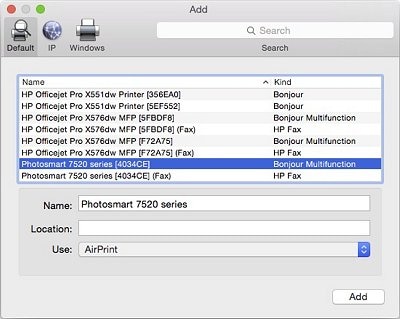
Find and select the name of your printer from the Printer list, and then click Add to add your printer. Do not select an HP Fax driver.
Figure : Example of the printer selection list

-
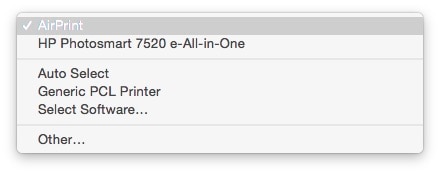
Click Print Using or Use.
-
Select the name of your printer (if available) or AirPrint.
Figure : Menu showing AirPrint selected
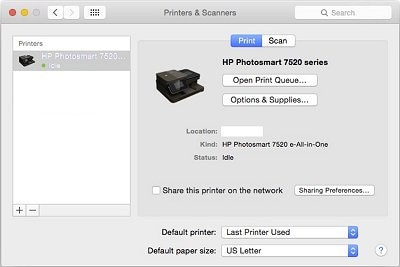
Your new printer queue displays in the Printers list in an Idle status
.Figure : Example of a newly added printer in the Printers & Scanners list

Try to print.
Keep me posted, how it goes!
If the information I've provided was helpful, give us some reinforcement by clicking the Accepted Solution and Kudos buttons, that'll help us and others see that we've got the answers!
Have a great day!
Cheers:)
Raj1788
I am an HP Employee