• ×
    Information
    Need Windows 11 help?
    Check documents on compatibility, FAQs, upgrade information and available fixes.
    Windows 11 Support Center.
  • post a message
  • ×
    Information
    Need Windows 11 help?
    Check documents on compatibility, FAQs, upgrade information and available fixes.
    Windows 11 Support Center.
  • post a message
Guidelines
Here is the solution for the error: "Encryption Credentials have expired" when attempting to print or scan from Mac OS or iOS devices: Click here to view the troubleshooting steps!
Check some of the most frequent questions about Instant Ink: HP INSTANT INK, HP+ PLANS: INK AND TONER.


Check out our WINDOWS 11 Support Center info about: OPTIMIZATION, KNOWN ISSUES, FAQs AND MORE.
HP Recommended
Office Jet Pro 8620
Microsoft Windows 10 (64-bit)

When I try to print, I get a fax screen asking if I want a cover page. How do I kill the fax function which I'll never use?

1 REPLY 1
HP Recommended

@FLMAN2 


You don't need to "kill" the fax driver - it is normal that the option shows up on your Devices and Printers.

Check to make sure your printer software is still installed and that your printer is marked as the "Default" printing device.


Preparation > Check / enable the printer as the “Default Printer”


Settings > Devices > Printers and scanners

UNCHECK (clear box) Let Windows manage my default printer

Select (Left-Click) your printer from the list of printers > Manage > Set as Default


Printer_Set_as_Default_5Printer_Set_as_Default_5


Problems?

Software not installed or not working?


Install the latest available Full Feature Software for your printer.


Your Full Feature Software / full driver printer software installation package:

HP Officejet Pro 8620 e-All-in-One Printer series Full Feature Software and Drivers 


NOTE:  If the printer software shows installed but is not working,

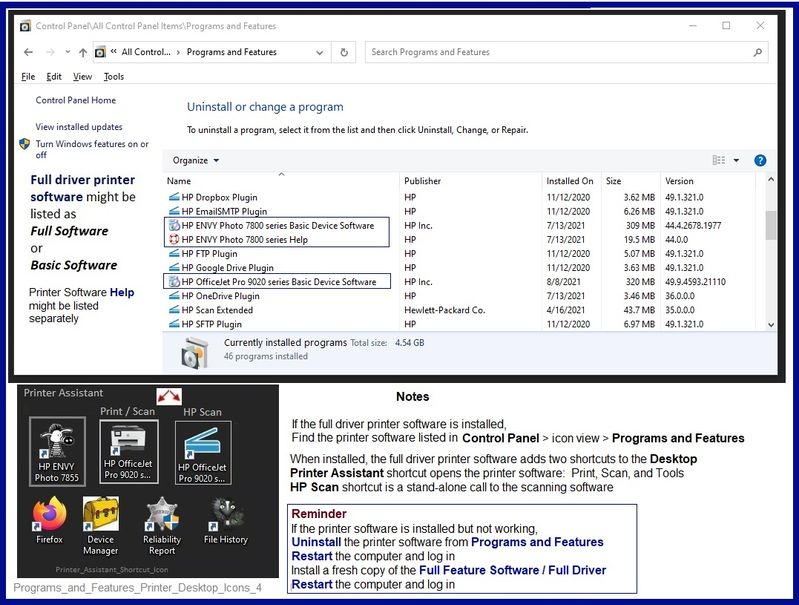
Uninstall the printer software from Control Panel > icon view > Programs and Features

Restart the computer and log in

Reminder:  If using USB, disconnect the USB printer cable between the printer and the computer before installing software.  (Re)Connect the USB cable when instructed to do so near the end of the installation procedure.

Install a fresh copy of the Full Feature Software / Full Driver printer software

Restart the computer and log in


Programs_and_Features_Printer_Desktop_Icons_4Programs_and_Features_Printer_Desktop_Icons_4


References / Resources


HP Printer Home Page - References and Resources – Learn about your Printer  - Solve Problems

 “Things that are your printer”

NOTE:  Content depends on device type and Operating System

Categories:  Alerts, Access to the Print and Scan Doctor (Windows), Warranty Check, HP Drivers / Software / Firmware Updates, How-to Videos, Bulletins/Notices, Lots of How-to Documents, Troubleshooting, Manuals > User Guides, Product Information (Specifications), more

When the website support page opens, Select (as available) a Category > Topic > Subtopic

HP Officejet Pro 8620 e-All-in-One Printer series 


Thank you for participating in the HP Community.

The Community is a separate wing of the HP website - We are not an HP business group.

Our Community is comprised of volunteers - people who own and use HP devices.

Click Helpful = Yes to say Thank You.

Question / Concern Answered, Click "Accept as Solution"

Dragon-Fur

† The opinions expressed above are the personal opinions of the authors, not of HP. By using this site, you accept the <a href="https://www8.hp.com/us/en/terms-of-use.html" class="udrlinesmall">Terms of Use</a> and <a href="/t5/custom/page/page-id/hp.rulespage" class="udrlinesmall"> Rules of Participation</a>.