• ×
    Information
    Need Windows 11 help?
    Check documents on compatibility, FAQs, upgrade information and available fixes.
    Windows 11 Support Center.
  • post a message
  • ×
    Information
    Need Windows 11 help?
    Check documents on compatibility, FAQs, upgrade information and available fixes.
    Windows 11 Support Center.
  • post a message
Guidelines
Seize the moment! nominate yourself or a tech enthusiast you admire & join the HP Community Experts!
Check some of the most frequent questions about Instant Ink: HP INSTANT INK, HP+ PLANS: INK AND TONER.


Check out our WINDOWS 11 Support Center info about: OPTIMIZATION, KNOWN ISSUES, FAQs AND MORE.
HP Recommended
HP Envy Photo 7830
Microsoft Windows 10 (64-bit)

Installed all that is needed (drivers on PC, firmware update on printer).  Had some difficulties installing the drivers on the PC (Windows 10) but now they are oke (HP Smart shows all connections are fine). Connections are: from PC to router is wired (cable), from router to printer is wireless.


Result:

- printing from smartphone works fine

- printing a testpage (when given command on printer) works fine

but:

- printing a testpage when given command from PC does not work

- printing a document from PC does not work

- printing the "HP NetworkConfigurationpage" DOES work

--> after given printcommand from PC, the printer reacts like it gets a command. Some rumble, then 2 - 3 seconds silence and then some rumble again. Result: no printed document


How can I solve this problem?

2 REPLIES 2
HP Recommended

@AlanB100


Welcome to the HP Support Community!

  • To check the connectivity, Obtain the IP address of the printer by tapping on the wireless icon on the printer screen.
  • Type in this IP address in a web browser and hit enter. If you get a security notification, click on proceed to this website.
  • Check if it re-directs you to the printer's EWS page, try to print a test page and check if it prints.
  • Run HP Print and Scan doctor, click here to download. try to print, if the issue persists, proceed to the next step.

Restart print spooler service: 

  1. Open Start.
  2. Search for services.msc and click the top result to open the Services console.
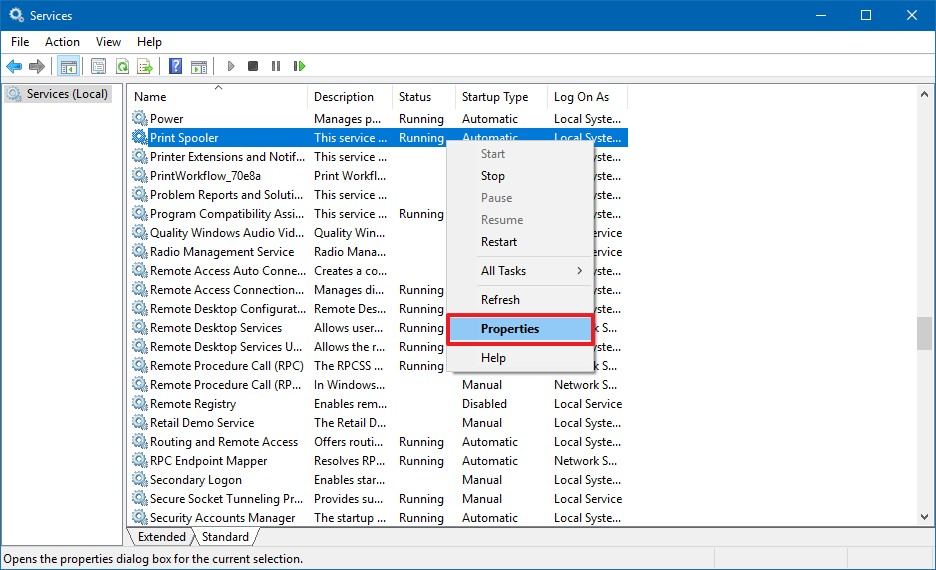
  3. Right-click the Print Spooler service and select the Properties option.
  4. Click the General tab.

  5. Click the Stop button.

    Stop Print Spooler on Windows 10

    Stop Print Spooler on Windows 10

  6. Use the Windows key + R keyboard shortcut to open the Run command.

  7. Type the following path and press Enter:

  8. C:\Windows\System32\spool\printers

  9. If the printers dialog box appear, click the Continue button.

  10. Select everything in the printers folder and hit the delete button to remove all its content.

  11. In the Print Spooler Properties, click the Start button to restart the spooler.

    Start Print Spooler on Windows 10

    Start Print Spooler on Windows 10

  12. Click the OK button.

Once you’ve completed the steps, you can try to print a document.


Let me know how this goes.


Please click “Accept as Solution” if you feel my post solved your issue, it will help others find the solution. Click the “Kudos/Thumbs Up" on the bottom right to say “Thanks” for helping!

KUMAR0307
I am an HP Employee

HP Recommended

The steps you suggested have all been performened. This did not lead to solving the problem. First I made contact with HP Support. After several attempts (among which reinstalling the printerdrivers), Bianca of HP Support suggested that the printer spooler servide was (indeed) the problem. Then I made contact with Microsoft Support (as the spooler service is part of Windows 10). The final solution for the printerproblem was to execute a large update of parts of Windows 10  (the update is called: Onderdelenupdate naar Windows 10, versie 1809 x64 2019-04). After installation, I can do printing from my PC.

So finally I have a nice working printer :-).

† The opinions expressed above are the personal opinions of the authors, not of HP. By using this site, you accept the <a href="https://www8.hp.com/us/en/terms-of-use.html" class="udrlinesmall">Terms of Use</a> and <a href="/t5/custom/page/page-id/hp.rulespage" class="udrlinesmall"> Rules of Participation</a>.